

















































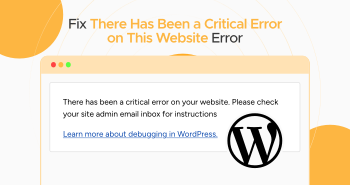
Nothing is more frightening than a WordPress site not working, particularly when you receive a devastating message like “There has been a critical error on this website.”
When your site’s front end is down, troubleshooting the“There has been a critical error on this website” error becomes urgent. This is not a great scenario, especially traffic-wise, as potential and current visitors do not like to see a glaring error screen regularly.
Interestingly, you can easily bypass the “There has been a critical error on this website” error by removing a corrupted plugin.
This blog post will offer many ways to troubleshoot this critical website issue and quickly get your site up and running again.
Possible Causes Behind the “There Has Been a Critical Error on This Website” Error
The WordPress critical error can have several causes, though it can relate to a problem with PHP: either your memory limit exceeded or an issue in your code, plugins, or themes. In addition, a database corruption issue can also result in the “There has been a Critical Error on This Website” error.
Since many things can trigger the issue, check the error log on your server. Don’t hesitate to contact your hosting service provider if you can’t find the log. Besides other common causes of this critical error include:
- PHP version mismatches
- Corrupted core WordPress files
In short, when you see “there has been a critical error” on your WordPress website, do not worry. You usually witness this message on your screen when something is wrong. However, you can still fix it. As you might notice, WordPress can be sensitive to changes in updates, plugins, and themes. This error might happen if two plugins don’t get along, or an update may clash with your theme.
If your WordPress theme causes this “There Has Been a Critical Error on This Website” issue, you should change it immediately. Luckily, changing the WordPress theme is not as cumbersome as you think.
What Should We Do to Fix the “There Has Been a Critical Error on This Website” error?
You’ll need to take various steps to determine the potential reasons behind the issue and fix the critical error in WordPress, “There Has Been a Critical Error on This Website.” Let’s begin!
Increase the PHP Memory Limit in WordPress
As you might know, the web server has limited memory (or RAM). WordPress limits the amount of memory each PHP script can use, which can result in critical errors when the limit is exceeded.
If your WordPress debug logs indicate “memory exhausted,” PHP’s memory limit is likely the culprit.
To increase your PHP limit:
- Open your wp-config.php file.
- Scroll down to the bottom of the file and define your memory limit: define( ‘WP_MEMORY_LIMIT’, ‘128M’ );
- Save the file.
You must also check your website to confirm whether this critical error has disappeared. If the issue is unresolved, consider improving the memory limit to 256MB.
However, you must be watchful when increasing your PHP memory limits. If you apply the memory limit too high, misconfigured or corrupted scripts can likely hamper your website’s speed, or you could run afoul of any memory limits your website hosting service provider implements.
Scan for Malware
Malware frequently causes numerous critical website errors, especially if strange PHP scripts wreak havoc on your environment. In this situation, you should scan your site at the web page and server levels to detect indicators of compromise, backdoors, and malicious scripts that may be resulting in this critical error.
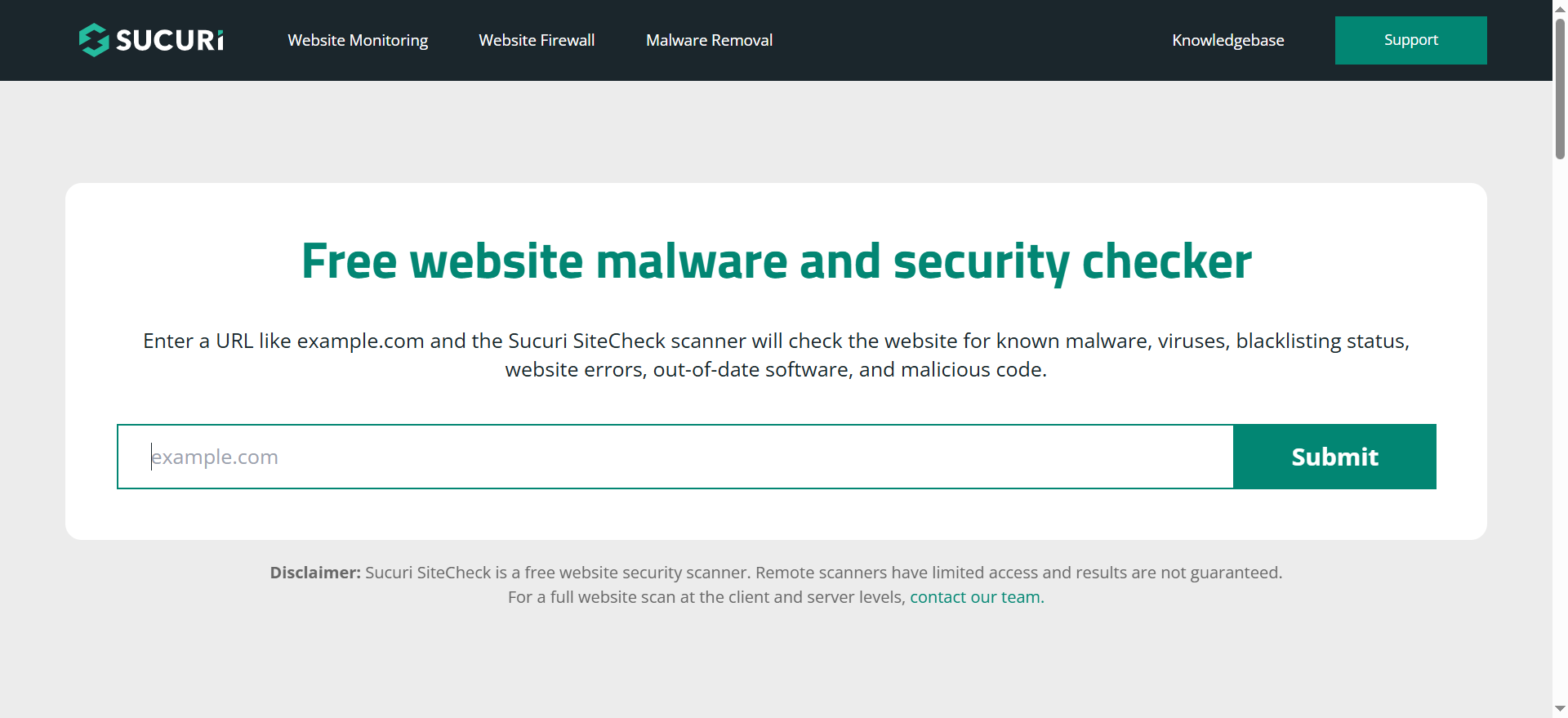
SiteCheck allows you to scan your website for malware without cost. It will also let you know if there are any external signs of an infection in your site’s source code.
Undoubtedly, not all infections are outward-facing. Thus, you must scan your website for malware at the server level to find harmful PHP scripts, backdoors, and credit card scammers that are not usually discovered at the page level.
If you successfully identify the malware, you should clean up the error to resolve the critical issue.
Back Up Your Website

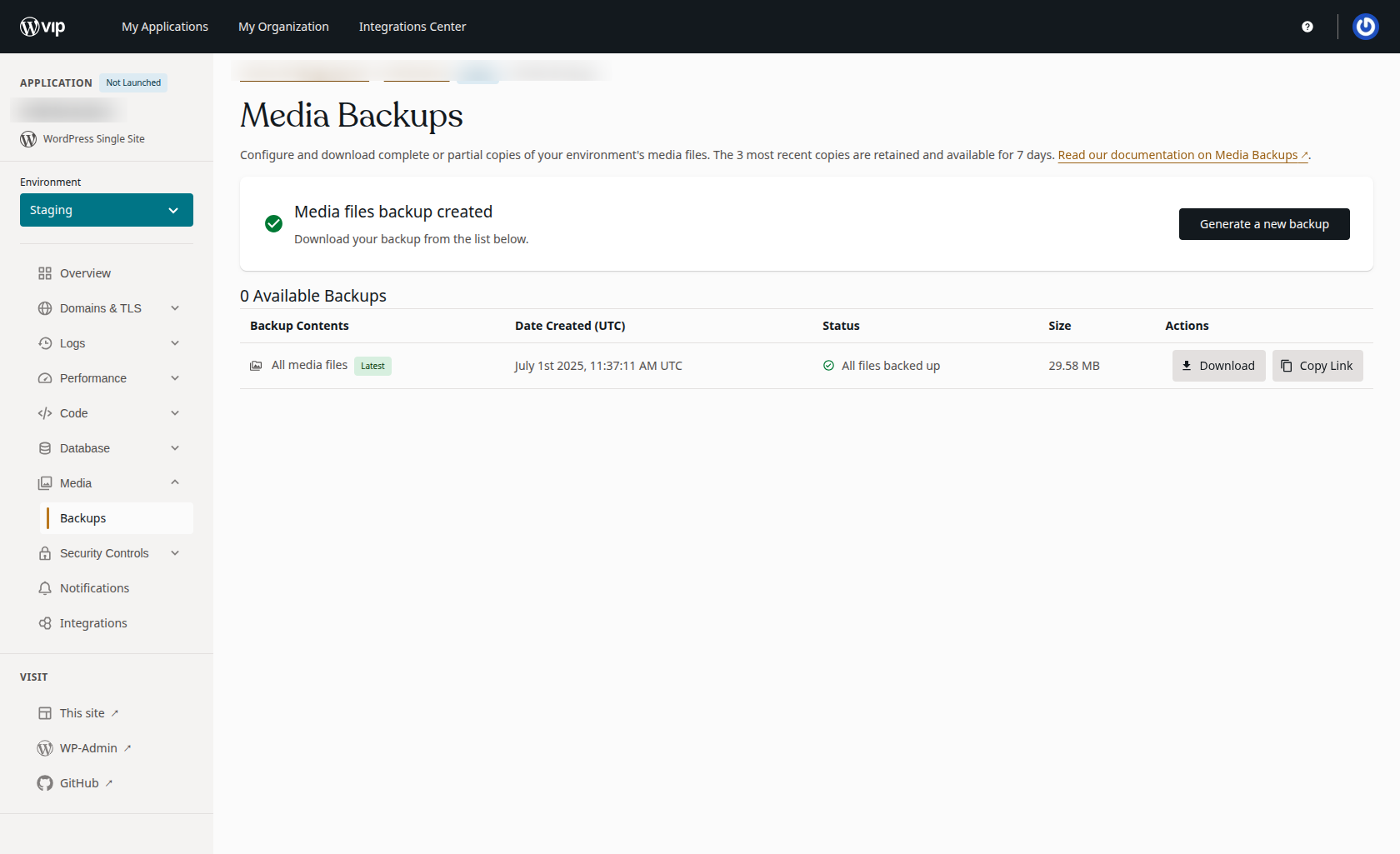
Before you make any changes to your website’s core files, you should back up your website. Resolving critical WordPress errors can get complicated sometimes, and you don’t want to compound the issues you’re running into.
Upgrade Your PHP Version
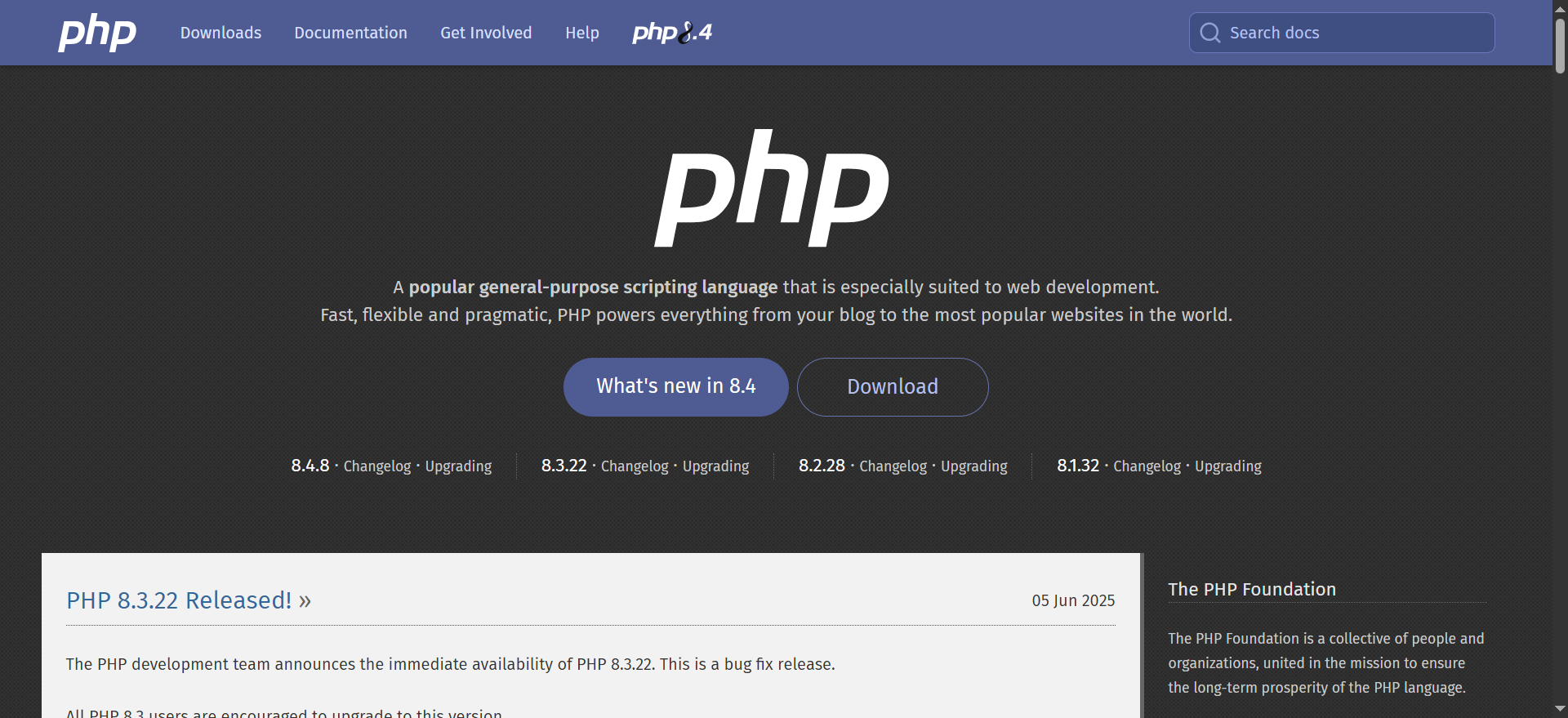
Outdated or old PHP versions can break your website and trigger other dangerous conflicts. In this scenario, you must use the latest version of PHP WordPress supports, currently PHP 8.0, 8.1, 8.2, 8.3, and 8.4.
A few WordPress users prefer to stay on or utilize a lower PHP version because they’re concerned about theme and plugin compatibility. Usually, this doesn’t result in problems. But if you’re using an old PHP version, you must upgrade it. Otherwise, PHP can trigger serious conflicts. A PHP update is a crucial yet sensitive task, so ensure you have a backup ready before you try.
Check Your WordPress’s Core Files
If you encounter PHP errors, visit your website and examine the debug.log file in the ./wp-content directory. Typically, these errors are associated with the wp-includes or wp-admin files.
If you detect an error or an issue here, you should download and unzip the core files and replace the corrupted or misconfigured versions on your site. Fortunately, you can manually upgrade the individual core files or the entire /wp-includes/ or /wp-admin/ folders in the WP installation directory.
Remove the Website’s Cache
You should not underestimate the importance of caching, as it allows you to increase your website’s speed and performance overall. Usually, you should perform this activity as it is a good thing and provides excellent results. But sometimes, the caching process can be problematic, leaving your website with multiple issues and problems.
When this happens, a simple fix is to clear or remove the cache, which should be all you need to resolve the problem and restore your website to its original state.
You can consider using popular WordPress caching plugins like LiteSpeed Cache, WP Fastest Cache, Autoptimize, WP Super Cache, and more.
Consider Deactivating Plugins
Conflicts between plugins or themes can sometimes lead to critical errors in WordPress, including the “There Has Been a Critical Error on Website” error.
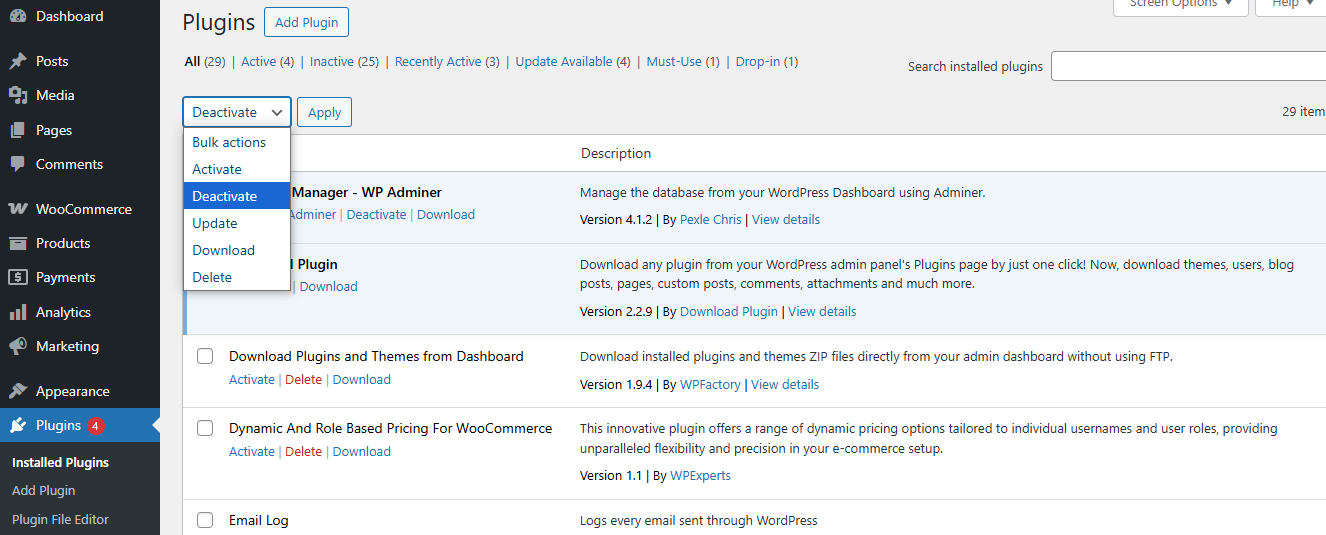
If you’ve installed, configured, or updated a new plugin or theme recently, consider temporarily deactivating these plugins. For this purpose, you can use your admin panel and deactivate them without fuss.
Revert to a Default Theme
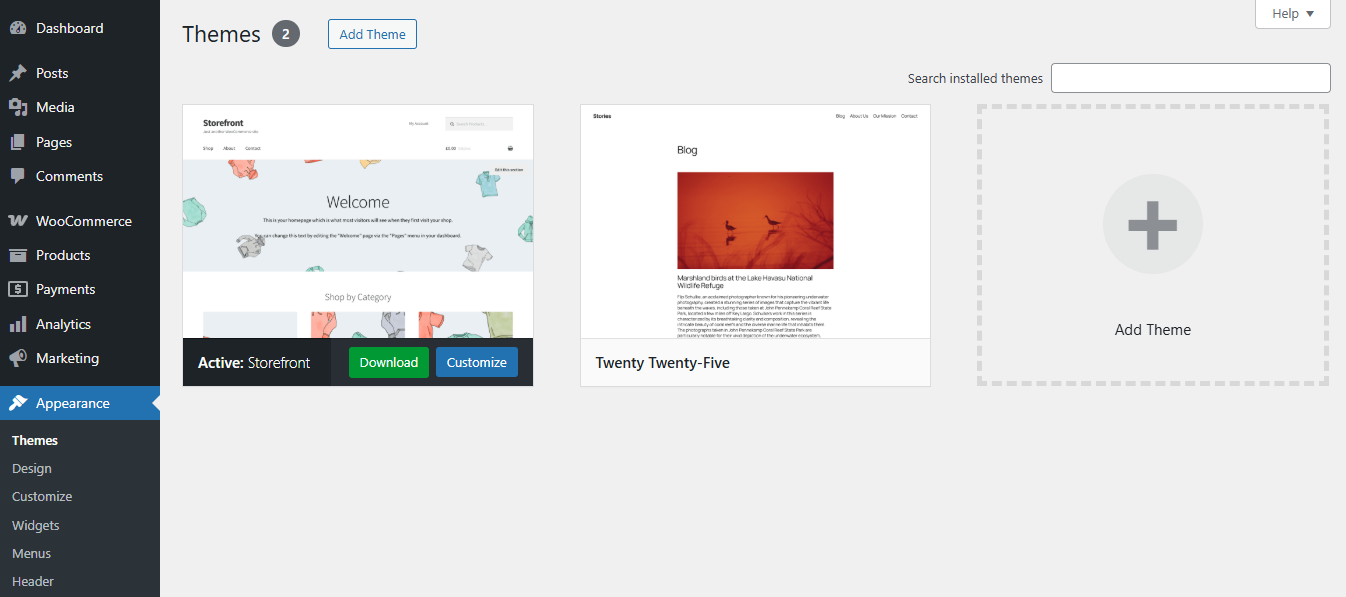
Sometimes, critical errors can be traced back to conflicts within a specific theme. In this situation, you should temporarily delete or remove it, return to a default theme, and immediately resolve the issue.
Remember, you must back up your website first. Once the theme files are gone, you need a way to get them back. Unfortunately, reinstalling the theme can result in losing your custom styling.
If you can access your dashboard, this is easy. Navigate to Appearance > Themes, click the theme you choose, and then press the Delete option provided at the bottom right corner of the window’s pop-up.
If you don’t view the option, try downloading and switching to another theme. The safest yet helpful option is to use a default theme like Twenty Twenty-Five. You will find the latest theme in the newest WordPress version: WordPress 6.8.
Wrapping Up
“There has been a critical error on this website.” This critical error in WordPress is scary, but it can be bypassed effectively using the right approaches and methods. Following the above possible solutions mentioned in this blog post, you can smartly detect and resolve the issue, reinstating your website to its full potential.
Moreover, you must ensure that your WordPress installation, themes, and plugins are up to date and regularly back up your site to avoid these problems. We hope you will like our blog post, explaining the critical error: “There has been a critical error on this website”.




