




















































When a web browser does not authenticate a site’s security, an error message stating, “Your connection is not private,” appears on the user’s screen. If you overlook this error message and open the dangerous site, you can jeopardize your device’s security.
Therefore, you must know how to avoid seeing the “your connection is not private” error in the future. This blog post will describe potential reasons for this SSL error and how to eliminate it appropriately.
What Do You Mean by Your Connection is Not Private Error?
The “your connection is not private” error appears on your screen when the browser does not verify a site’s security. This can happen due to various issues, such as invalid or expired SSL certificates, antivirus software running the SSL scan feature, or a poor internet connection.
Different Reasons Behind Your Connection is Not Private Error
Unfortunately, several issues can result in the “your connection is not private” error. As a result, users may face difficulties while visiting their preferred sites. These possible issues include:
- Invalid or Expired SSL/TLS Certificate.
- Browser Cache and Cookies Settings.
- Incorrect Date/Time Settings.
- DNS Errors.
- Public Wi-Fi Networks.
- Browser Issues like Outdated Extensions, Corrupted Cache, etc.
- Firewall or Antivirus Program.
What Should We Do to Fix Your Connection is Not Private Error in Chrome?
You can benefit from various troubleshooting methods when tackling the “your connection is not private” error. The good thing about these methods is that they are all easily doable and results-driven. These troubleshooting methods are:
- Reload the Page.
- Update Your Operating System.
- Check Your Computer’s Clock.
- Try in Incognito Mode.
- Clear Browser Cache and Cookies.
- Restart Your Computer.
Reload the Page
Reloading the page is one of the simplest solutions to bypass this frustrating SSL error. You should close your web browser and open it again. Once you have opened the browser, try to reload the page. Hopefully, you will resolve the “your connection isn’t private” error once you have reloaded the page.
Update Your Operating System
Reloading the page aside, you must update your operating system if it is not up-to-date. Sadly, older operating systems do not support the latest technologies, such as TLS 1.3. Similarly, different web browsers are not compatible with older operating systems.
In short, whether you use Windows, Mac, or other operating systems, ensure your devices are up-to-date.
Check Your Computer’s Clock
There is a strong likelihood that your computer’s clock is not correct. For that reason, you can experience the “your connection is not private” error. Web browsers depend on your computer’s clock to authenticate the SSL certificate.
If you have bought a new device, specifically a laptop, for the first time, the “your connection is not secure” error can occur. To update the time on your Windows device, follow the below steps:
- You should right-click the time using the bottom right-hand task tray and choose “Adjust date/time.”
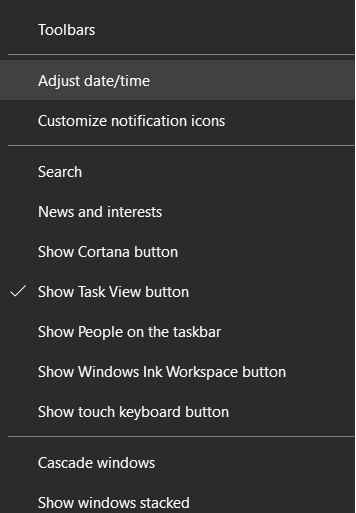
- Choose the ‘Set time automatically’ option. Likewise, you can select the ‘Set time zone automatically’ option if needed. Doing so lets you update the date and time per one of Microsoft’s NTP servers. You can check the time using the bottom right-hand task tray.
- Close the browser and open it again after a few minutes.
Now, visit the site you want to access. After adjusting the date and time on your computer, we hope you will likely open the site.
Try in Incognito Mode
Luckily, you can eliminate the “your connection is not private” error by opening your web browser in incognito mode. You do not need to clear your cache or check your Chrome extensions before following this potential solution.

In Google Chrome, the incognito mode is called “New Incognito Window.” In Mozilla Firefox, it is called a “New private window.” In Microsoft Edge, it is called “New InPrivate Window.”
Clear Browser Cache and Cookies
Clearing browser cache and cookies may help you avoid experiencing the “your connection is not secure” error message. Fortunately, the same solution lets users resolve other irritating errors, such as 429 too many requests, etc. To clear browser cache and cookies, follow the below steps:
- To access the settings panel, click the three dots at the top-right corner of your web browser. Then, click the “Delete browsing data” option.
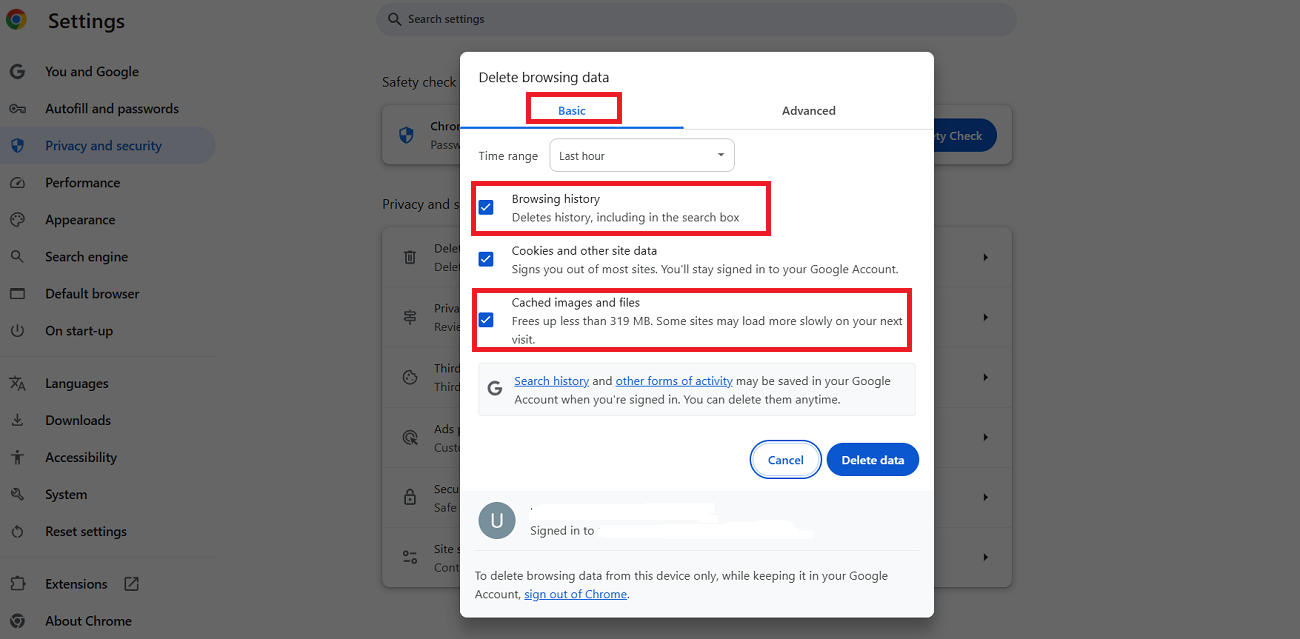
- You can choose options like Browsing history, Cookies, and other site data, files, Cookies, and Cached images. Hit the Delete data option to bypass the “your connection is not private” error.
- Similarly, you can remove advanced data by pressing the ‘Advanced’ data tab.
- You can choose options such as Cookies and other site data, Download history, cached images and files, and browsing history.

Once you hit the Delete Data button, you will likely overcome the “your connection is not private” error. In addition, clearing the browser cache enables users to bypass the Err_Cache_Miss error in Google Chrome. Follow the same troubleshooting method to resolve the WSoD (white screen of death) error.
Restart Your Computer
Frankly speaking, it isn’t enjoyable. However, we have to mention this method. If none of the above potential solutions work, restart your computer and router. Doing so lets you reboot your device and remove the temporary cache.
Your Connection is Not Private Error Variations
Users can experience the “your connection is not private” error differently depending on their web browsers. These variations comprise:
- Your connection Isn’t private.
- This connection is not private.
- Your connection is not private.
- Your connection is not secure.
Why Does the Error Your Connection is Not Private Appear?
When you see the ‘your connection is not private” error on your screen, the browser has failed to authenticate an SSL (Secure Sockets Layer) certificate. An SSL certificate helps a site and a computer establish a secure and encrypted connection. This SSL error can arise due to the following reasons:
- The website’s certificate is missing or invalid.
- The SSL certificate was not configured correctly.
- The SSL certificate does not have variations on the domain name.
Wrapping Up
We expect you to like our blog post explaining the “your connection is not private” error. Encountering various familiar WordPress and other errors is never enjoyable and can sometimes be challenging to resolve.
These possible workarounds help you eliminate the “your connection is not private” issue. If something has been misconfigured on your device or there is something wrong with the certificate on the site, you will likely face the “your connection is not secure” error.
Back to the point, SSL certificate issues are a major culprit behind the “your connection is not private” error. Still, other client-side issues like insecure network connections, antivirus software interruption, and more can cause this SSL error.





