







































 Muhammad Jaffer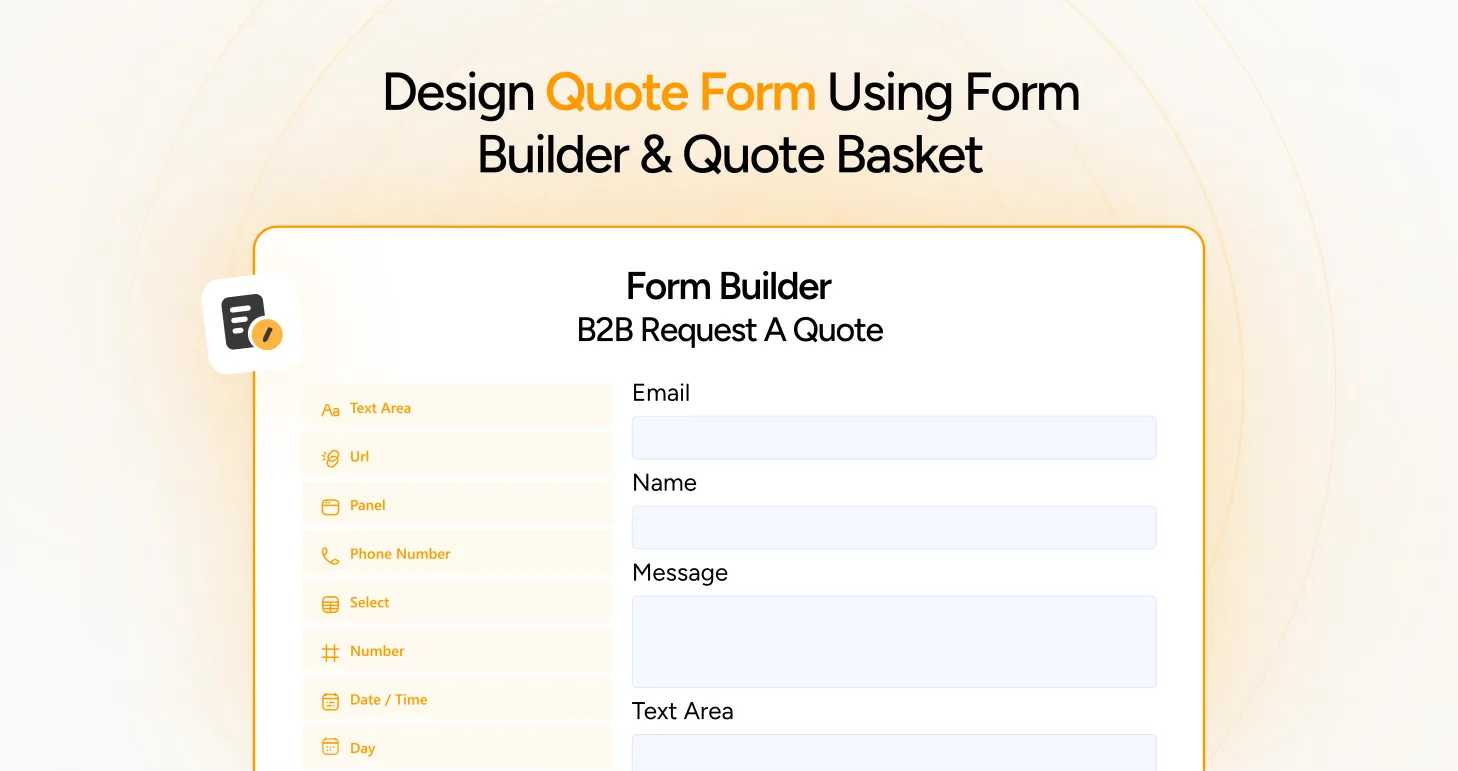
If you’ve ever wanted your website to collect quotes easily — without confusing your customers — this guide is for you.
Let’s be honest: nobody likes long, complicated order forms when purchasing online. When a wholesaler/bulk buyer or even a casual shopper visits your store to get an instant price estimation or quote, they expect a quick and smooth experience. That’s where quote form design and a quote basket come in.
Today, we’ll walk you through creating quote forms using the Advanced Form Builder and implementing a Quote Basket. These two features actually serve your users and save you hours of phone tag. To execute them, we’ll use the B2B Request a Quote for WooCommerce.
[product_banner index=’1′]
Why Having a Good Quote Form Matters in B2B
Your quote form is the best way to meet your next super B2B client. It is the first real communication between you and an opportunity. If your quote form looks confusing, too long, or unfriendly, the visitor will leave. However, if it appears clean, straightforward, and approachable, your potential B2B customers will fill it out and provide a quote.
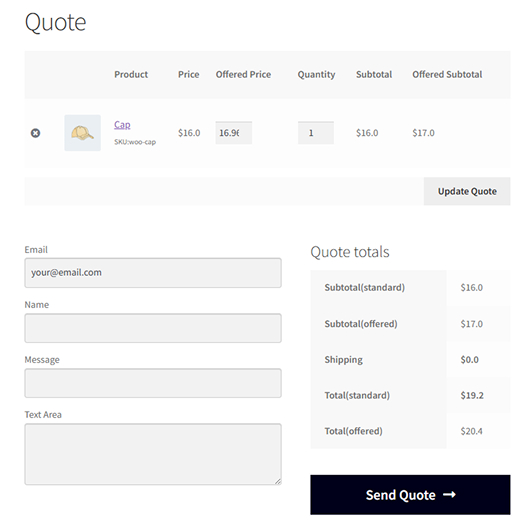
Your Quote form design is not just about common fields or buttons. It’s all about making every single one of your website visitors feel special and comfortable to fill out the form. A clever, simple, and easy-to-use and user-friendly form will double your quote requests in your WooCommerce store.
Getting Started with the Advanced Form Builder
The Advanced Form Builder is very direct and the easiest way to create custom quote forms in WooCommerce. To create a Quote form using B2B Request a Quote, you do not require any coding talents or technical knowledge. It’s a simple drag-and-drop setup.
Here is how you can do it:
- Your WordPress dashboard → hover Request a Quote → Form Builder.
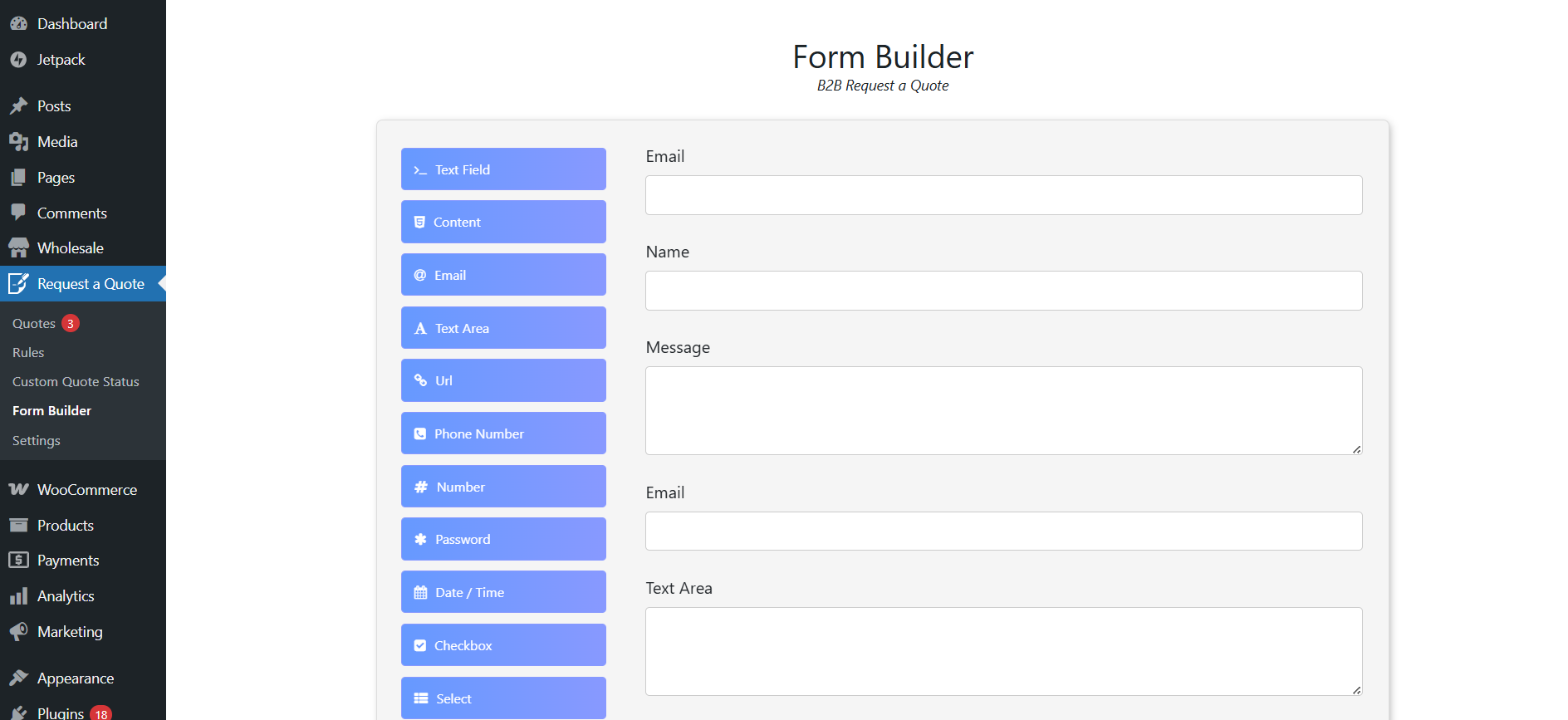
- Drag and drop the fields you would like to have in your Quote form.
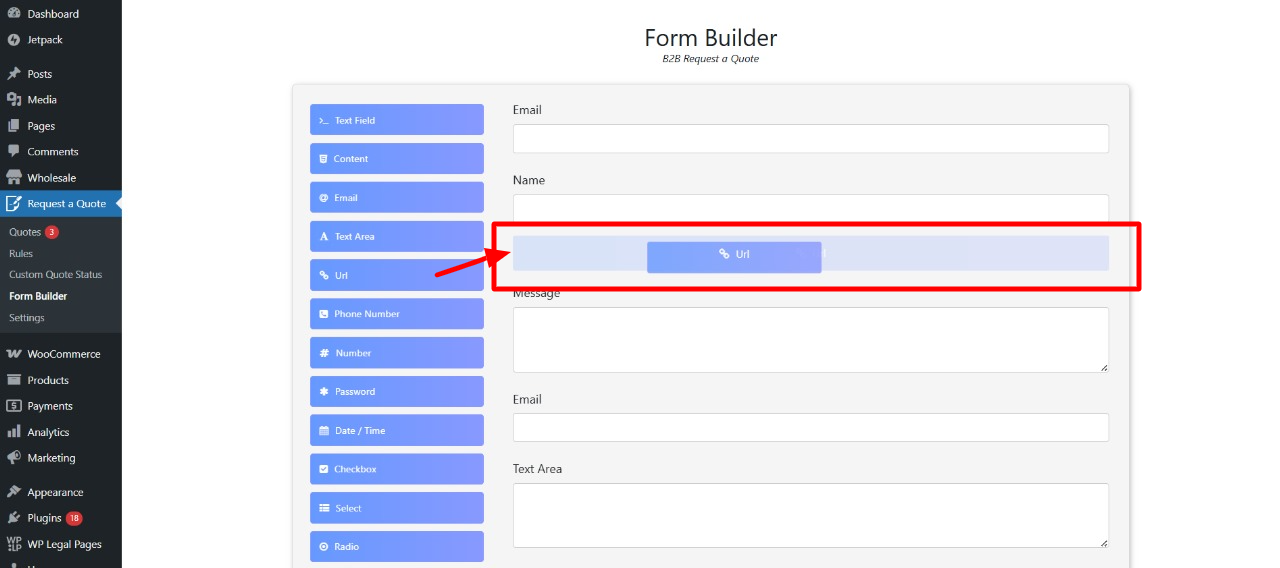
- You can add items such as text boxes, date/time, file upload boxes, or check boxes.
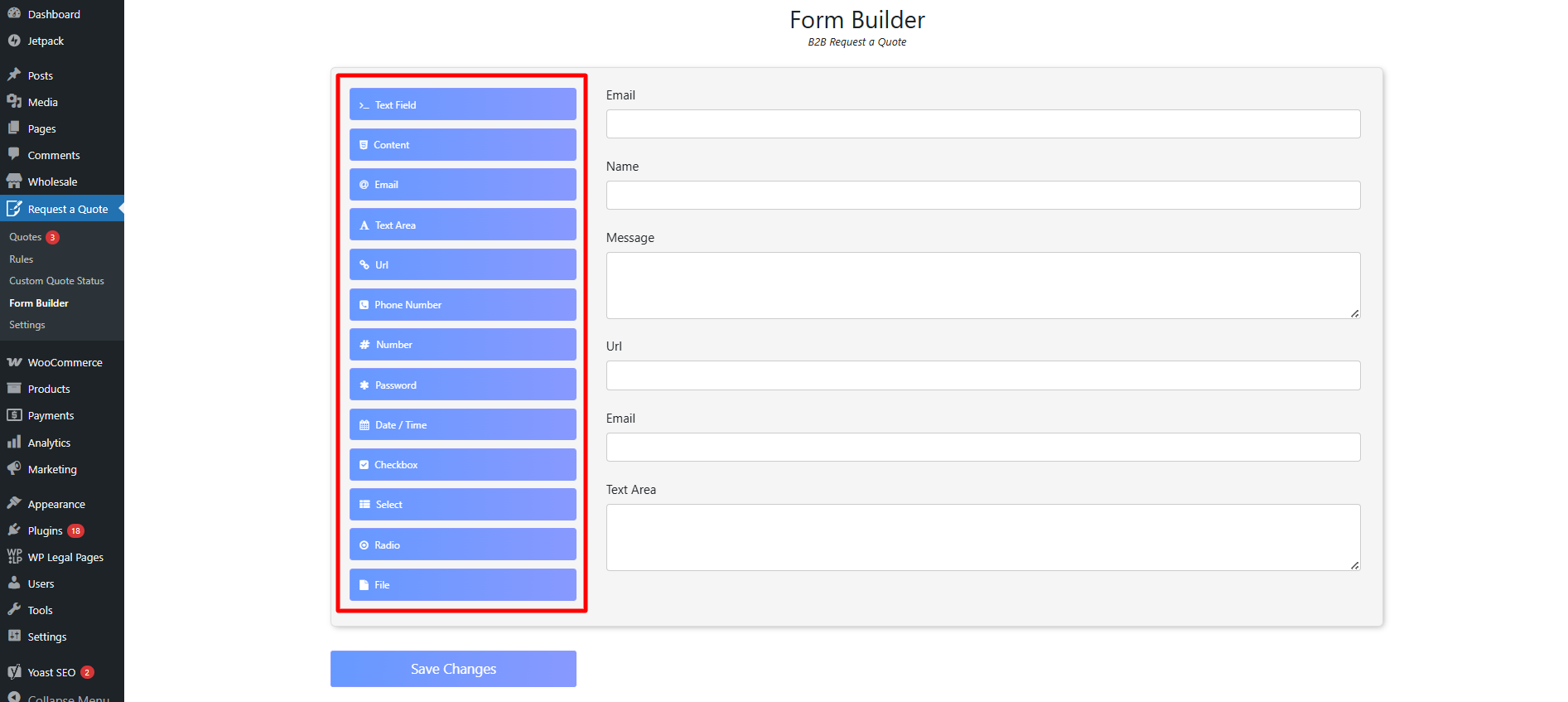
- When complete, click Save Changes — and your form’s done.
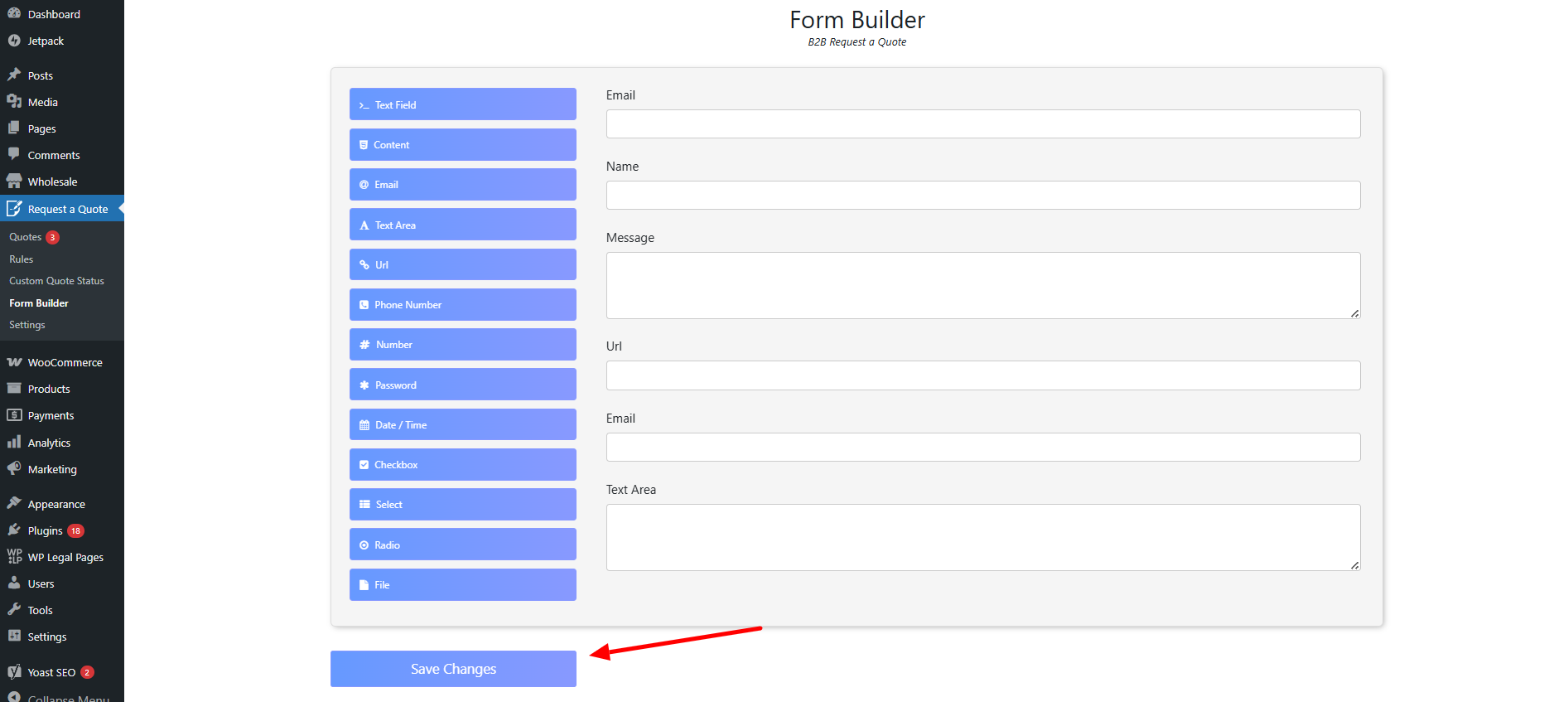
Your newly created form will then be displayed on the Quote List Page on the front of your website. Guests will easily understand what they need to fill out, with no confusion.
Why the Advanced Form Builder Is So Useful
This quote generator is made for real users — not programmers.
You can add all sorts of fields, including:
- Name or message text fields
- Phone number or password fields
- Links or even date and time fields
- File upload fields so customers can add a photo or document
It leaves you entirely in charge of how your quote form appears and behaves — helping you capture just the right amount of information every time.
[product_banner index=’1′]
Making Your Quote Form Welcoming
When you design your quote form, you wish it to be warm and comfortable. The following are some small yet powerful tips to make your form extremely special:
Make it Basic
Don’t fill it with too many fields. Ask only for the information you absolutely need.
Use Welcoming Language
Name items like “Tell us what you need” instead of “Enter your project requirements.” Simple language makes people feel comfortable.
Direct the user
If you think any field will confuse users, add a quick note. For example:
“Add a photo if you have one – it makes us get a better picture of your request.”
Test Before Posting
Always test the form yourself before submitting it to users. Attempt to fill it in as a customer would. If it is too lengthy or confusing, make it less complicated.
What Is a Quote Basket and Why Do You Need It
A Quote Basket is similar to a shopping basket — but for quotes instead of orders.
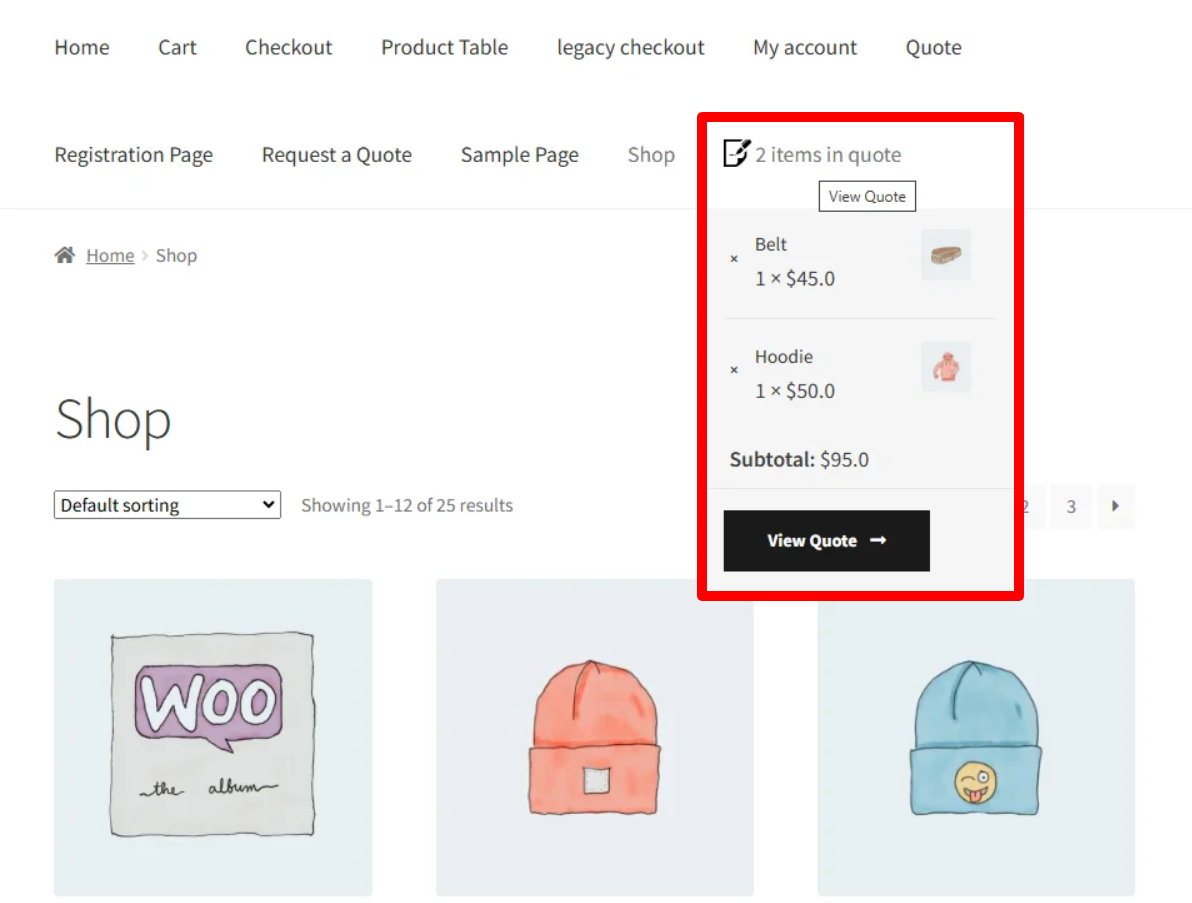
Customers have the option of selecting items or services for which they want a quote, placing them in their basket, and requesting a single quote for the set.
For instance, if the customer is going to order three different items and wishes to request prices for these items, they will place all three items in the quote basket. Instead of sending three separate forms via email, they’ll send one quote request to the WordPress admin board. Less hassle for them, and less hassle for you, too.
How to Set Up the Quote Basket
To enable and set up your quote basket from the admin dashboard, follow the steps below:
- Go to B2B Request a Quote → Settings.
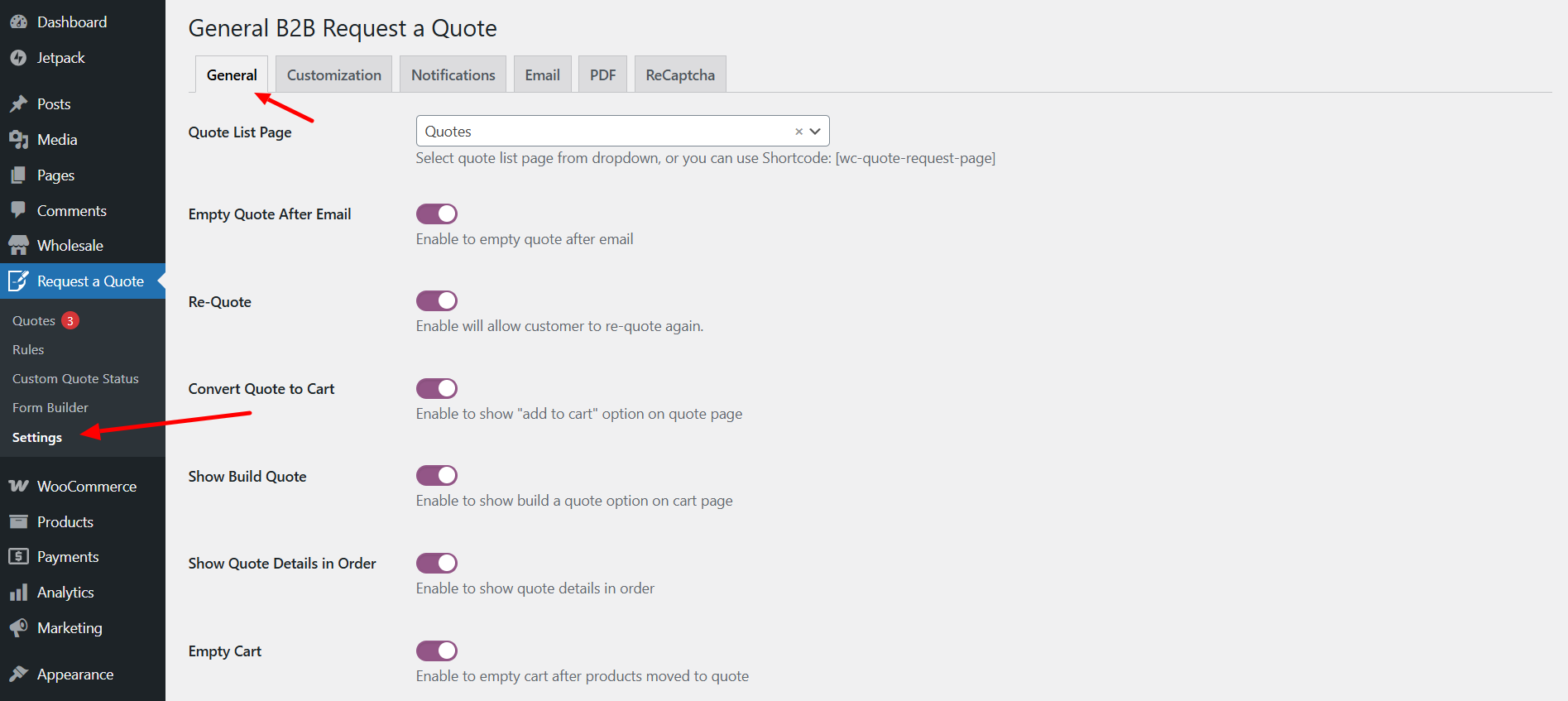
- Scroll down until you see the Quote Basket section.
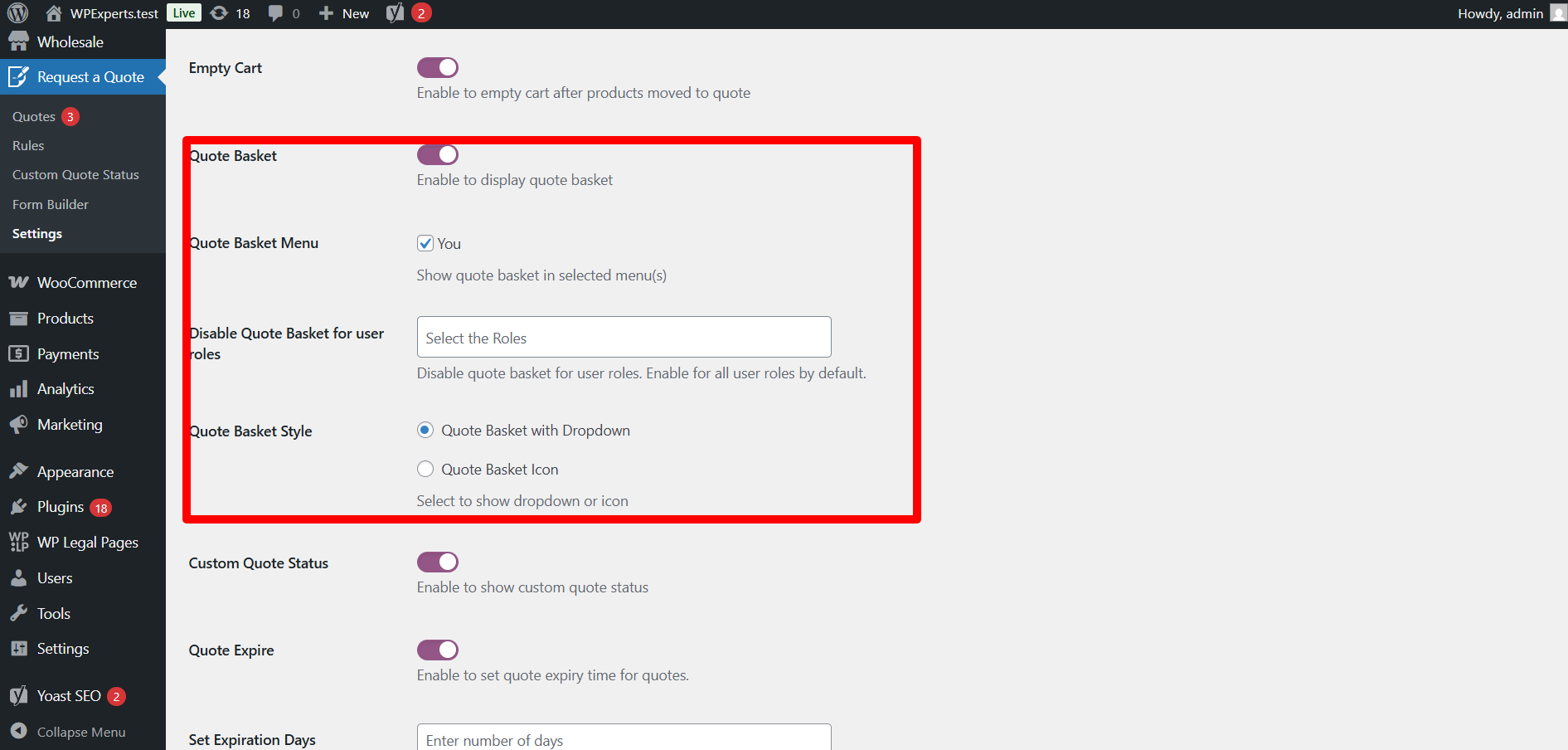
- Use the toggle button to enable or disable the quote basket.
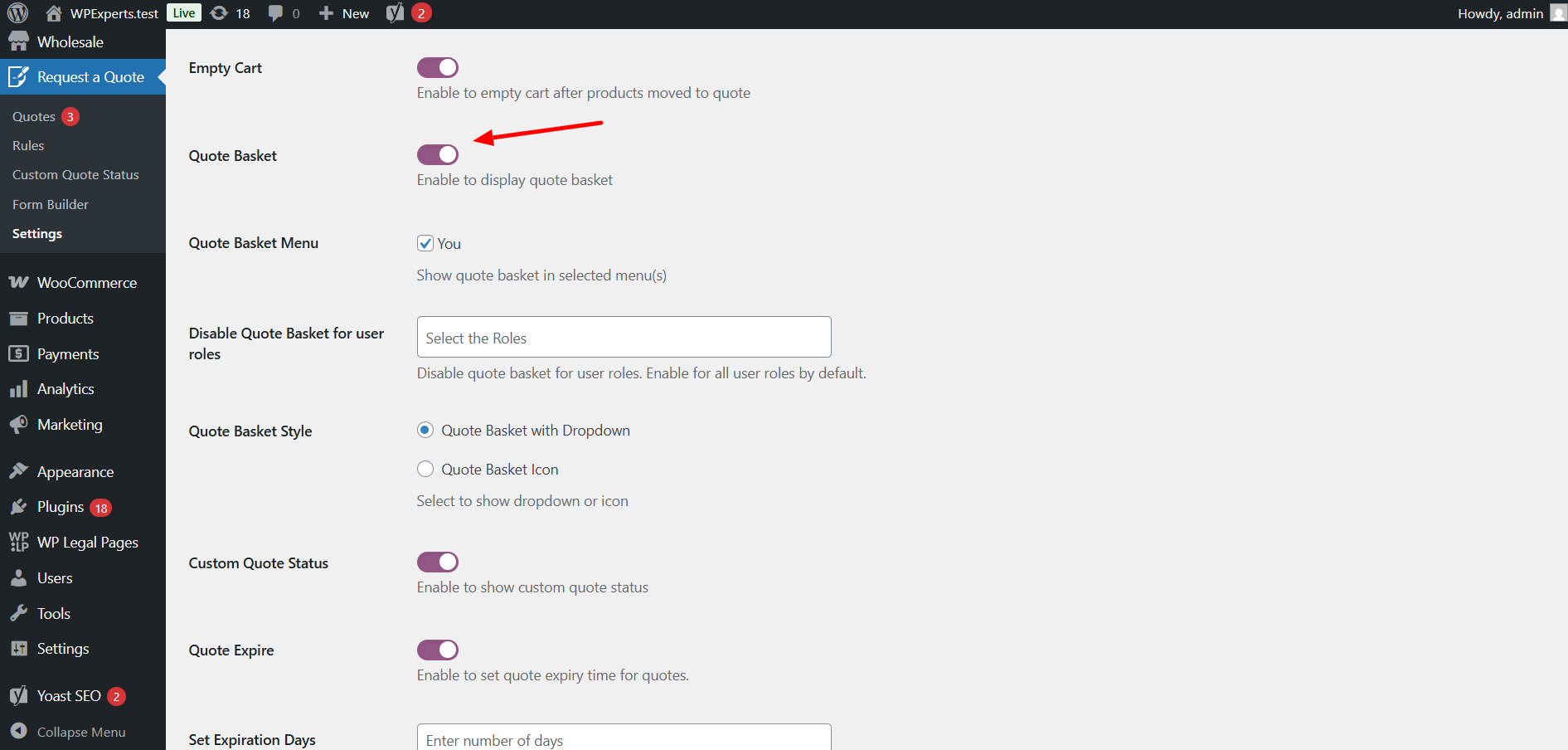
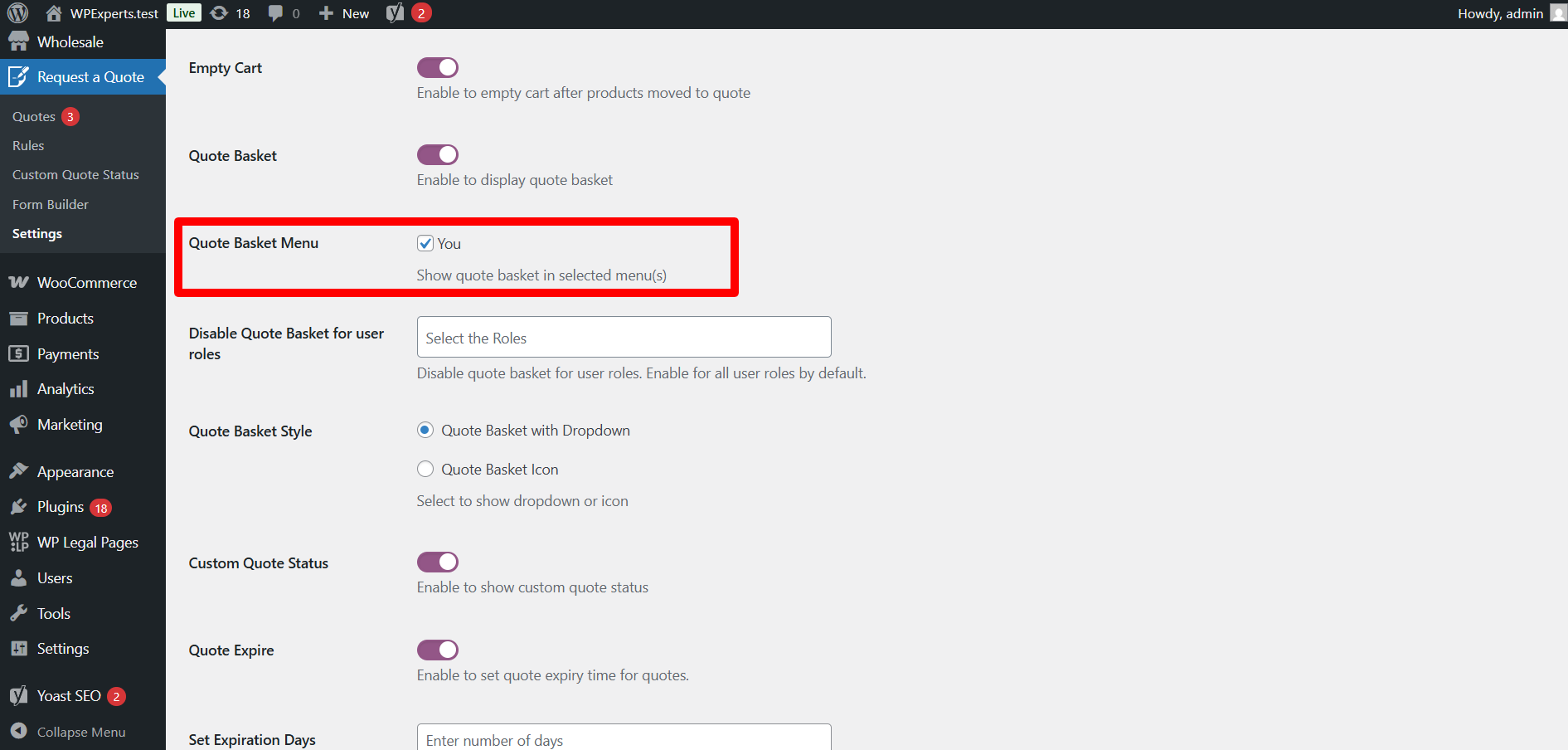
- Choose where the Quote Basket appears in your site’s header.
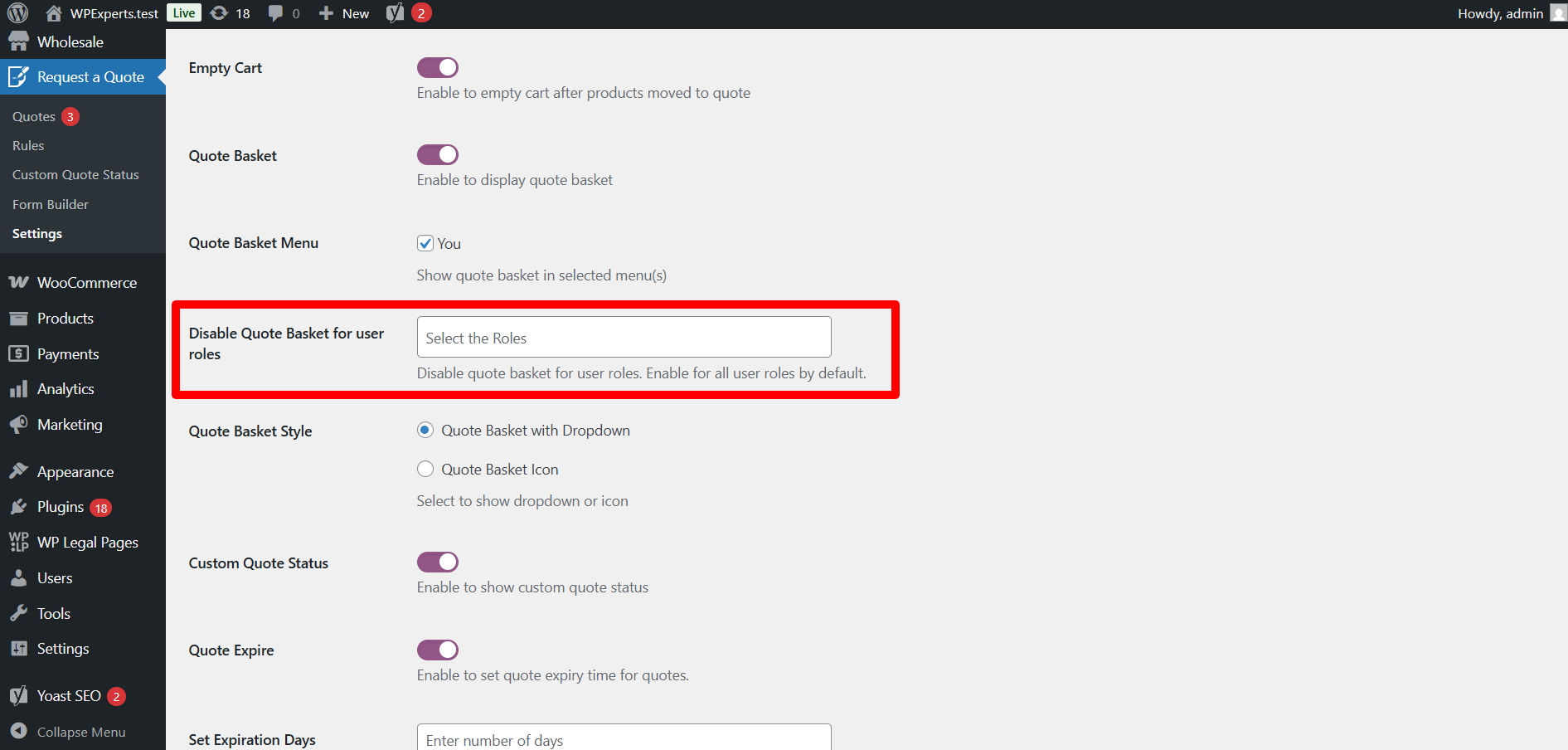
- You can disable it for particular user roles (e.g., “Guests”).
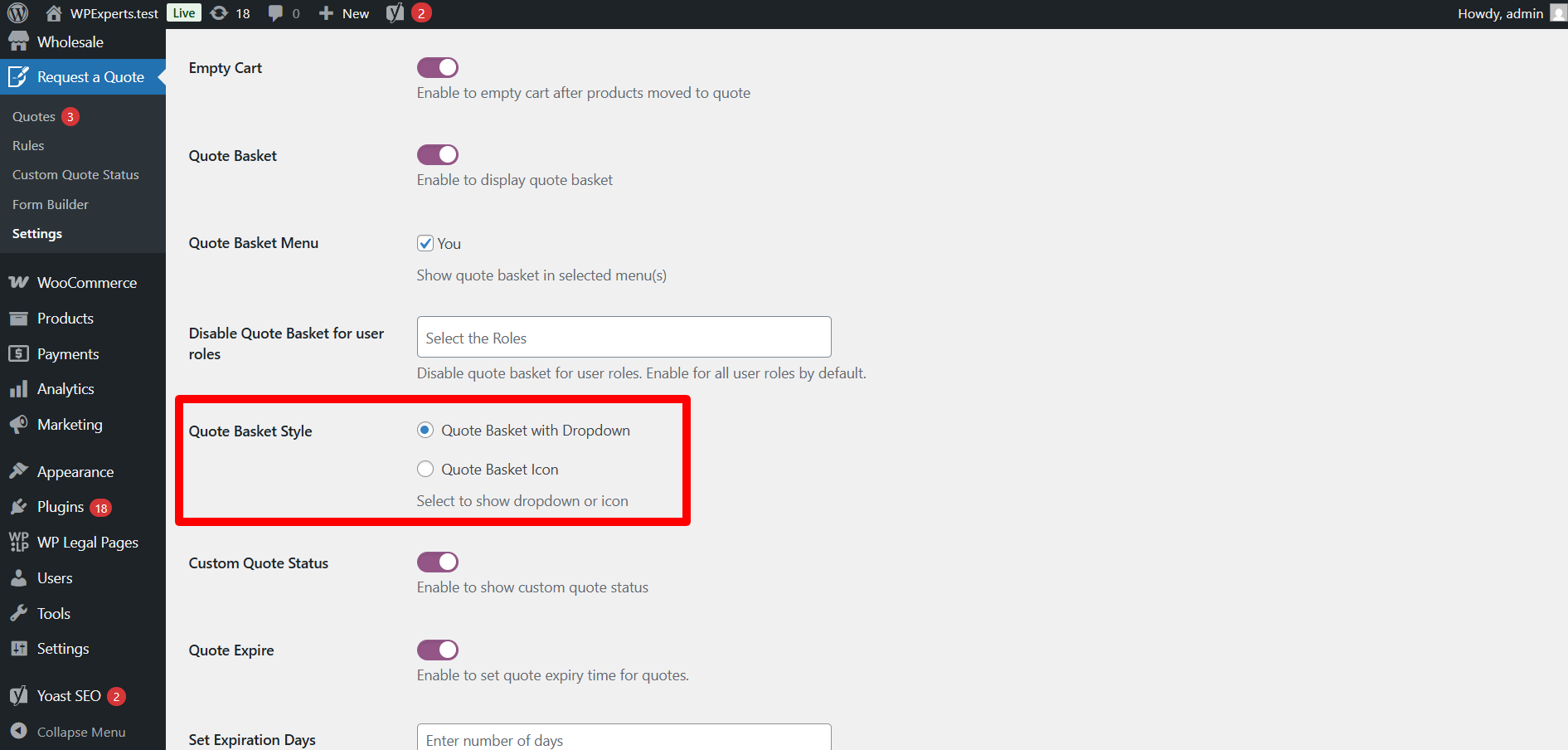
- Choose the Quote Basket Style — dropdown or icon.
- Click Save Changes.
Once set up, go to your shop page and give it a test run. If someone adds items to their quote basket, they’ll find it in the menu. From there, they can click on it, check over their choices, and submit their quote form.
Styling Your Quote Basket
You can style how the basket appears to fit your store design.
There are two broad styles:
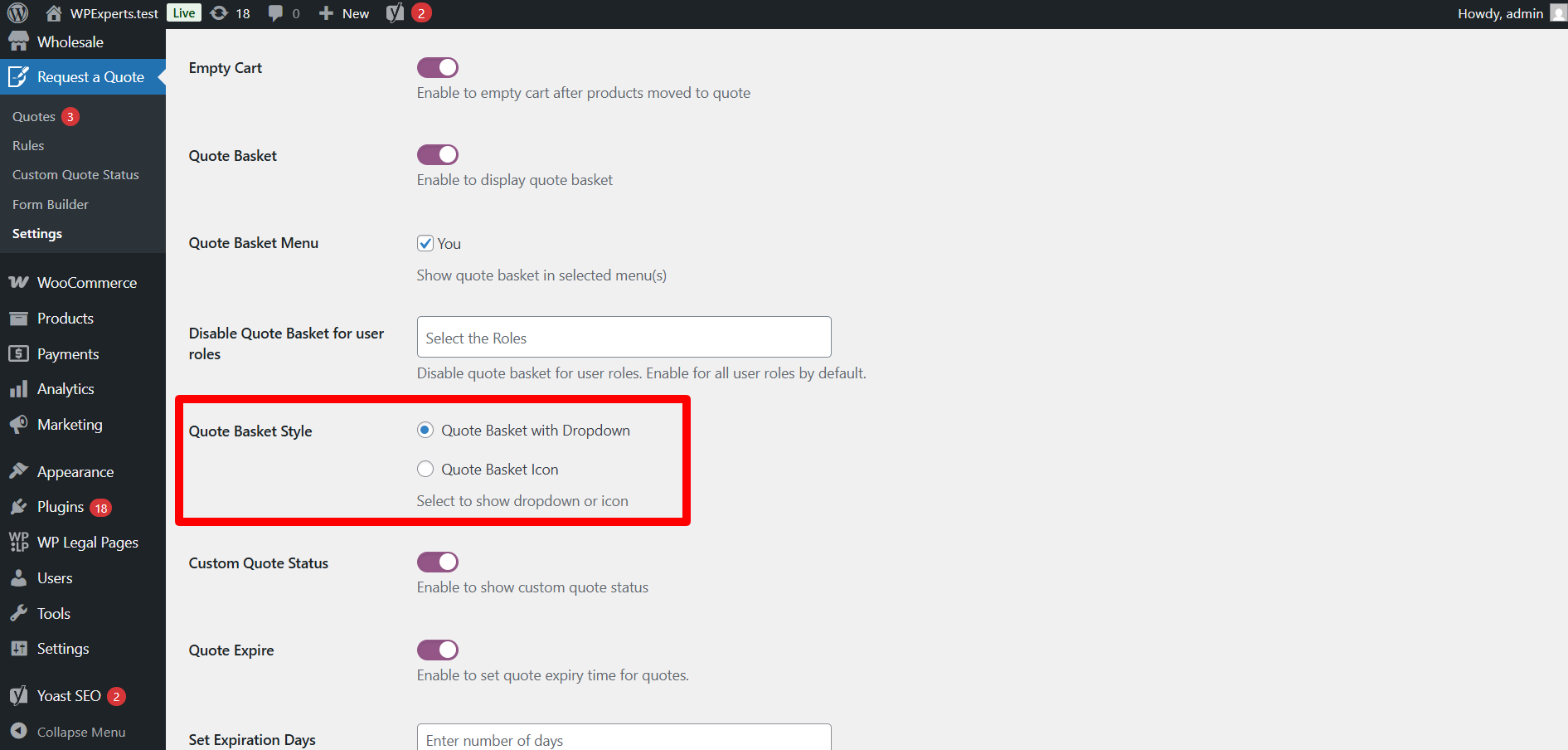
- Dropdown style: When users hover the basket, a small dropdown list is shown with what’s in it.
- Icon style: Shows only the basket icon — when users click on it, they are straight away on the quote page.
These small visual choices matter. A clean, distinguishable basket establishes trust and streamlines the process.
How Custom Quote Forms & Quote Baskets Transform Your WooCommerce Store
|
What It Does |
Without These Tools |
With Custom Quote Form & Basket |
| Collecting customer info | Messy emails, missed details, back-and-forth chaos | One clean form captures everything you need upfront |
| Handling multiple items | Separate requests for each product = inbox nightmare | All items bundled in one quote request |
| Customer experience | Confused visitors bounce before asking | Simple, guided process = more completed requests |
| Your response time | Hunting for missing info wastes hours | Complete details let you reply fast and professionally |
| Mobile users | Clunky forms that don’t work on phones | Smooth experience on any device |
| Building trust | Generic contact forms feel impersonal | Polished quote system shows you’re organized and serious |
| Lead quality | Random inquiries with vague details | Qualified leads who know what they want |
| Your workload | Phone tag and endless clarification emails | Organized requests you can process efficiently |
How Quote Form Designing and Quote Basket Sync Together
Your quote basket and quote form complement each other perfectly.
The quote basket collects things users want quotes on, and the form collects their details and message.
Together, if used:
- Customers can just tick what they’d like to have quotes for.
- You get concise, complete requests — no missing information.
- Communication gets faster and more professional.
This system turns a basic WooCommerce store into a real quote machine — perfect for businesses selling custom or bulk merchandise.
[product_banner index=’1′]
Mistakes to Avoid When Creating Quote Forms
The optimal settings can be altered with a few common mistakes. These are a few to steer clear of:
- Too many fields: Ask for too much information, and customers scatter.
- Technical jargon: Make it all plain English.
- Hidden quote basket: Make sure users can easily see and access it.
- No testing: Test how your form looks on desktop and mobile at all times.
- No follow-up plan: Get back to them fast once quotes are in — it gains trust.
The Real Benefits of a Good Quote Form Setup
Do you think spending time making your quote form better and managing how your quote basket looks is a waste? You’re just giving away your sales, nothing else. By just giving your visitors a better UI, you can improve your overall customer experience.
Here’s what you get:
- More completed quote requests.
- Better quality leads with complete information.
- Fewer requests over the phone or through email asking for details you missed.
- Customers thank you for taking care of them because the process was easy.
A clean, inviting quote form tells incoming visitors that your company is organized, up-to-date, and helping — and that’s precisely what builds trust.
Final Thoughts
At the end of the day, your quote form is how you ask your prospective clients what they exactly need. With Advanced Form Builder, it’s easy to make quote forms that feel just right for your brand. Add a Quote Basket, and you give users a simple, easy-to-understand way to request what they want — all in one step.