



































 Abdullah Ashraf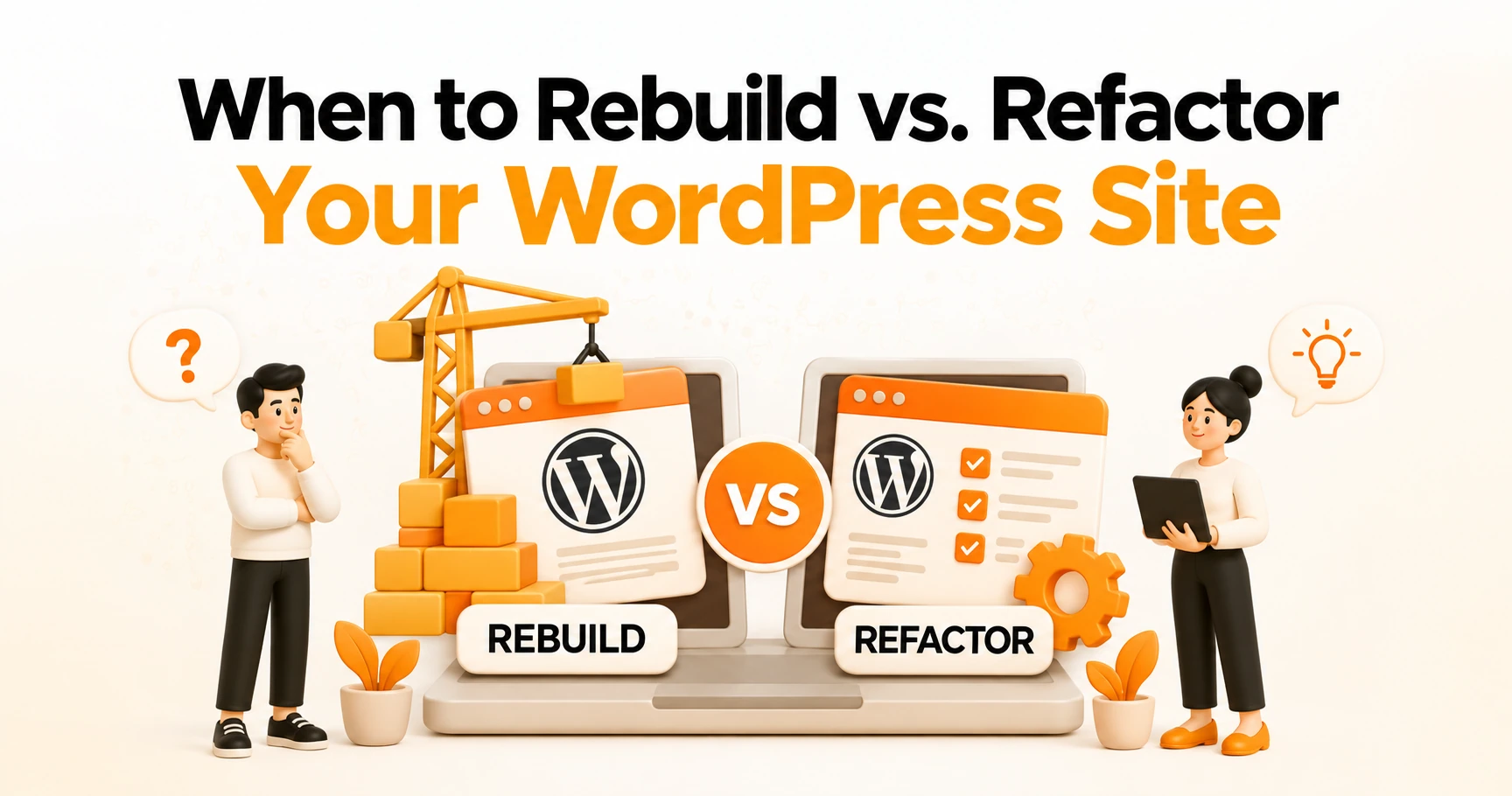
At some point, every WordPress site owner runs into the rebuild vs refactor WordPress site question. And the answer isn’t always obvious. A slow homepage is a different problem than a page builder that outputs 200 lines of unused CSS on every load. One you can fix in place. The other needs a fresh start.
That is exactly what we are going to sort out here. We will show you how to tell which one your site actually needs. You will also see how to execute either one without compromising your search traffic.
What Does It Mean to Rebuild a WordPress Site?
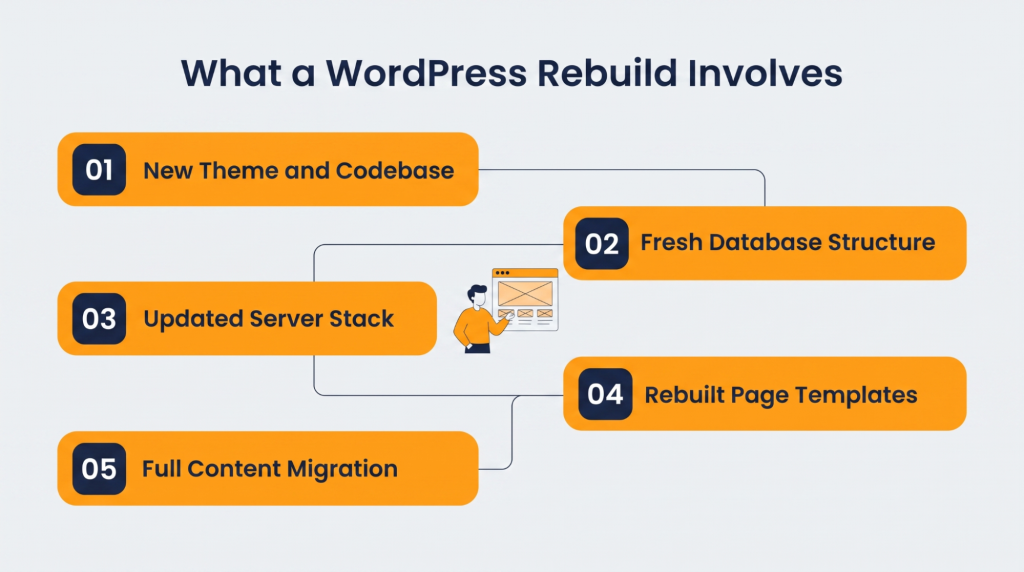
A rebuild means you are discarding the current WordPress site and starting over. New theme and new code. Fresh database setup on a current technology stack. You keep your domain and content, but the rest gets replaced. You go this route when the site is too far gone to fix one piece at a time.
What Does It Mean to Refactor a WordPress Site?
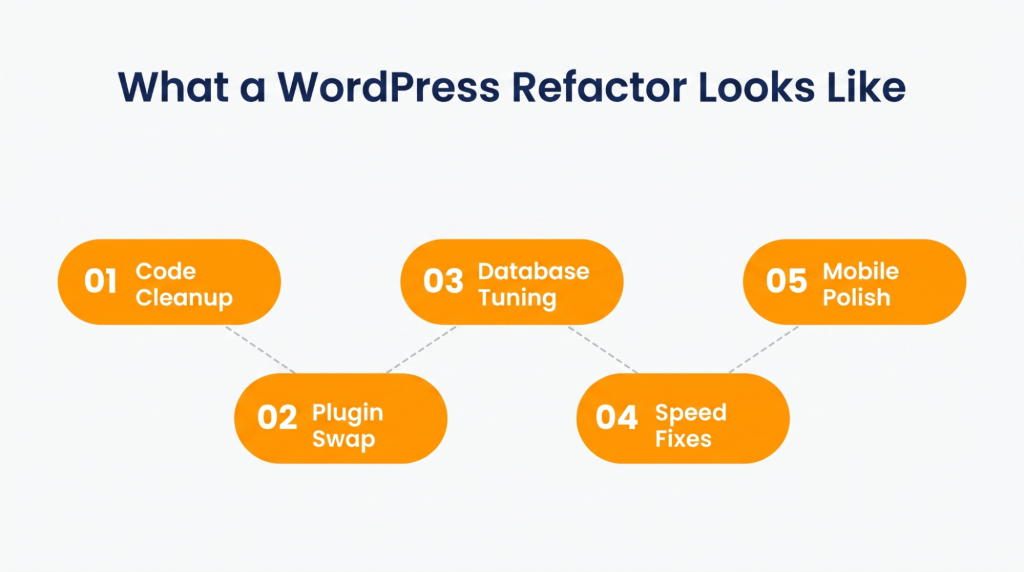
A refactor is the opposite. You keep the site running and improve it from the inside by cleaning up its internal structure. Swap out heavy plugins for lighter ones. Clean up the database. Speed up the frontend. The site never goes down during the process. You do this when the existing system of your site still works, but it has become slow or hard to manage.
Rebuild vs. Refactor: What Are the Key Differences
Here’s how rebuild vs refactor compare across the things that actually matter. The right choice depends on your business goals, not just your site’s condition.
| Factor | Refactor | Rebuild |
| Scope | Fix specific code and performance issues | Replace the theme and entire codebase |
| Timeline | 2–6 weeks | 2–6 months |
| Cost | $2K–$10K | $10K–$50K+ |
| SEO Risk | Low – URLs and structure stay the same | High – needs redirects and close monitoring |
| Downtime | None – changes go live one at a time | Possible during the final migration |
| Best For | Sites that work but have gotten slow | Sites with broken or outdated architecture |
5 Signs Your WordPress Site Only Needs Refactoring
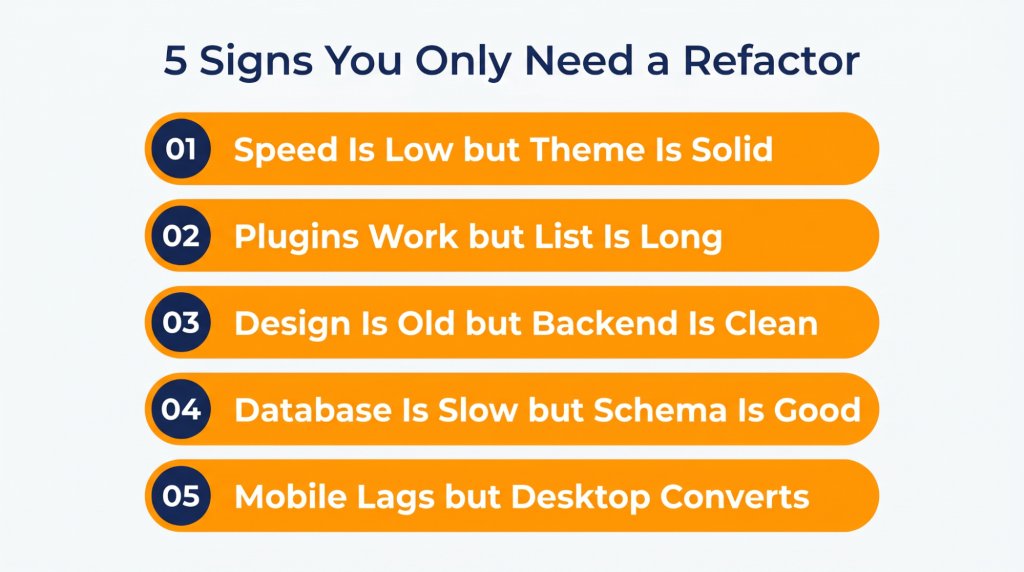
If any of these 5 things is happening to your WordPress site, you can do incremental improvements without starting over.
1. Page Speed Scores Are Low, but the Theme Is Well-Built
Your PageSpeed score is in the 40s or 50s. And your first thought is to start over. But if you are on a lightweight theme, the speed problem isn’t the theme. It is unoptimized images or render-blocking scripts.
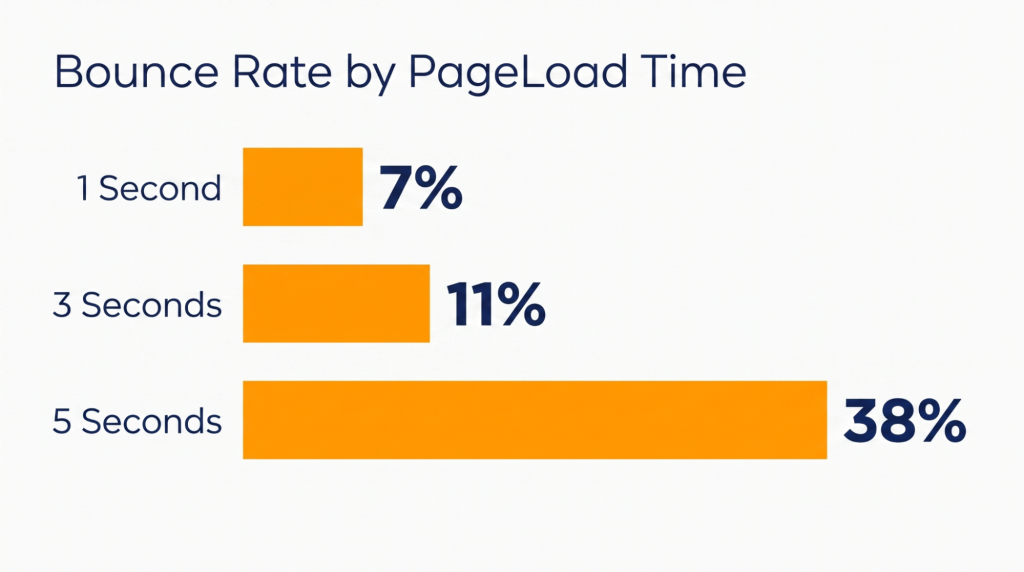
You would be surprised how much a few page load fixes can improve performance without changing a single template. Google data shows that bounce rates increase 32% when load time goes from 1 to 3 seconds. That is worth fixing, and a refactor can handle it.
2. Your Plugin List Has Grown, but Most Plugins Still Work
Running 30 plugins doesn’t mean you need a rebuild. If they are up to date and your site isn’t showing errors, the problem is more about housekeeping. Deactivate plugins you are not using. Replace the heavy ones with something lighter. It also reduces long-term maintenance costs.
Check the last update date on each plugin. If most were updated in the past 6 months and your PHP error log is clean with overall good code quality, you are looking at a refactor – not a rebuild.
3. The Design Feels Dated, but the Backend Runs Without Errors
Your site looks like it was designed five years ago, but the backend runs fine. No PHP warnings, no database timeouts. That is a frontend problem.
And you can fix it by switching to a modern block theme or updating your child theme. A refreshed design can improve your brand positioning without requiring a complete rebuild, as long as the underlying architecture is still solid.
If you are not sure whether the backend is actually strong, we at WPExperts can help. We have been doing WordPress consulting since 2011 and can tell you pretty quickly whether you need a full rebuild or just a frontend update.
4. Your Database Has Gotten Slow, but the Schema Is Still Clean
WordPress databases collect dead weight over time. Post revisions pile up. Expired transients stay behind. Orphaned meta entries from old plugins are in the tables doing nothing. The wp_options table on a site with 500+ posts can have thousands of autoloaded rows firing on every page load.
But if the table structure is still the standard WordPress schema without custom modifications, the fix is cleanup. Remove old revisions and add object caching so repeated queries stop hitting the database twice. A slow database with clean tables is a tuning problem, not a reason to start over.
5. Mobile Experience Needs Work, but Desktop Converts Well
Your desktop conversion rate is strong. Visitors on laptops do what you want them to do. Mobile visitors leave much sooner or never make it down to your CTA. Most of the time, the problem isn’t your site’s structure. It is CSS or images that haven’t been properly optimized.
Fix breakpoints so buttons stay tappable. Compress hero images for cellular connections. Run Google’s mobile-friendly test before deciding you need to start from scratch.
5 Signs It Is Time to Completely Rebuild Your WordPress Site
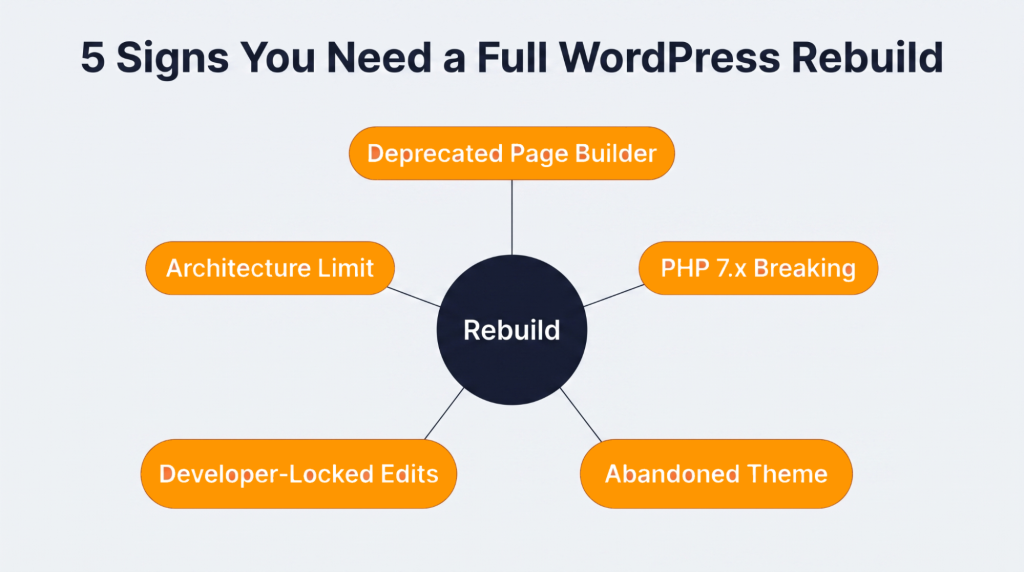
Some problems go deeper than speed or design and mean that the site is fundamentally broken beneath the surface. If any of these five describe your site, the rebuild vs refactor WordPress site answer is rebuild.
1. Your Current System Runs on a Deprecated Page Builder
Divi and WPBakery shortcodes are embedded in every page at the database level. You can’t deactivate the plugin and switch to Gutenberg because the content is stored as shortcode strings that only the original builder can read. Deactivating the builder doesn’t remove those shortcodes. It just makes them render as raw text on every page.
The longer you keep adding content on a deprecated builder, the bigger the eventual migration becomes. A site with 50 shortcode-locked pages is a pain to migrate. A site with 200 is a months-long project where every page has to be manually rebuilt in the block editor.
2. You Are Still on PHP 7.x and Upgrading Breaks Things
WordPress 7.0 drops support for PHP 7.2 and 7.3. Sites on those versions will stop working when they update WordPress core. Patching the legacy code is just buying time if upgrading to PHP 8.x breaks your current theme or custom functions.
Most hosting companies are ending PHP 7.x support within the next year. The newest plugins already require PHP 8+ and won’t install on older servers. It is a rebuild signal if your site can’t run on the current PHP without things going wrong.
3. The Theme Framework Has Been Abandoned
A theme with no updates in 18 months is running out of time. No updates mean no patches for known security vulnerabilities. Unmaintained themes run into compatibility issues after major Gutenberg updates, sometimes within weeks of a new WordPress release.
You can tell when this has happened because new WordPress features (like the site editor or the latest block types) simply don’t work on the site. The theme doesn’t know they exist because nobody updated it to support them.
This problem becomes much more serious for websites whose products or services are constantly changing rather than remaining largely static. Once a platform depends on regular feature releases, compatibility with newer WordPress capabilities becomes a necessity.
An abandoned framework doesn’t just delay visual improvements. It limits how the business itself can evolve because every new requirement has to work around technology that is no longer being maintained.
A marketplace like BusinessForSale.com.au, where businesses are listed and managed through a constantly evolving platform, illustrates why this matters. The site has to keep introducing improvements to search filters and listing management while maintaining thousands of active listings.
An outdated or unsupported WordPress framework eventually makes those improvements increasingly difficult for them because newer plugins and APIs are designed for modern themes and development standards. Instead of building new marketplace functionality, developers spend their time maintaining compatibility with aging code.
Eventually, the cost of preserving the old framework outweighs the effort of replacing it. Rebuilding on a supported architecture allows future marketplace features to be added through standard WordPress development practices.
4. Every Small Edit Requires a Developer
If swapping a homepage image or editing a heading requires opening a code editor, the site was built for the developer who made it, not the team that has to run it. That lock-in usually comes from a theme where content is inside PHP template files instead of the WordPress admin.
Many businesses that rely on detailed and frequently updated content know this problem well. When a site needs to display service directories, pricing tables, location-specific information, or large image galleries, the content requirements go far beyond what a standard WordPress page template can handle.
Updating those pages means calling a developer every time something changes, even if it is just adding new photos or changing a few details.
Take this John Campbell Hilton Head’s Sun City page. These neighborhood pages should stay current because home listings change and market statistics update all the time. Plus, new photos need to be added, and community information evolves throughout the year.
If every one of those updates means sending a request to a developer because the theme hard-codes the content into templates, refactoring won’t solve the real problem.
This is a rebuild situation. The site should be rebuilt so those sections become editable from the WordPress dashboard. Otherwise, the agent will keep depending on a developer for routine content updates. And this isn’t practical for a business without an in-house development team.
5. The Architecture Can’t Support Your New Features Because of Technical Debt
Adding WooCommerce to a site that wasn’t designed for eCommerce creates plugin conflicts on top of plugin conflicts, which also leads to duplicated logic. Custom post types added on without planning make the database harder to query. If what you want next needs rewriting more than half the existing code, it is cheaper to rebuild properly. Plus, it gives you better cost efficiency over the long term.
Businesses offering platform-based digital services run into this problem the fastest because their websites evolve alongside the platforms they support.
Consider TikTok agency account service by Uproas. A company helping advertisers obtain agency-managed TikTok advertising accounts doesn’t just publish landing pages. It needs secure consultation forms, CRM integrations, eligibility workflows, document collection, multilingual pages for international advertisers, and content that changes whenever TikTok updates its advertising policies or onboarding requirements.
As the business grows, new services, booking flows, customer portals, and integrations with marketing automation platforms all have to fit into the existing architecture. If every operational change requires custom development because the original WordPress build was designed as a simple brochure website, technical debt starts slowing the business itself, not just the website.
That is exactly when a rebuild makes more sense than a refactor. The goal is to move to an architecture where new service pages and operational features can be introduced through well-supported WordPress tools instead of repeatedly extending fragile custom code. Otherwise, every new feature turns into another development project.
How to Roll Out a WordPress Refactor in Stages Without Sacrificing SEO Performance: 5 Smart Strategies
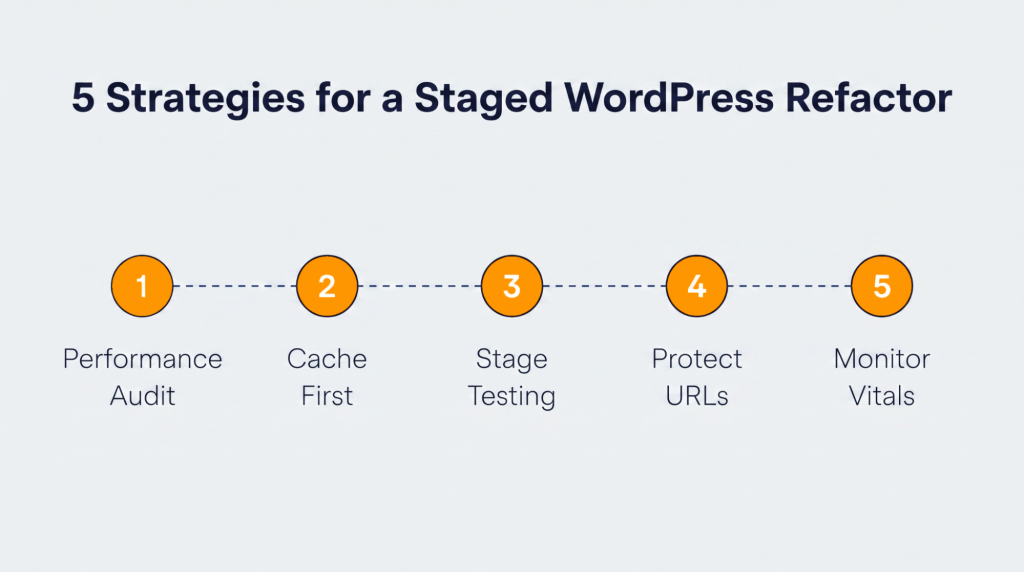
A refactor works best when you do it in stages. Each change ships separately so you can see what it did before touching the next thing.
1. Run a Full Performance Audit Before Changing Anything
Without a baseline, you have no way to tell whether your changes made things better or worse. A proper audit covers page speed scores and database query times across your highest-traffic pages. That data tells you just what the biggest gaps are, so you start with the fixes that will make the biggest difference first.
- Run GTmetrix and PageSpeed Insights on your 10 highest-traffic pages
- Record LCP and CLS scores as dated snapshots for before/after comparison
- Identify which specific assets are creating the most load on each page
2. Tackle One System at a Time, Starting With Caching
Changing caching and frontend code all in the same week makes it impossible to know which change caused which result. Doing them one at a time with a week between each gives you clean data. Caching goes first because it usually has the biggest impact with the lowest risk of breaking something.
- Install a page caching plugin and CDN before touching anything else
- Clean the database in the second round after confirming caching works
- Save CSS and JavaScript changes for the final round
3. Test Every Change on Staging Before Pushing to Production
A staging environment that mirrors your live site is where you find problems before visitors do. The test results mean nothing if the staging copy doesn’t match production (different PHP version, missing plugins, fewer products).
Sites with product catalogs that include conditional relationships between items face a specific staging challenge. When the database has logic like “this part only fits these models,” a staging site with five test products won’t reproduce the same query load or filtering behavior.
You test on five products, everything runs fast. You push to production with the full catalog, the page takes six seconds.
This store’s golf cart lift kits collection shows why staging has to mirror the real data. Their page runs an educational reference guide that maps tire diameters to lift heights and explains the differences between lift types.
The sorting system handles products filtered by cart manufacturer and by model generation, going back decades. Each product title includes cross-referenced model-year compatibility data. A separate Lift Kit Guide linked from the page connects educational content back to the product listings programmatically.
A proper staging environment for a store like this has to include the full product catalog, the compatibility relationships, the filtering logic, and the same database size as production. Otherwise, you are only testing a simplified version of the site.
If you skip that step, problems don’t show up until the changes are live. And customers are the first to discover the issues. That is exactly what staging is supposed to prevent.
- Clone production to a staging setup with identical configuration and full data
- Test updates using real page flows, not dummy content or placeholder products
- Verify that intermittent failures aren’t hiding real regressions before deploying
4. Keep Your URL Structure and Internal Links Intact
Changing slugs or permalink settings during a refactor is one of the most common migration mistakes. Even small URL changes can drop rankings on pages that were doing well. A refactor should fix the backend without touching anything Google has already indexed.
- Lock your permalink settings before the refactor starts and leave them alone
- Run a Screaming Frog crawl after each round of changes to catch broken links
- If a URL absolutely has to change, set up a 301 redirect before the old one goes dead
5. Monitor Core Web Vitals Weekly to Catch Regressions
Even well-executed migrations lose 20-40% of SEO value in the short term. A refactor isn’t much of a win if it improves one metric but hurts another. Checking LCP and CLS after every deployment lets you see whether the latest changes actually improved the site or added new issues.
- Check Core Web Vitals in Search Console after every single deploy
- Set up automated alerts so you know within 24 hours if a metric drops
- If a round of changes doesn’t move numbers forward, revert before the next round
How to Execute Your Rebuild Decision Without Losing Traffic: 5 Key Strategies
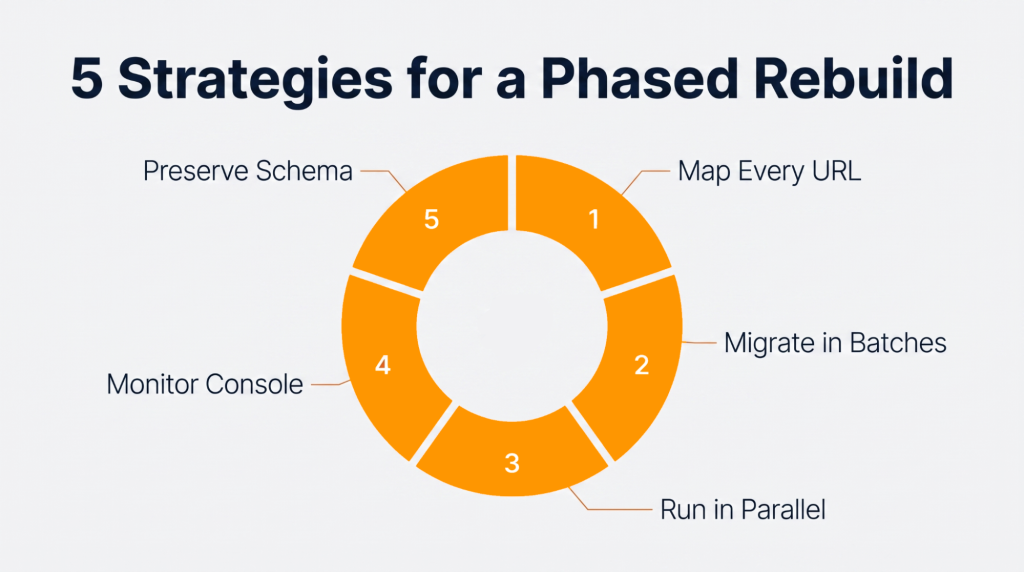
When the rebuild vs refactor WordPress site call goes to rebuild, you don’t have to replace the entire site overnight. Rolling it out in phases keeps your traffic safe while the new site comes together.
1. Map Every Existing URL Before You Start Building
A single missed redirect on a page that brings in 500 organic visits a month sets your rankings back for weeks. Before building anything new, you need a full list of every URL on the current site.
- Export every URL from your sitemap and crawl for orphan pages
- Match each old URL to its new version and prep 301 redirects before the switch
- Check Search Console for indexed URLs not in the sitemap that still get clicks
2. Rebuild High-Traffic Pages First and Migrate in Batches
Your top 20 organic pages probably account for 60-80% of your search traffic. Rebuilding those first protects the bulk of your rankings from day one. The rest follows in batches over the next few weeks. That pacing gives Google time to index new pages before old ones disappear.
- Pull your top pages from Search Console, sorted by clicks, and rebuild those first
- Migrate in batches of 20-30 pages with at least a week between each batch
- Confirm each batch is indexed before sending the next group
3. Run the Old and New Sites in Parallel During Transition
There is no reason to take unnecessary risks during a rebuild. Keeping the old and new sites running in parallel lets you verify that everything works before the new site becomes your live site.
- Keep the new site on a staging subdomain until every page is tested on real devices
- Only switch DNS once redirects are confirmed and the new sitemap is ready
- Leave the old system running for 30 days so you can roll back without scrambling
4. Resubmit Your Sitemap and Monitor Search Console Daily
Getting the new site live is only half the job. You need to watch your site’s search performance most closely. Around 60% of website migrations result in organic traffic loss, but many issues can be caught and fixed early if you are monitoring Search Console every day.
- Submit the new sitemap to Google the same day you switch DNS
- Check Search Console daily for crawl errors during the first two weeks
- If pages drop out of the index, check the redirect chain first
5. Preserve All Structured Data and Schema From the Original
Rich snippets in search results depend on schema markup. If the new site launches without the same structured data the old one had, those enhanced listings vanish. That means fewer clicks on pages that were outperforming their ranking position.
- Export all schema markup from the old site and map it to the new pages
- Test with Rich Results before and after migration to catch dropped markup
- Article and product schema are the types most likely to go missing
Conclusion
The rebuild vs refactor WordPress site decision comes down to the foundation. If the code and theme still work but things have gotten slow, a refactor fixes without risking your rankings. If the core architecture itself is outdated or can’t support what you need next, a rebuild gives you a clean start that lasts.
At WPExperts, we have been doing WordPress rebuilds and refactors at WPExperts since 2011. Whether you need a performance audit to figure out which path fits or a team to handle the migration without losing traffic, we have done both hundreds of times. Share your business requirements with us, and we will show you what your site can actually do.