









































 Usman Hayat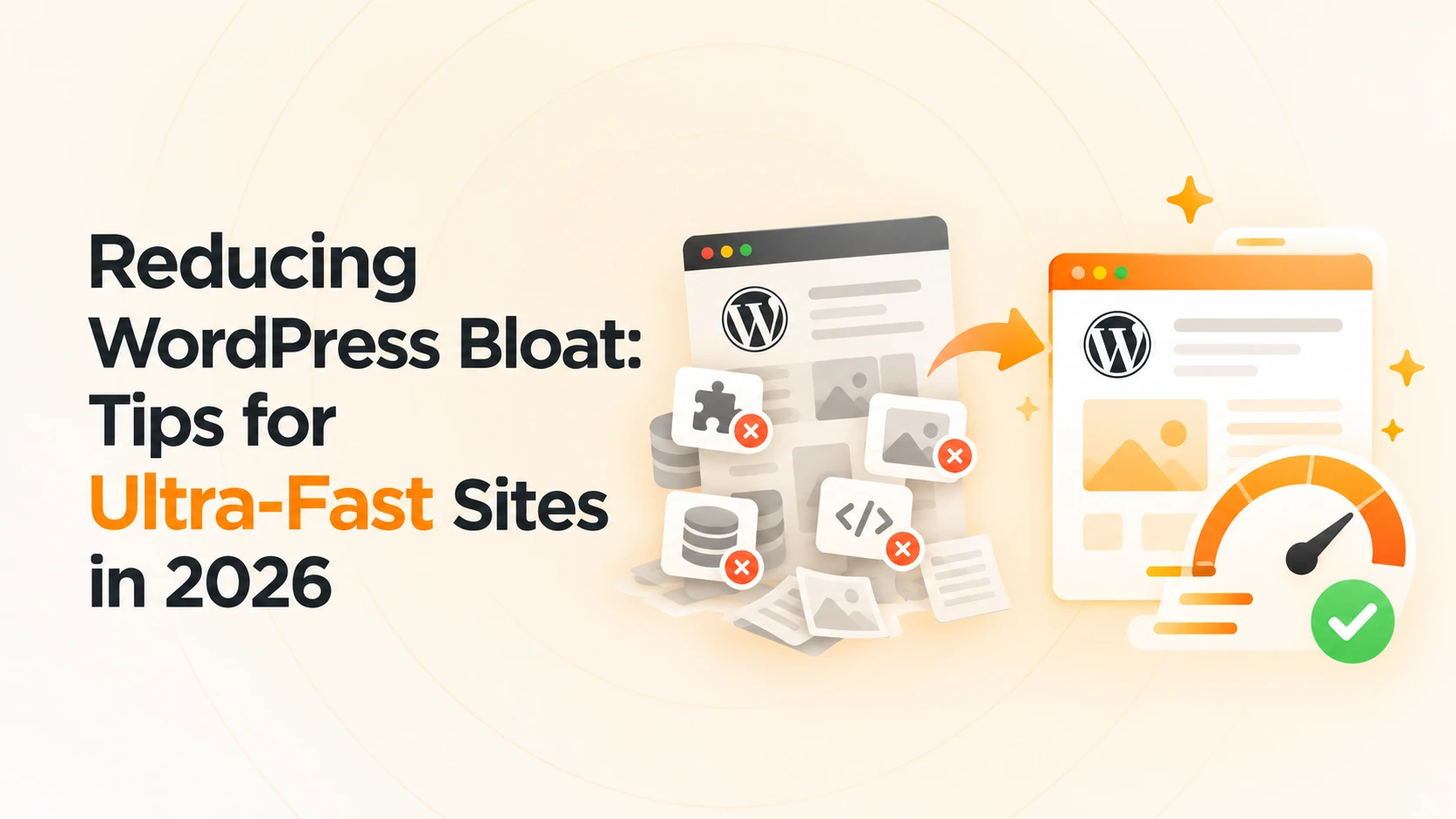
In 2026, website speed isn’t just a nice-to-have; it’s a necessity. Studies show that 53% of users abandon a site that takes longer than 3 seconds to load, and Google now prioritizes Core Web Vitals in search rankings. WordPress powers over 40% of all websites globally, so even small inefficiencies can affect millions of sites.
If unnecessary plugins, oversized images, or unoptimized code are weighing down your WordPress site, you’re likely losing visitors and revenue. The good news? Reducing bloat doesn’t have to be complicated. With a few strategic tweaks, you can transform your site into a lean, lightning-fast experience.
1. Audit Your Plugins & Themes
One of the biggest culprits of WordPress bloat is unused or poorly coded plugins. Many sites accumulate plugins over time, and each extra plugin can add milliseconds—or even seconds—to page load times.
- Remove inactive plugins: Every extra plugin adds database calls and scripts that slow down your site.
- Choose lightweight themes: Themes like GeneratePress and Astra are designed for speed and can reduce load times by up to 40% compared to heavier multipurpose themes.
- Avoid multipurpose plugins for minor features: If you only need a slider, don’t install a plugin that bundles 20 extra features you’ll never use.
A focused approach here can immediately improve both load times and overall user experience, laying the foundation for further optimizations.
2. Optimize Images & Media
Images are often the heaviest elements on a page, and poorly optimized media can significantly slow down your site. According to a recent survey, over 70% of WordPress sites load images that could be further compressed, indicating significant potential for speed gains.
- Use next-gen formats like WebP or AVIF. These formats can reduce file sizes by 25–35% without noticeable loss in quality.
- Lazy-load images to defer loading offscreen images until the user scrolls. Most modern WordPress themes now include this feature by default.
- Compress images using tools like ShortPixel, Imagify, or TinyPNG. Even a 200 KB reduction per image adds up across a site with dozens of media files.
Optimized images alone can dramatically reduce page load time and improve mobile performance, which is critical since over 55% of web traffic now comes from mobile devices.
3. Minify & Combine CSS, JS, and HTML
Another major source of bloat is excess code—extra CSS files, unnecessary JavaScript, and bulky HTML. Each additional file is an HTTP request, and each request adds to your load time.
- Minify CSS, JS, and HTML to remove unnecessary whitespace and comments. Plugins like WP Rocket make this easy.
- Combine files where possible: Reducing multiple CSS/JS files into one can lower server requests.
- Remove unused code: Many themes include scripts for features you don’t use—like sliders, galleries, or widgets—so disabling them can improve speed.
By cleaning up your code, you not only reduce page weight but also enhance Core Web Vitals metrics like Largest Contentful Paint (LCP), which Google uses to assess user experience.
4. Implement Caching & CDN
Caching and a Content Delivery Network (CDN) are non-negotiable for ultra-fast WordPress sites. Proper caching ensures that repeated visitors don’t have to reload the same content every time, while a CDN serves your files from servers closest to your audience.
- Page caching: Tools like W3 Total Cache or WP Super Cache store static versions of pages for faster delivery.
- Object caching: Use Redis or Memcached for dynamic content to reduce database load.
- CDN integration: Services like Cloudflare or BunnyCDN serve images, CSS, and JS files globally, shaving precious milliseconds off load times.
Proper caching and CDN implementation can cut page load times by 50% or more, dramatically improving user satisfaction and SEO rankings.
5. Optimize Database
Over time, your WordPress database can accumulate post revisions, spam comments, transients, and orphaned tables, all of which slow down queries and page rendering.
- Clean regularly: Use plugins like WP-Optimize or Advanced Database Cleaner to remove unnecessary data.
- Limit post revisions: Add define(‘WP_POST_REVISIONS’, 5); to your wp-config.php to prevent unlimited revisions.
- Avoid heavy queries: Keep custom code efficient and avoid unnecessary joins or repeated queries.
A well-maintained database ensures faster backend performance, which is just as important as front-end speed for large or dynamic sites.
6. Reduce External Requests
Every external script or resource adds latency and impacts your site’s speed. Reducing these requests can dramatically improve load times.
- Limit external fonts: Host Google Fonts locally rather than calling them from Google’s servers.
- Minimize third-party scripts: Analytics, ads, and social widgets can slow your pages. Only keep essential ones.
- Host critical assets locally: You can host JavaScript libraries like jQuery on your server to reduce DNS lookups.
Even reducing 3–4 external requests can shave a second or more off your load time—a huge win for both users and search engines.
7. Use a Lightweight Page Builder (or Native Gutenberg)
Heavy page builders are convenient but can generate bloated code.
- Prefer Gutenberg blocks: Native WordPress blocks are lightweight and performance-optimized.
- Choose optimized builders: If you need a page builder, consider Oxygen Builder or Elementor’s optimized mode.
- Avoid unnecessary templates: Load only the sections and scripts you actually use.
Switching to a leaner page builder or Gutenberg can reduce your HTML size by 20–30%, leading to noticeable speed improvements.
8. Monitor Performance & Core Web Vitals
Speed optimization isn’t a one-time task—it’s ongoing. Regular monitoring ensures your tweaks are effective.
- Track metrics: Use Google PageSpeed Insights, GTmetrix, or WebPageTest to check LCP, FID, and CLS.
- Test after updates: Plugin or theme updates can add unexpected bloat.
- Set goals: Aim for LCP under 2.5 seconds, FID under 100 ms, and CLS under 0.1 for optimal user experience.
Keeping a close eye on these metrics ensures your WordPress site remains ultra-fast even as you add new content or features.
Wrap Up
Reducing WordPress bloat is both an art and a science. By auditing plugins, optimizing images, cleaning code, managing your database, and monitoring performance, you can create a lean, lightning-fast WordPress site ready for 2026.
Remember, every millisecond counts: faster sites boost user engagement, SEO, and conversion rates. Start small, track results, and gradually implement these strategies to see your WordPress site perform like never before.
FAQs: Reducing WordPress Bloat
1. What is WordPress bloat, and why does it matter?
WordPress bloat refers to unnecessary code, plugins, media, or scripts that slow down your site. Bloated sites load more slowly, hurt SEO, and reduce conversions, making optimization crucial in 2026.
2. How many plugins are too many for WordPress?
There’s no hard limit, but more plugins = more potential bloat. Focus on quality over quantity: remove unused plugins and choose lightweight alternatives whenever possible.
3. Will image optimization really improve my site speed?
Absolutely. Optimizing images with WebP/AVIF formats, compression, and lazy loading can significantly reduce page weight. Studies show that optimized images alone can cut page load time by 30% or more.
4. Can a CDN make my WordPress site faster?
Yes. A Content Delivery Network (CDN) serves static assets such as images, CSS, and JavaScript from servers located closer to users. This reduces latency, improves load times, and boosts Core Web Vitals.
5. How often should I monitor and optimize my WordPress site?
Regular maintenance is key. Monitor performance metrics monthly or after major updates. Optimize plugins, database, and media regularly to keep your site lean and fast.