








































 Usman Hayat
Sales agent commission management is a cumbersome task for e-commerce business owners in today’s era. Therefore, streamlining sales agent payouts has become a pressing need. It not only simplifies the whole process but also ensures accuracy and helps save precious time.
With Sales Agent for WooCommerce, you can smartly automate sales agent payouts through PayPal and Bank Transfer. This blog post will explain how you can revolutionize sales agent payouts with PayPal and Bank Transfer.
Automate Sales Agent Payouts via PayPal and Bank Transfer
Before we explain the process of sales agent payouts through PayPal and bank transfer, you must create a commission category first. After making a commission category, you must create a new sales agent. Once you have completed both tasks, you can then activate the “enable PayPal for payouts” option.
Likewise, these tasks help you smartly activate the “enable bank transfer for payouts” option.
To streamline sales agent payouts through PayPal and bank transfer, here is what you should do:
- Download and install the Sales Agent for WooCommerce plugin, and enable it.
[product_banner index=’1′]
- Add a commission category by going to Admin Dashboard > Agents > Commission Category.
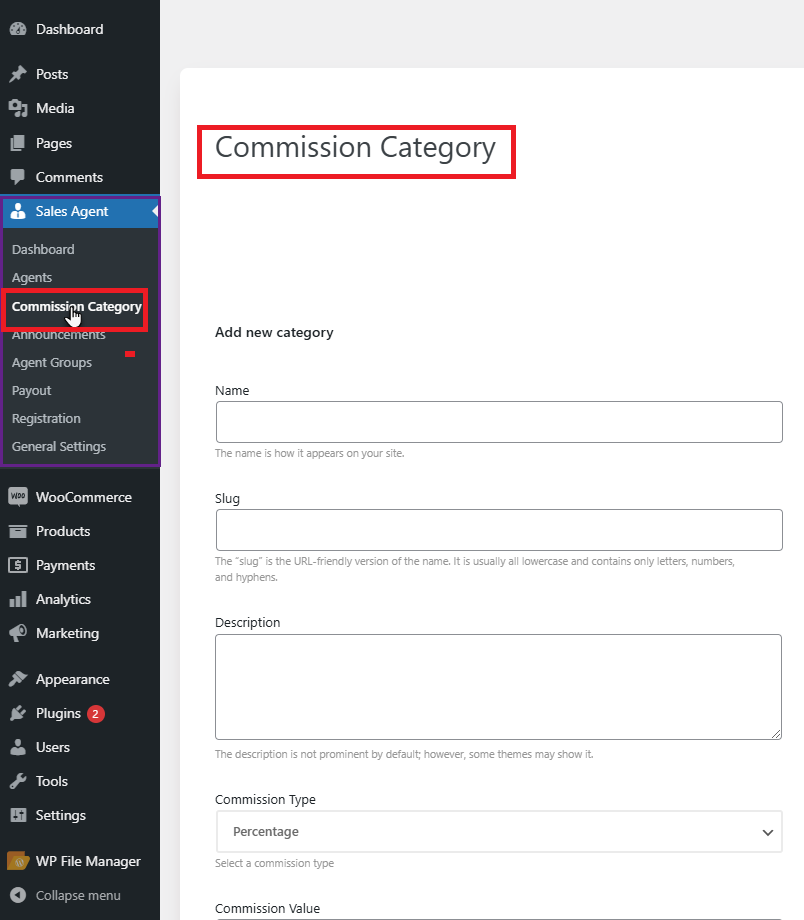
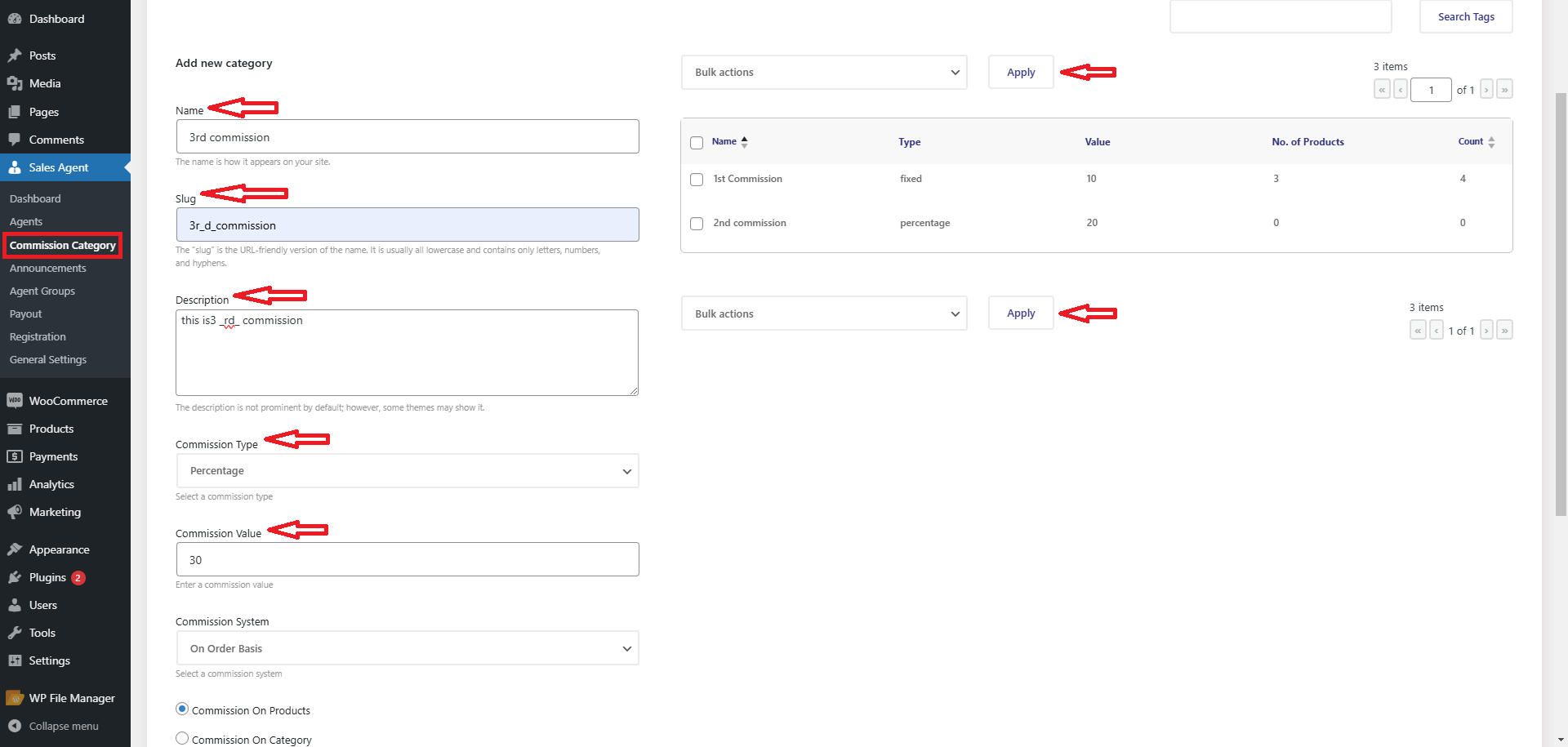
- Once you have reached the Commission Category page, you can incorporate a new commission category by filling in the mandatory fields given on the page’s left side.
- Determine the Name and Slug for the commission category.
- Determine the Description for the commission category.
- Choose the Commission Type (Fixed or Percentage) for the commission category.
- Determine the Commission Value for the commission category.
- Choose the product in the Select Product option for which the sales agent will earn the commission.
- Press the Add new category button.
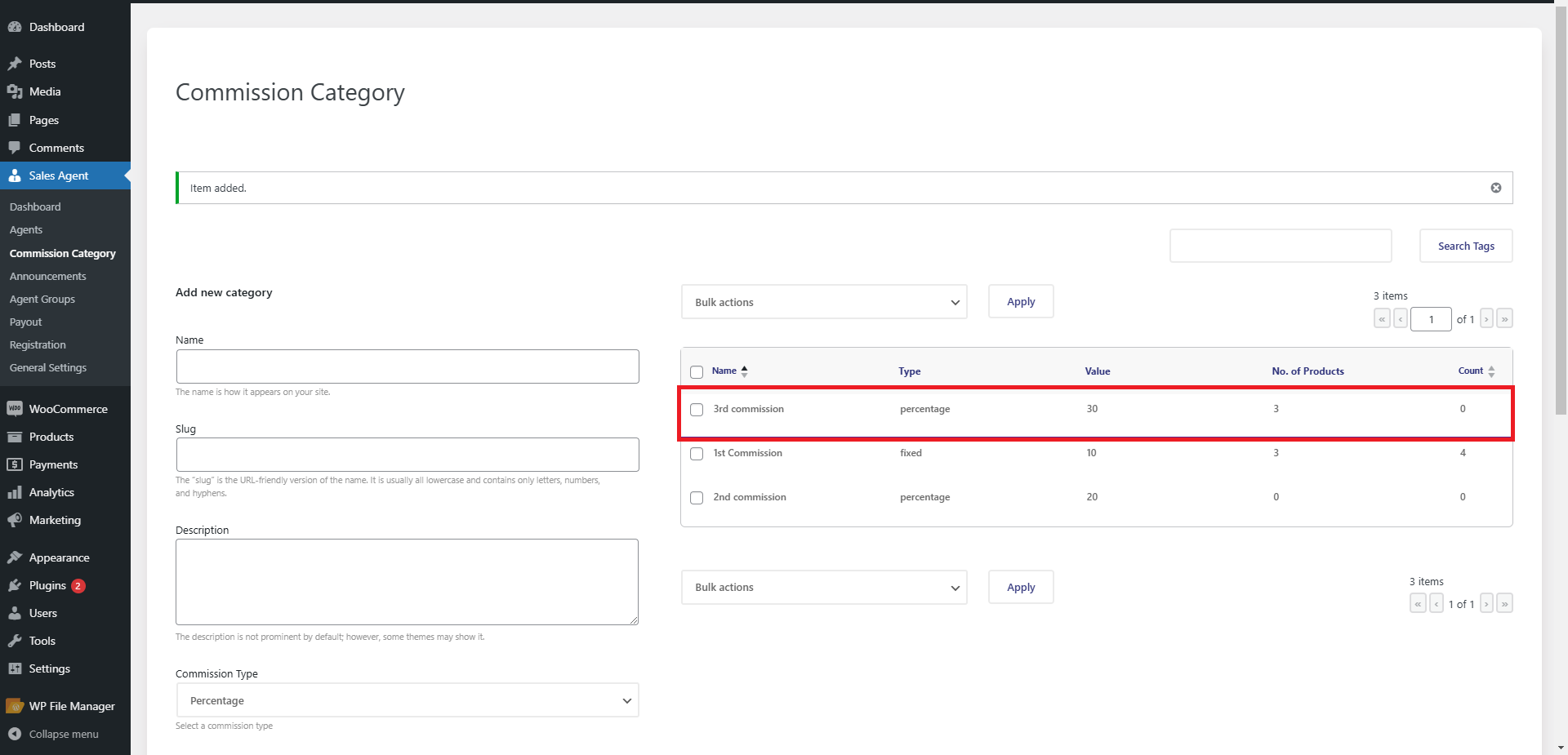
- Once you have successfully created a Commission Category, it will show on the right side of the page.
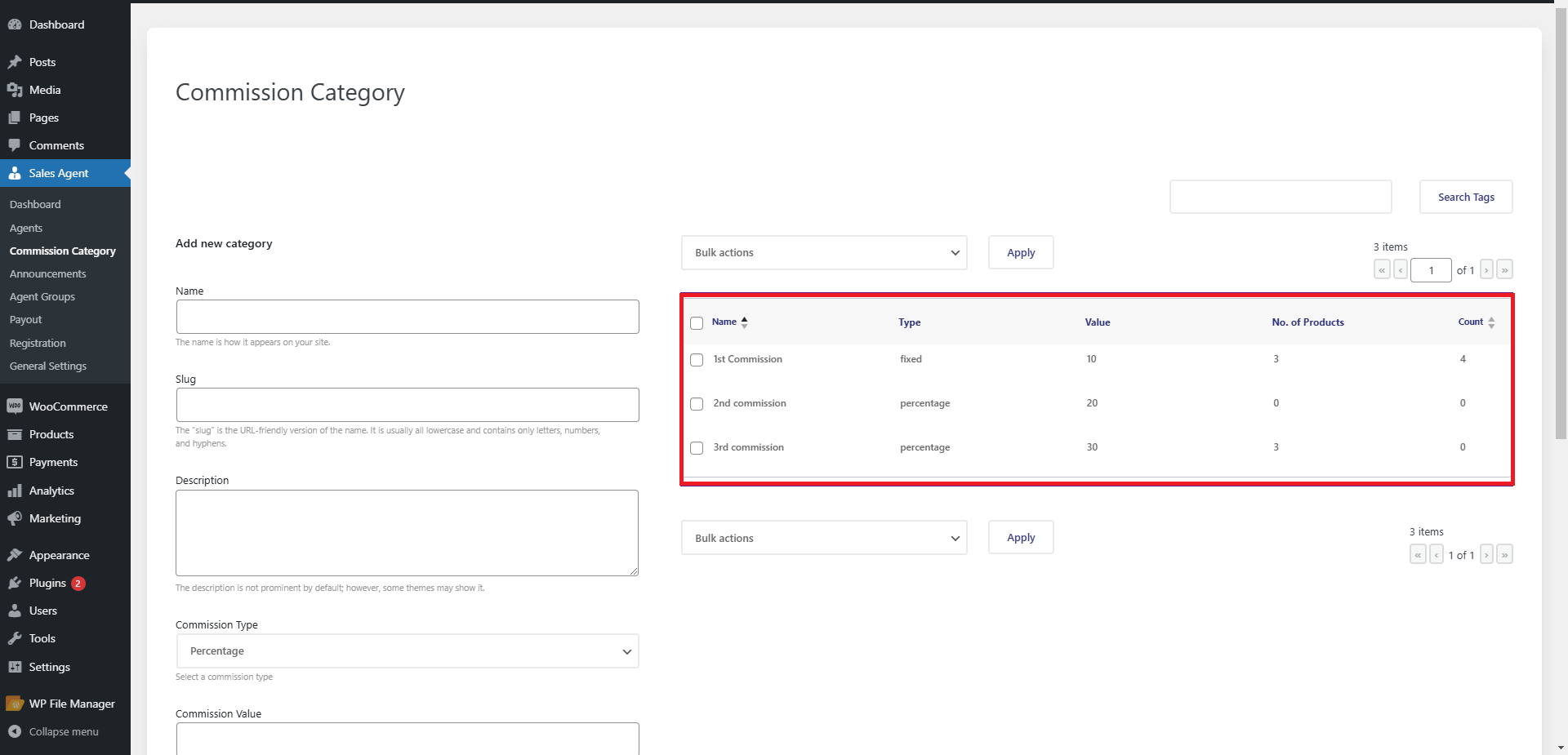
- You can easily create various commission categories depending on your needs.
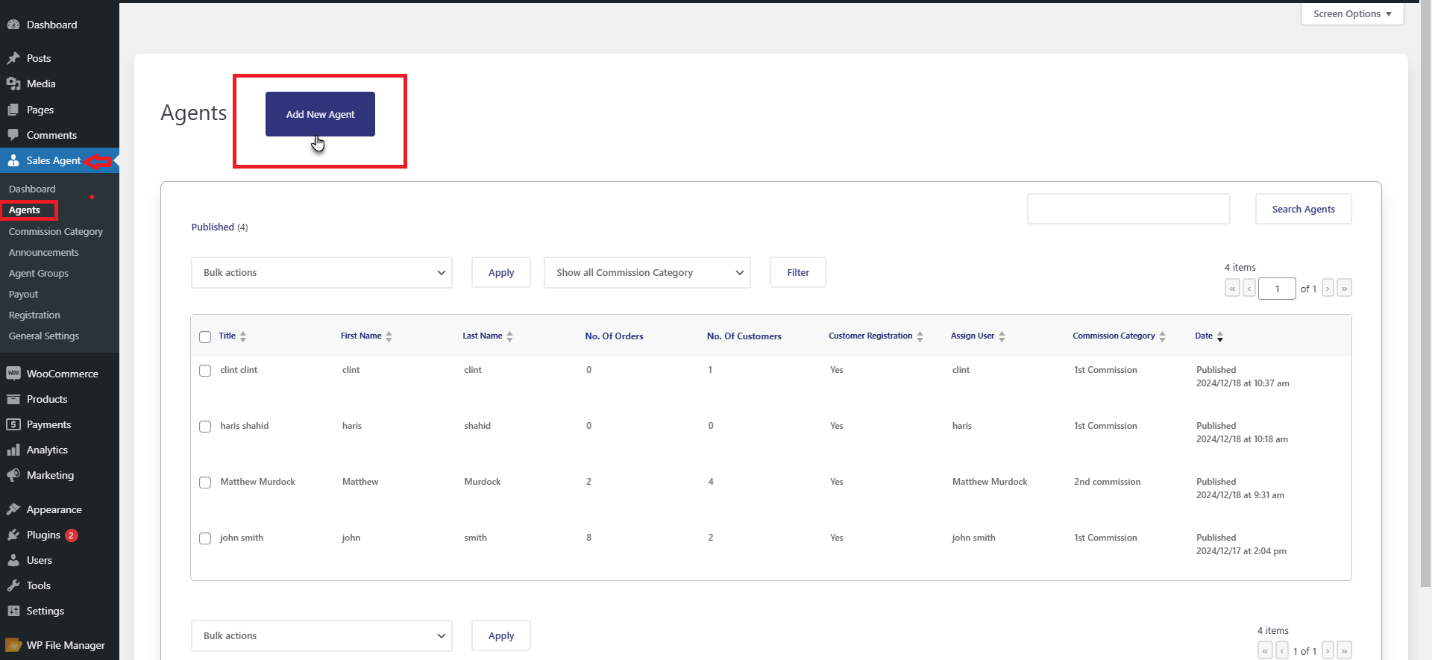
- Now, create a new sales agent by going to Admin dashboard > Agents > Agents.
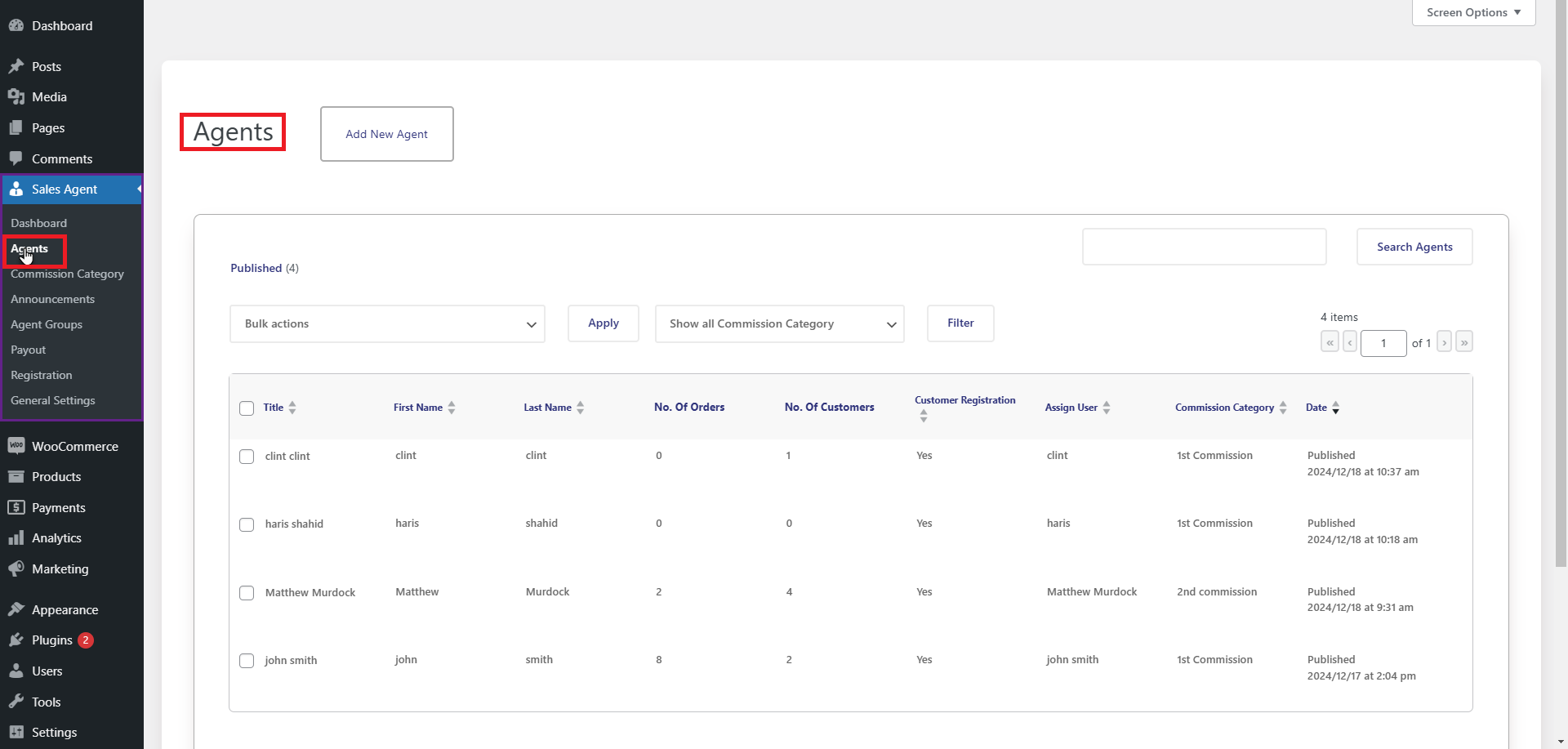
- You can see all the sales agents in the Agents page.
- Click the Add New button to include new sales agents.
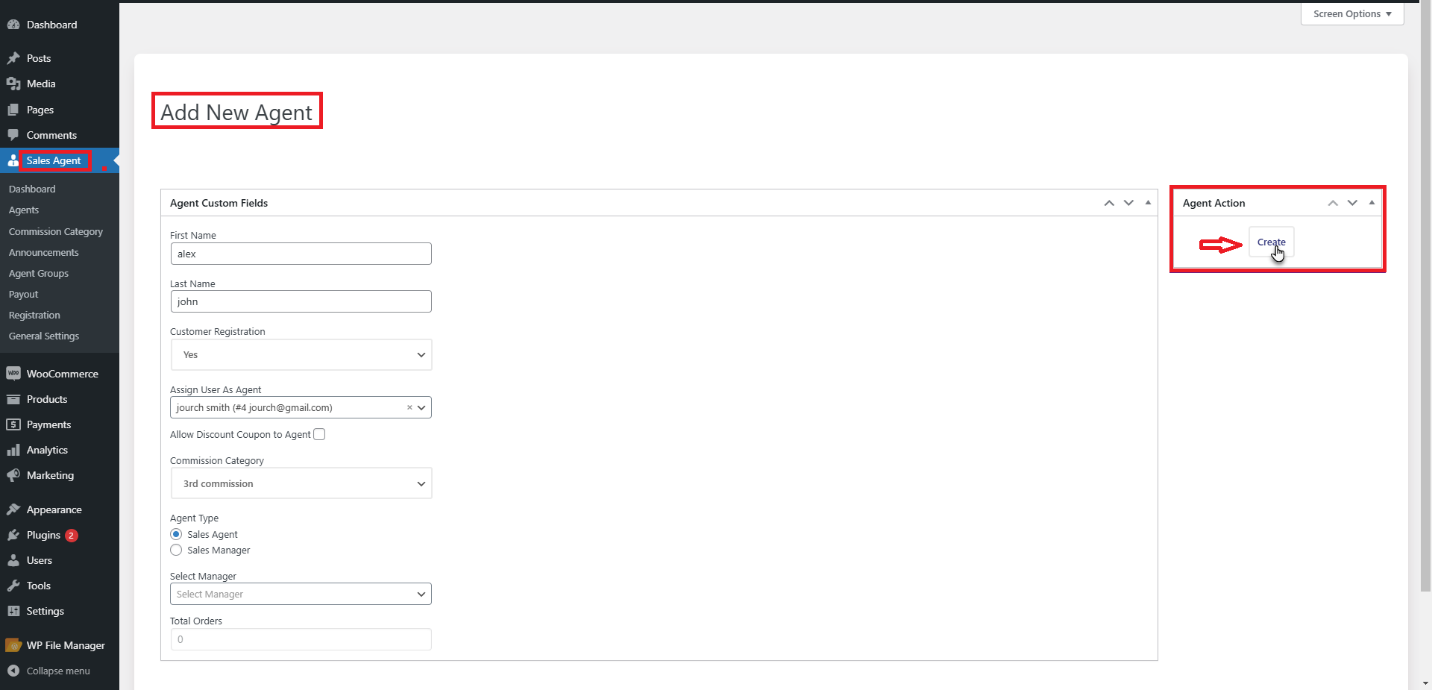
- Determine the First Name and Last Name of the sales agent.
- Select the Yes or No option in the dropdown menu of the Customer Registration option. If you choose “Yes,” the sales agent will create a customer from the My Account page.
- You will need to assign any user to the sales agent using the Assign User option.
- You will also assign a commission category to the sales agent from the dropdown menu in the Commission Category option.
- Hit the Create button.
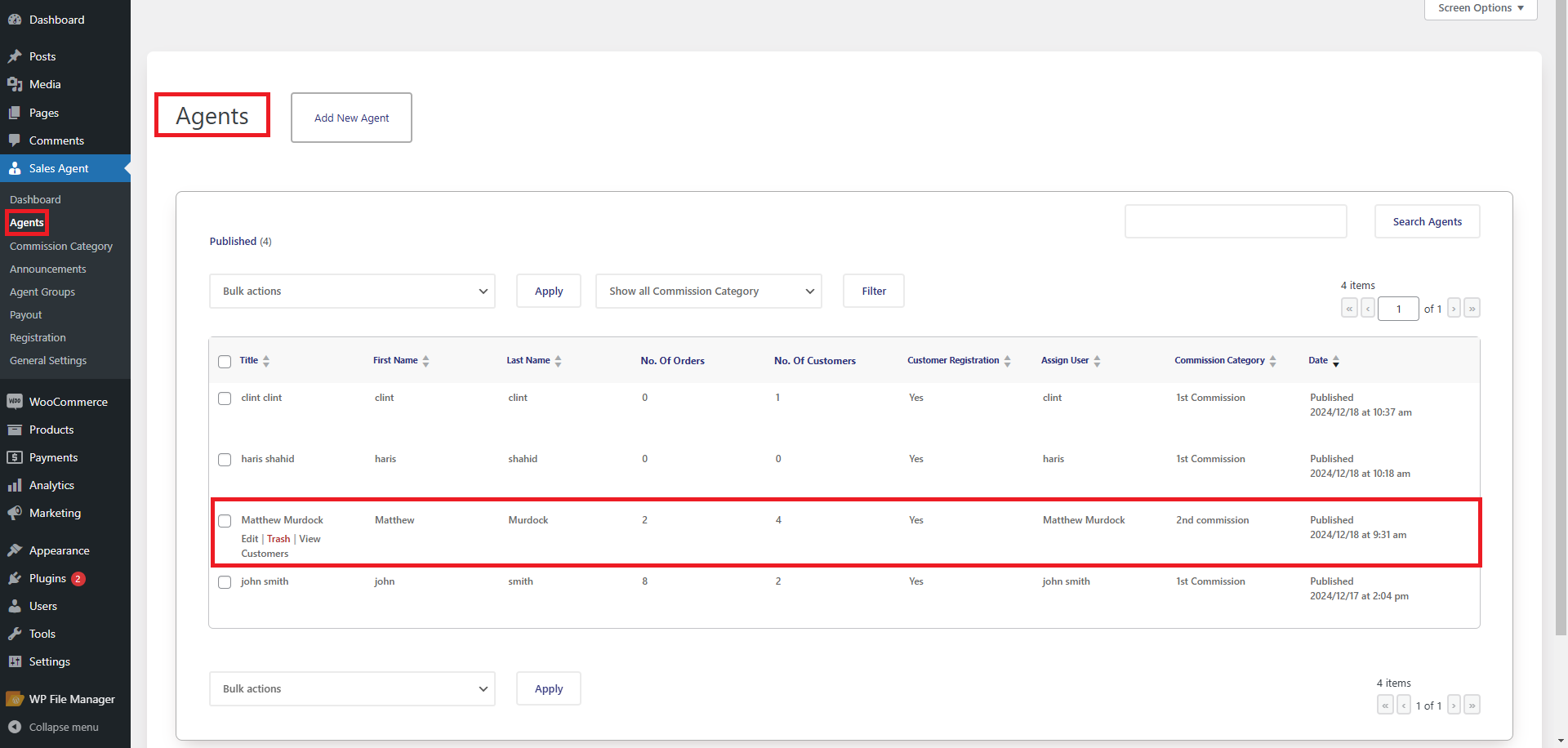
- Go back to Admin Dashboard → Agents → Agents. Now, you can see the new sales agent that has been created.
After successfully creating a sales agent, admins will need to enable both PayPal and bank transfer for payouts. This allows admins to send the commission amount to sales agents through PayPal.
[product_banner index=’1′]
Enable PayPal for Payouts
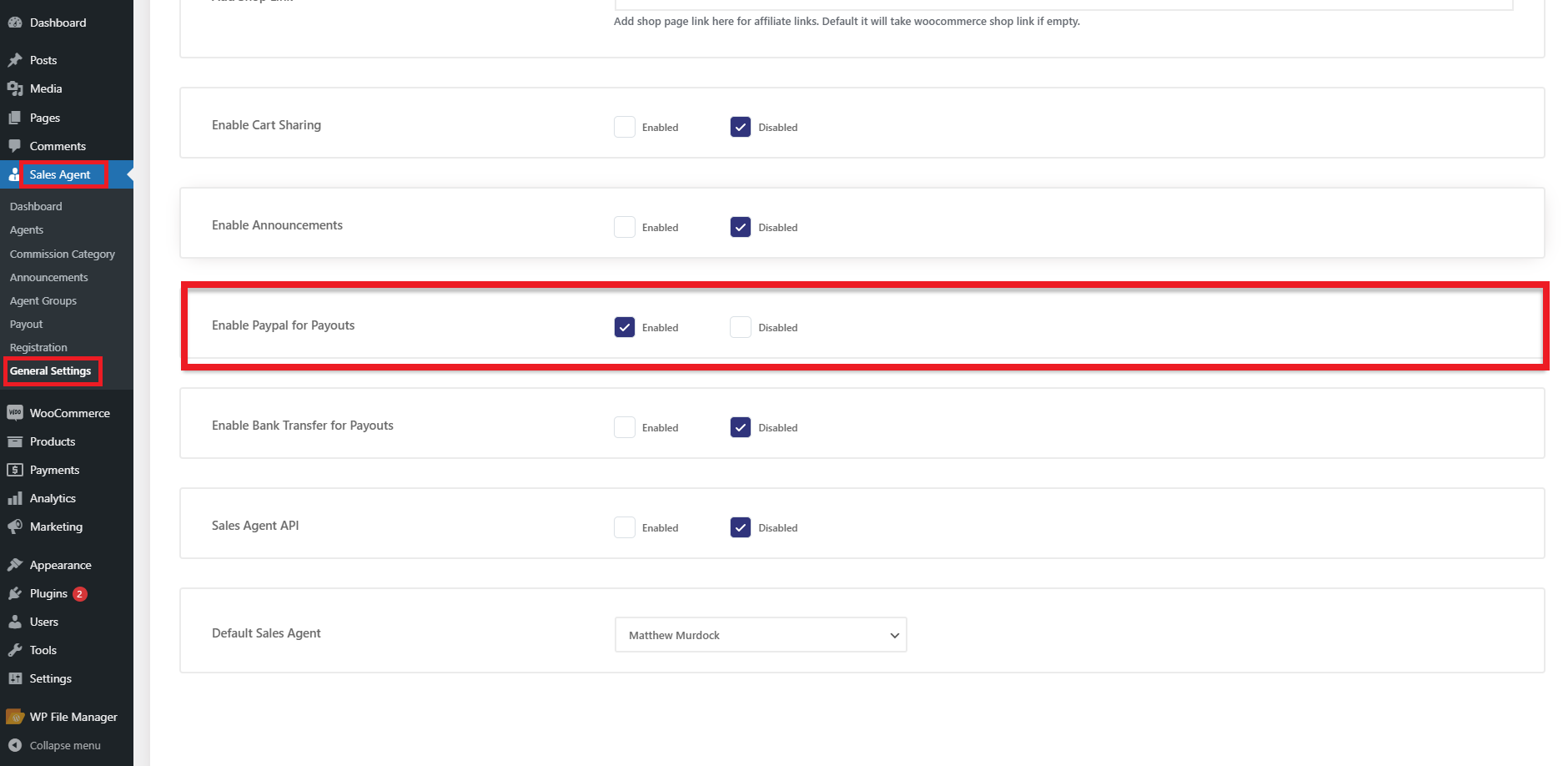
- In the Enable PayPal for Payouts option, if the Administrator presses the Enabled checkbox, it will allow the sales agent to payout through PayPal. You can find the Enable PayPal for Payouts option after clicking the General Settings menu.
- To check the impact on the front-end, visit the website and sign in with the sales agent credentials.
- Go to the Payout tab through the My Account page.
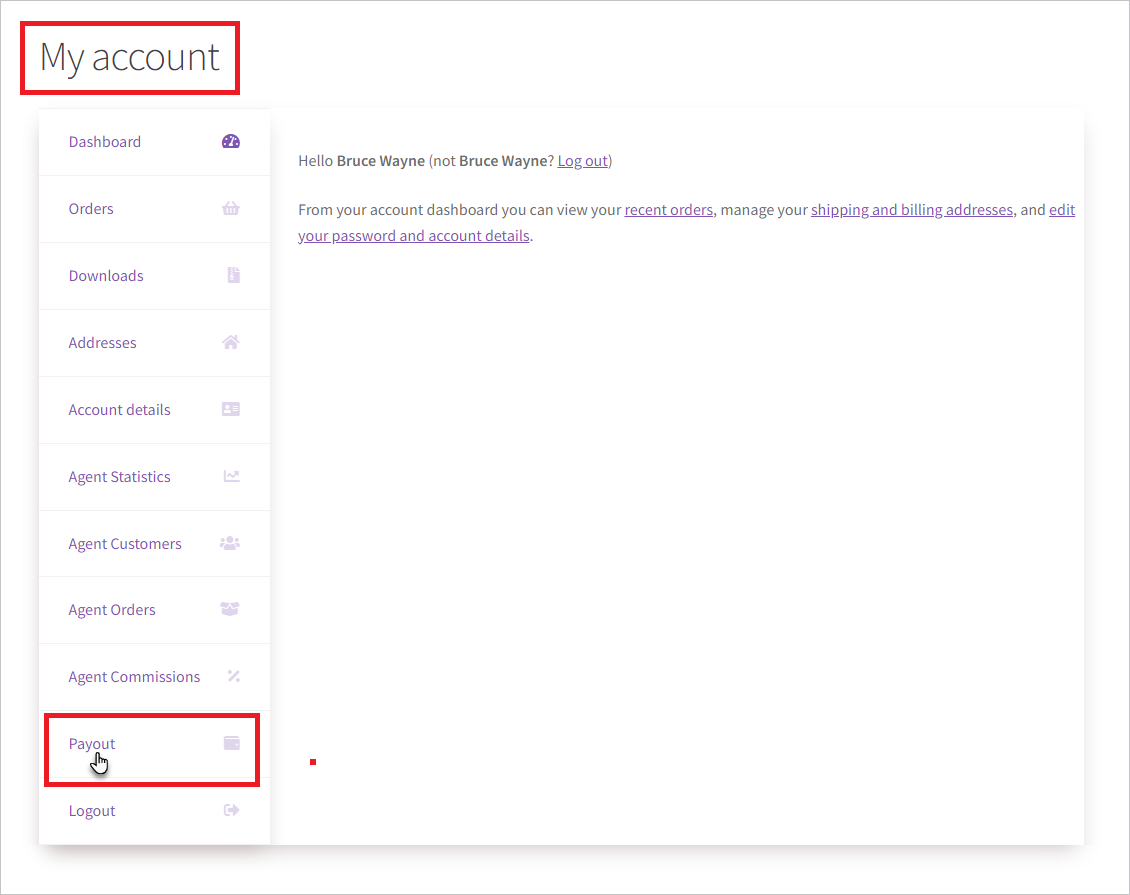
- Press the Configure button once the agent is on the Payout page.
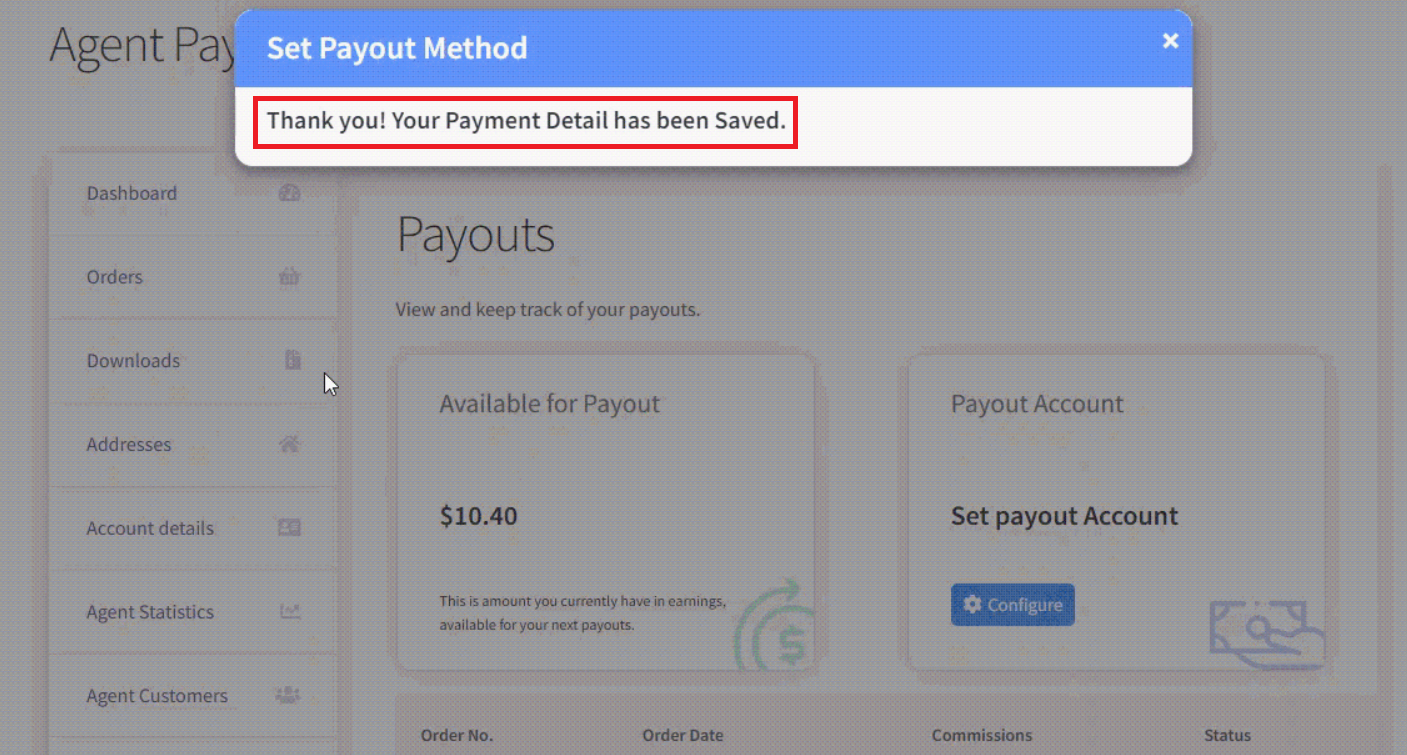
- You will see a pop-up, choose the PayPal radio button, and then write the email address of the PayPal account of the sales agent.
- After adding the payment method, a notification will be shown as “Thank you! Your Payment Detail has been Saved.”
- Go to the Admin Dashboard > Agents > Payout.
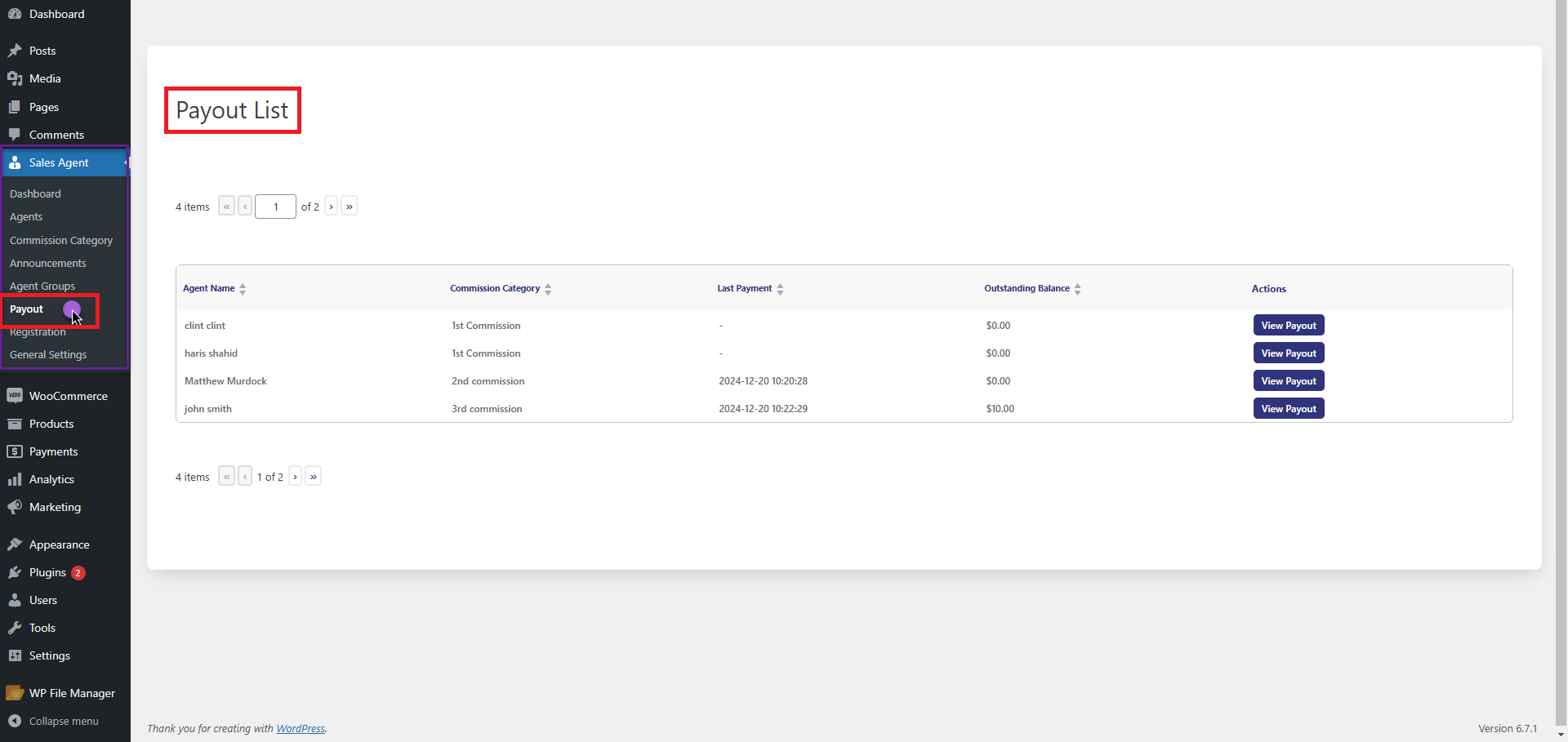
- All the Payouts are available on this page.
- Press the View Payout button against any agent to view their commission list.
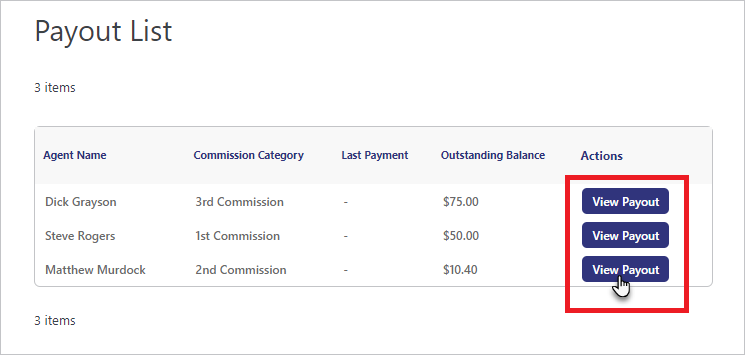
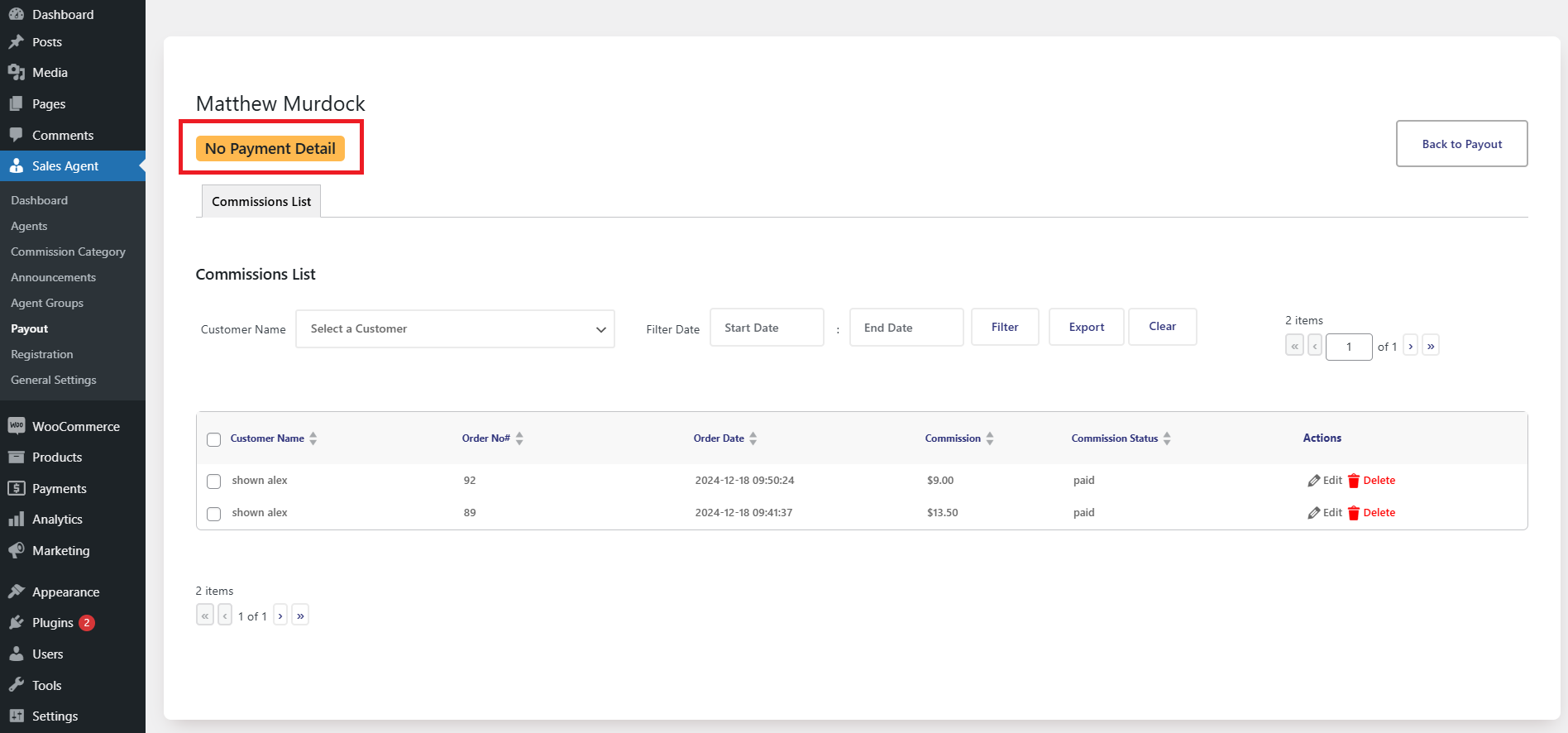
Before the PayPal Account Details Were Added
- We can see that no payment details were added.
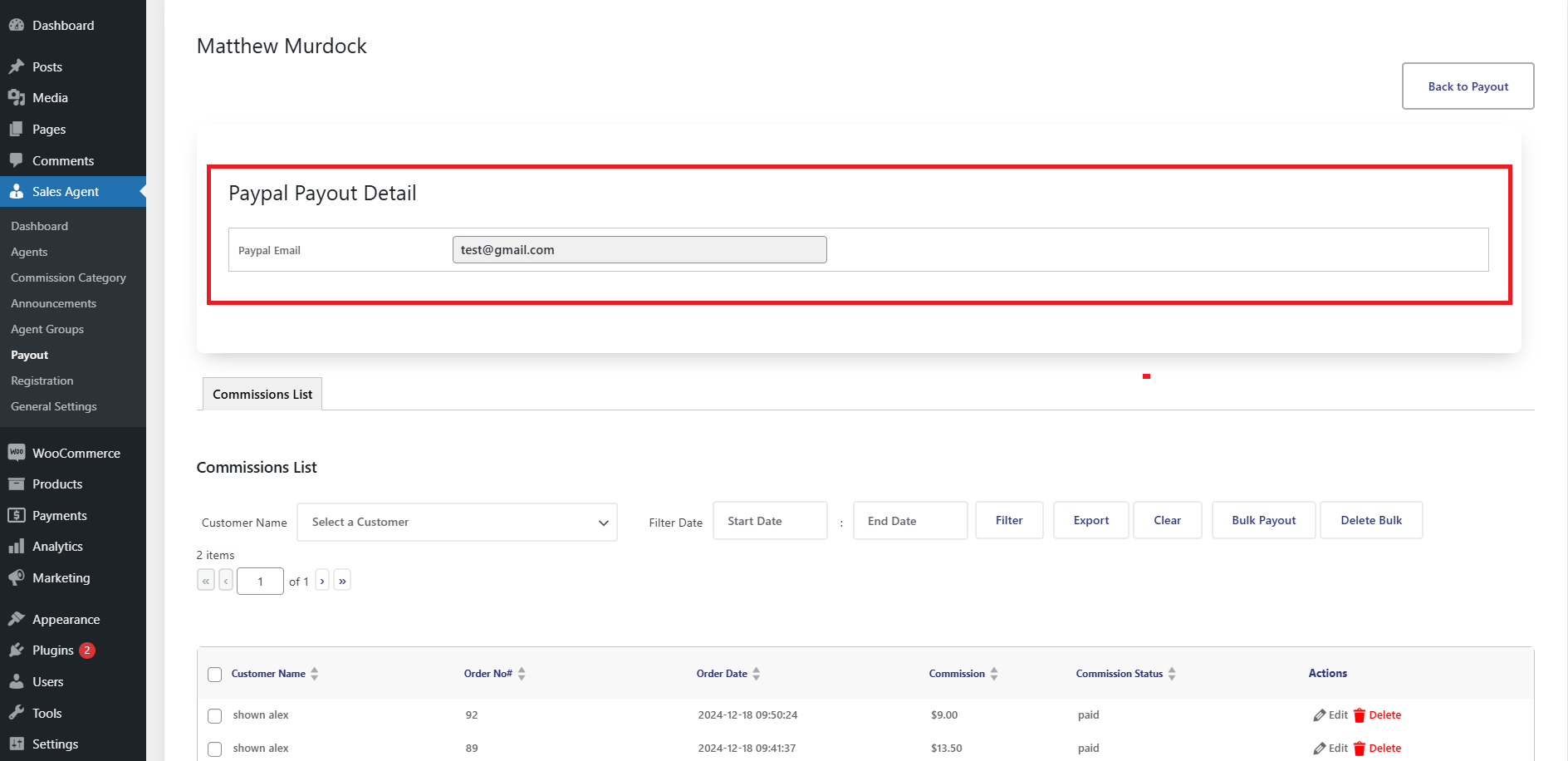
After the PayPal Account Details Were Added
- Now, we can see that payment details were added.
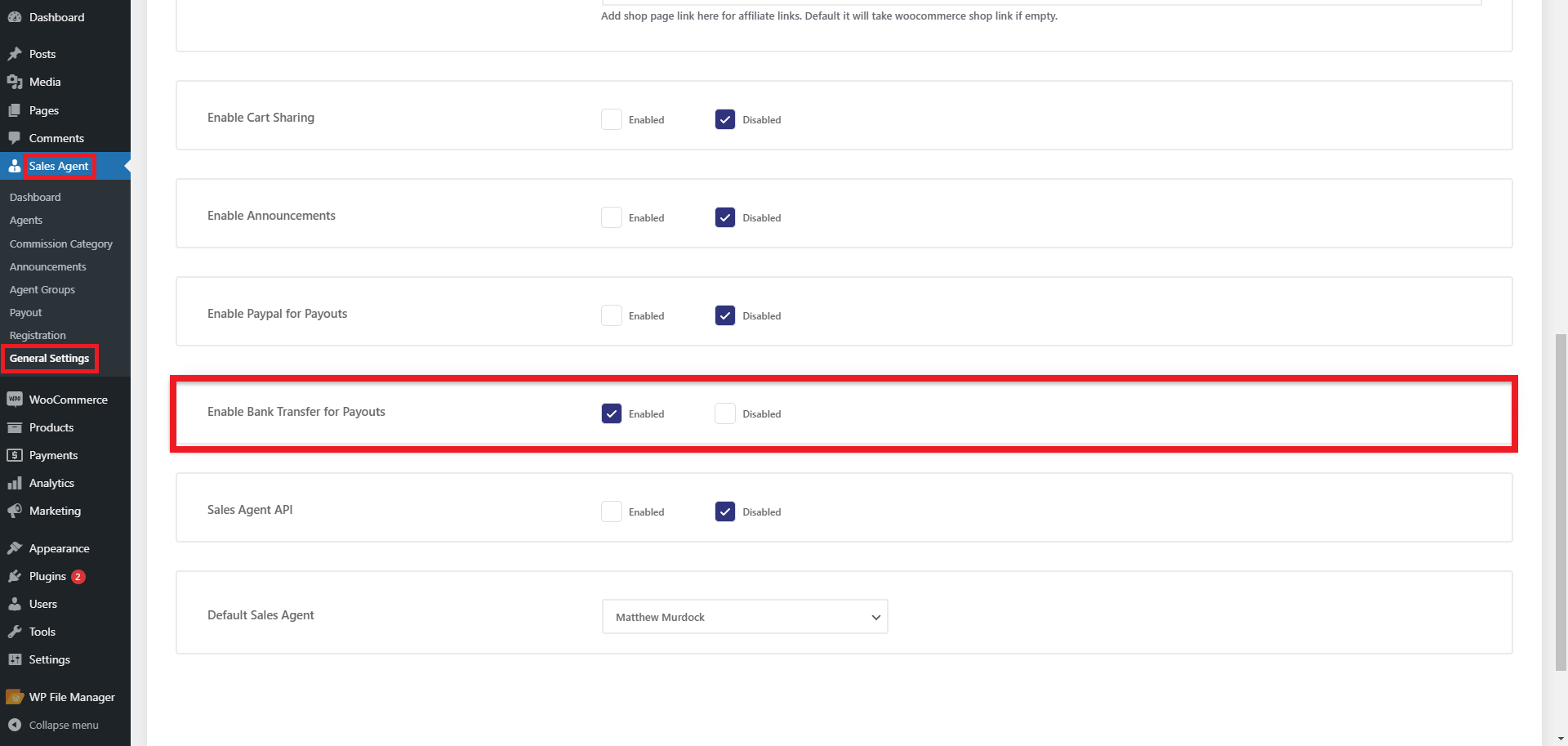
Enable Bank Transfer for Payouts
- In the Enable Bank Transfer for Payouts option, if the Administrator presses the Enabled checkbox, it will enable the sales agent to payout through bank transfer.
- To check the impact on the front-end, visit the website and sign in with the sales agent credentials.
- Go to the Payout tab through the My Account page.
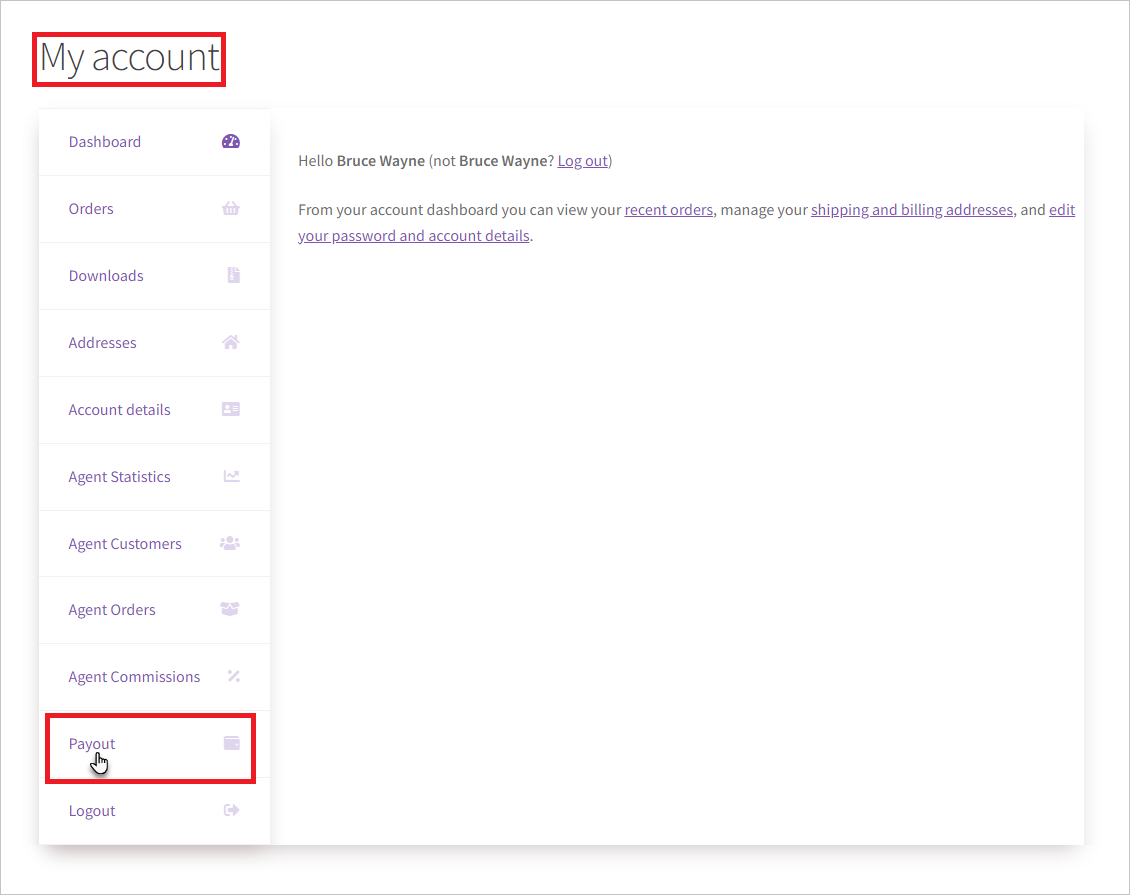
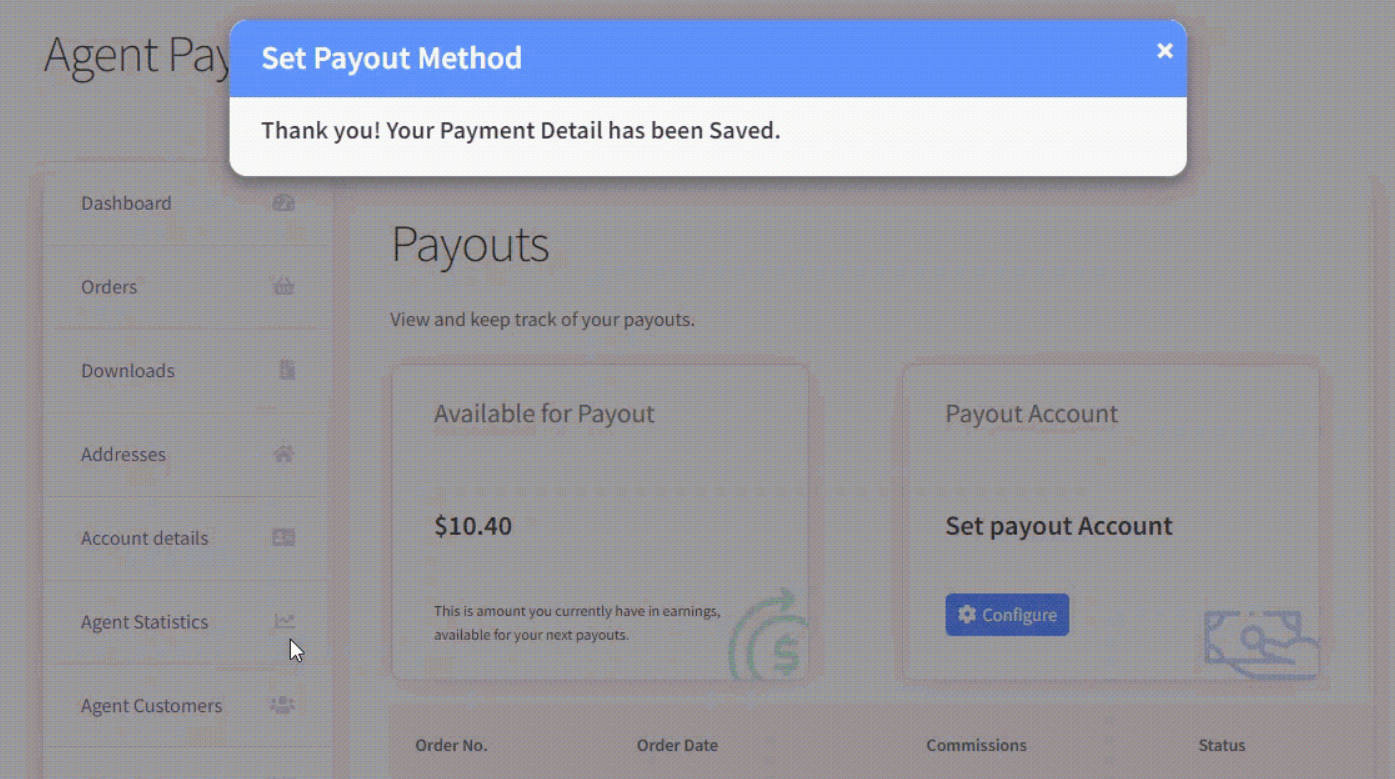
- Once the agent is on the Payout page, press the Configure button.
- A pop-up will appear; select the Bank Transfer radio button and provide the required information for the sales agent.
- Once the payment method is successfully added, a notification will be shown as “Thank you! Your Payment Detail has been Saved.”
- Navigate to the Admin Dashboard → Agents → Payout.
- All the Payouts are mentioned on this page.
- Hit the View Payout button against any agent to view their commission list.
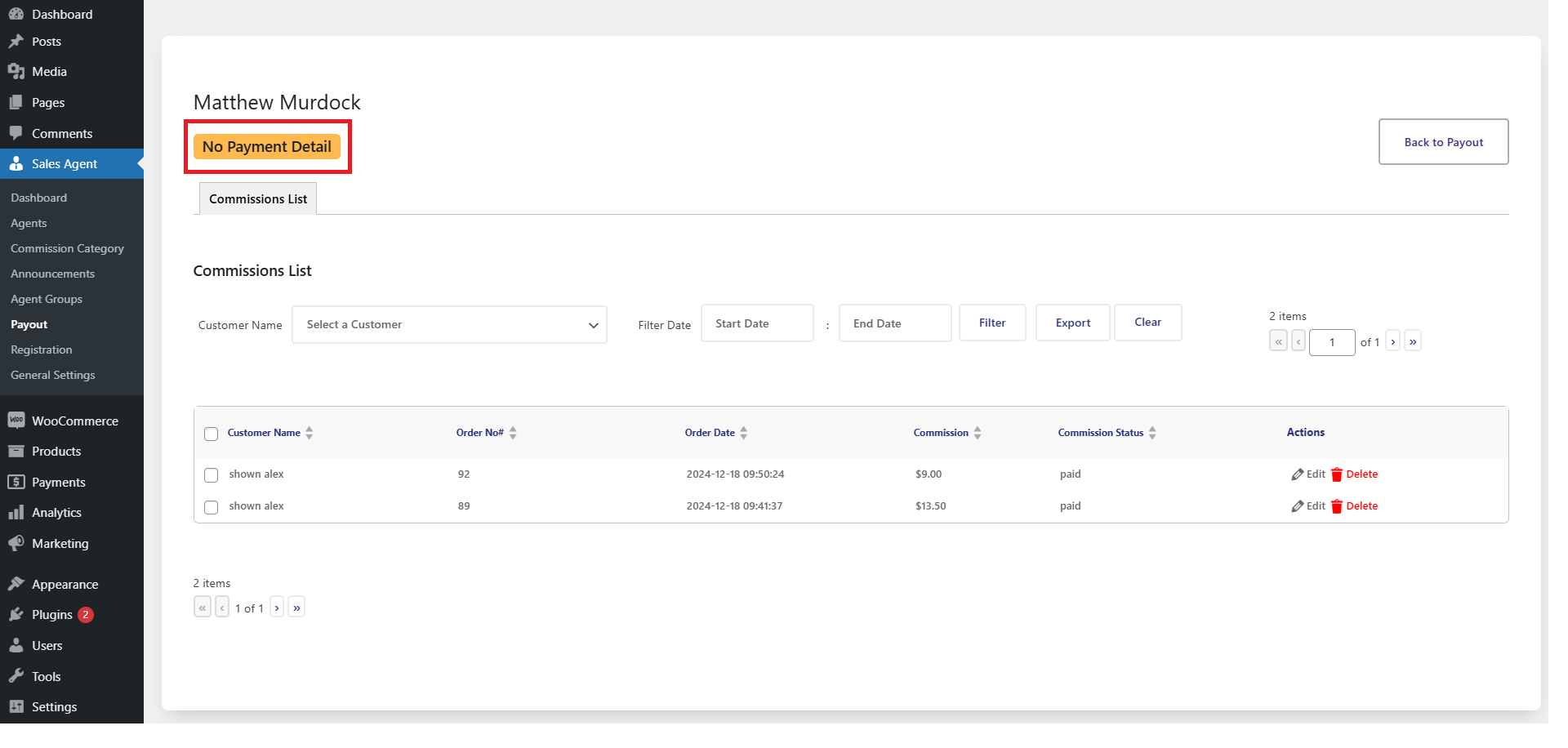
Before the Bank Transfer Details Were Added
- We can see that no payment details were added.
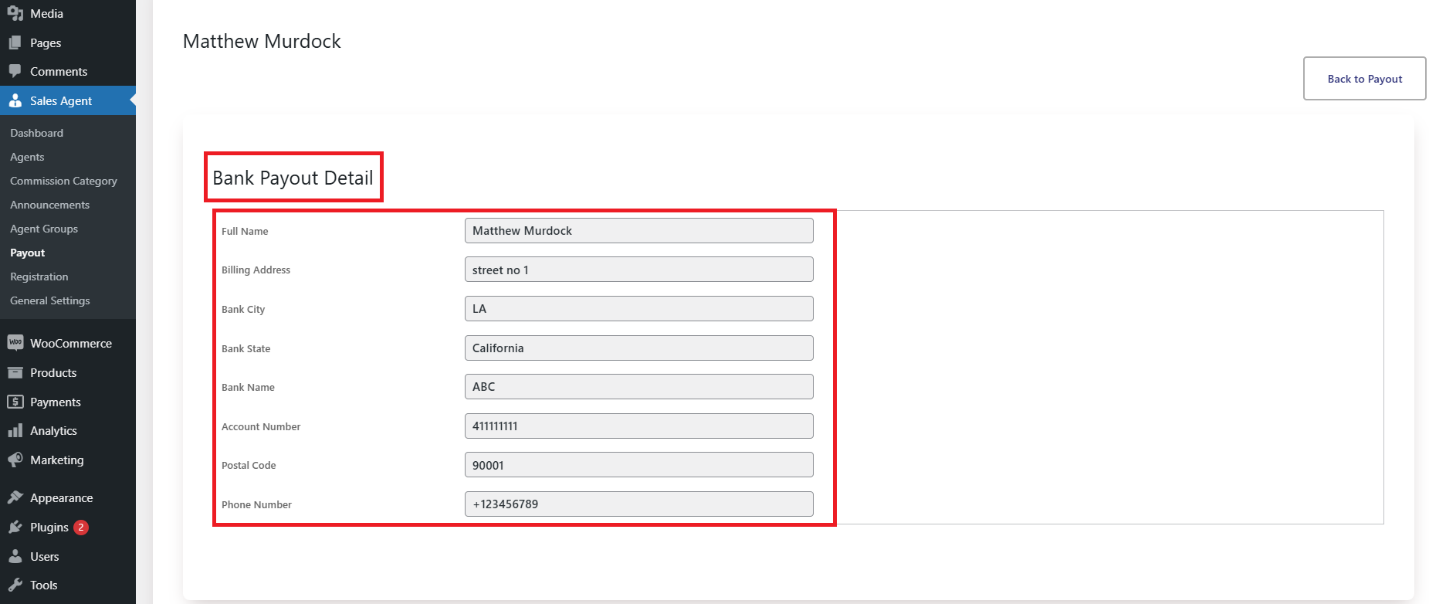
After the Bank Transfer Details Were Added
- We can view the Bank Transfer details at the top of the page.
By enabling PayPal and bank transfer for payouts, admins can send commissions to sales agents without any hassle.
Standout Benefits of Sales Agent Payouts

Once businesses start automating sales agent payouts, they can get numerous benefits in return:
- Flexibility: Users can benefit from several payout options depending on agents’ specific needs.
- Transparency: Clear commissions and payouts help enhance trust and credibility from administrators’ and agents’ points of view.
- Accuracy: This feature typically decreases manual errors that can result in wrong calculations of commissions.
- Time-Saving: Businesses don’t need to hire a specific resource to calculate commission payments. Moreover, they automate commission calculations without human intervention or error through this feature.
Wrapping Up
Sales agent payouts through PayPal and bank transfer, utilizing the Sales Agent for WooCommerce plugin, help streamline commission management and improve efficiency overall, ensuring timely payments.
Start concentrating on other crucial aspects and expand your e-commerce business to unprecedented heights.
[product_banner index=’1′]