






































 Muhammad Jaffer
If someone in Paris lands on your store and sees prices in euros, they relax. If they see USD, they pause, do mental math, and some leave. That tiny pause is expensive. This is why “currency by location” matters. Your store reads where a visitor is coming from and shows prices in their local money—no clicks, no dropdowns, no guessing. It’s simple, but it changes behavior fast.
Below is a practical, easy guide on how you can sell smarter by just showing the right currency to your global traffic. No fluff. Just how to make it work and why it pays off.
[product_banner index=’1′]
What “Currency by Location” Actually Does
- Detects the shopper’s country (usually by IP).
- Maps that country to a currency you support.
- Displays product, cart, and checkout prices in that currency right away.
- Provides a uniform experience across your website, different pages, and devices.
This is exactly what a currency switcher for WooCommerce plugin with the Currency by Location feature can do for you. Someone in Tokyo sees JPY. London gets GBP. Sydney gets AUD. Nobody has to hunt for a toggle.
How the Currency by Location Feature Makes You a Smart Seller and Lifts Conversions
Less Friction
Every extra step costs you. The shopper with a manual currency switcher will take time to understand and use it. Many even don’t bother and leave your website. Auto currency removes that step and the doubt that comes with it.
Instant Trust
Local currency says, “We sell to customers like you.” It hints at proper taxes, correct formatting, and a checkout that won’t surprise them with conversion fees.
Fewer Abandoned Carts
A lot of drop-offs come from unclear totals. When the whole journey shows local currency, the final number makes sense. No nasty surprises at payment.
Better Mobile Experience
Phone shoppers won’t dig through menus. If pricing “just works,” they keep scrolling and buy.
Now you know why location-based currency switching is a key to success for global stores in 2025; just look at some of its actual impact.
Actual Business Impact of Auto Currency Switching in Plain Terms
- Higher conversion rate from international traffic
- Lower bounce rate on product pages from new countries
- Cleaner comparisons against local competitors
- More returning customers because the first purchase felt easy
Think of it as removing a stone from the running shoe. Small fix. Big difference by the finish line.
How to set it up (WooCommerce)
- Install a reliable currency switcher plugin (Recommended: Currency Switcher for WooCommerce by WPExperts, as it supports “Currency by Location.”)
[product_banner index=’1′]
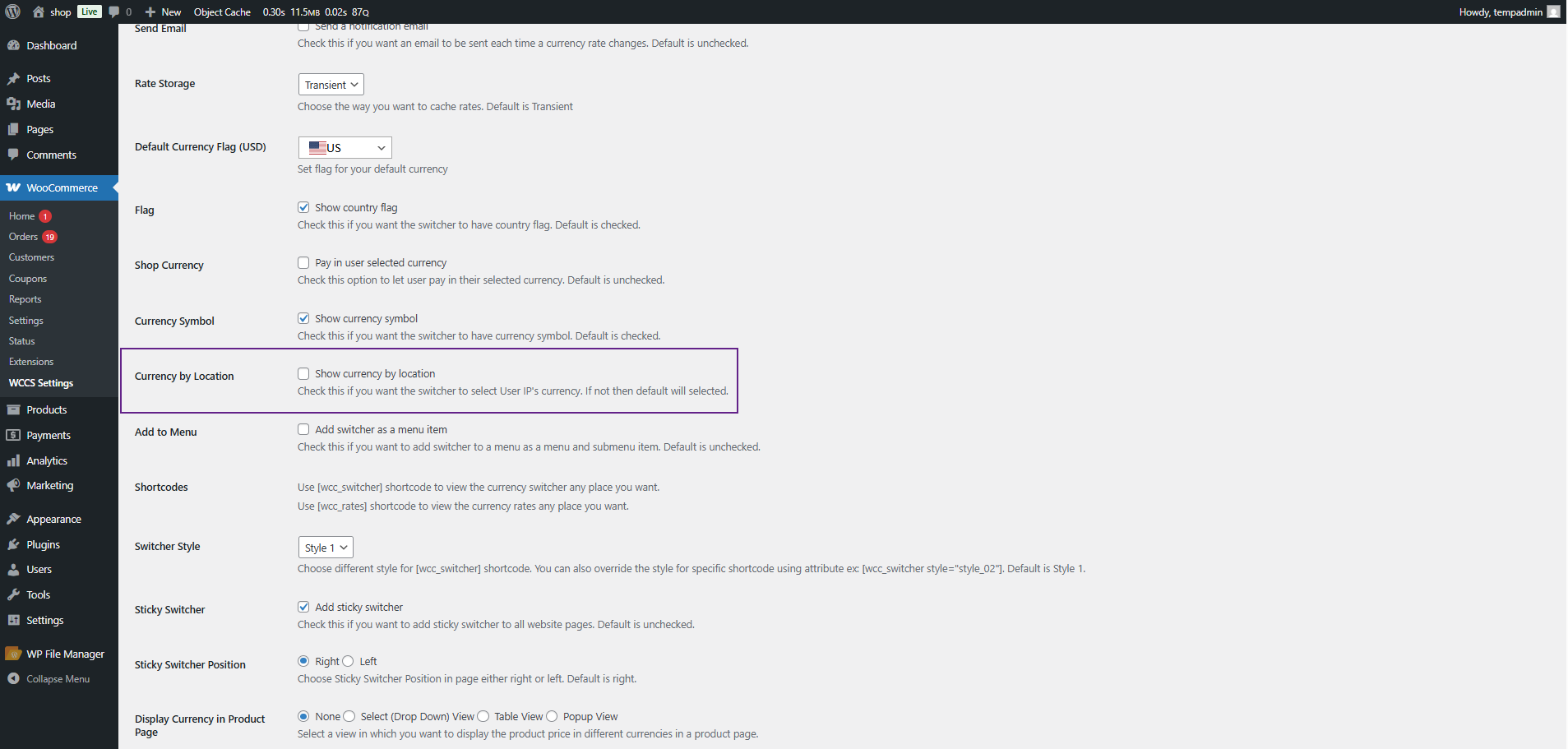
- Enable Currency by Location: Once active, open the WCCS settings panel. Enable the currency-by-location feature to detect visitors’ locations automatically.
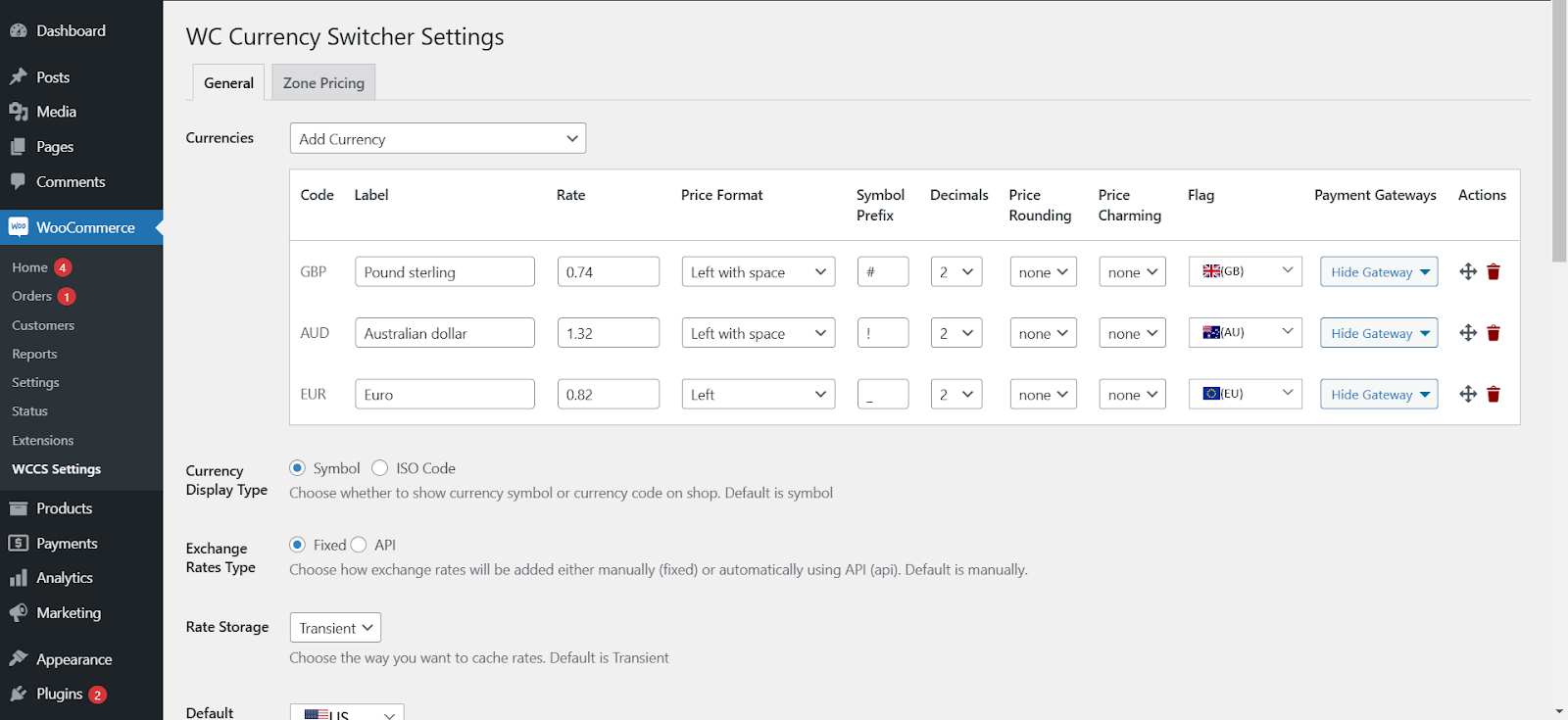
- Add Your Currencies: Choose the currencies you want your store to display. You can link them to specific countries.
- Test It Out: Before you roll it out globally, test it using VPNs or proxy tools. Make sure visitors in each country see the correct currency.
- Track Your Analytics: After enabling it, monitor your analytics. You’ll likely see lower bounce rates and higher conversion rates from international visitors.
That’s it. Once set up, the system runs on autopilot. To get more insights on how to set up or how the auto currency detection works, you can read the technical documentation of this plugin.
Smart Settings that Save Headaches
- Rounding rules: Clean numbers sell better. Use .99 or round to full amounts in each market to avoid “weird” converted prices.
- Lock currency per session: Once set, don’t jump currencies mid-visit if the IP changes (mobile networks can do that).
- Respect local formats:
- 1,234.56 in the US
- 234,56 in parts of Europe
Small detail, real trust.
- Show the currency code at checkout: “€129,00 EUR” removes doubt for travelers or expats.
- Offer a manual switcher as a backup: Tuck a clean toggle in the header or footer for edge cases.
A Simple Rollout Plan
Here are quick and complete action tips to be ahead and sell smarter by showing currency by location to your global customer base.
- Install the switcher → enable Currency by Location.
- Add the top 5 currencies you see in Analytics.
- Turn on automatic exchange updates + rounding.
- Test five countries with a VPN.
- Ship it, then watch conversion and abandonment weekly.
That’s it.
What to Measure After Launch
- Conversion rate of international sessions (before vs. after)
- Cart abandonment rate from non-base countries
- Bounce rate on product pages by country
- Average order value by currency
- Support tickets mentioning pricing confusion
Give it two weeks of clean data. If conversion goes up and tickets go down, you’re on the right track.
Common Pitfalls (and Simple Fixes)
API Limits for Geolocation
High-traffic stores can hit free-tier caps. Use a paid plan or a provider with generous limits.
Cache Conflicts
If your site uses full-page caching, serve currency-aware pages via compatible geolocation modes or use fragment caching for price blocks.
Exchange Rate Volatility
Rates move. Protect margins with buffers or rounding. For promo campaigns, consider fixed “sticker” prices per market.
Legal Display Rules
Some countries expect VAT-inclusive prices. Others don’t. Match local norms to stay clear and compliant.
Wrapping Up
Selling smarter in 2025 means selling globally without feeling foreign. When every customer sees your products priced in their local currency, you remove hesitation, build instant trust, and guide them smoothly toward checkout.
The Currency Switcher for WooCommerce by WPExperts takes care of all the hard work for you — automatic detection, real-time exchange updates, and an intuitive experience for every visitor. Let your store speak your customer’s currency before it speaks their language.
[product_banner index=’1′]
Quick Answers to Real Questions
Will this affect SEO?
Not directly. You’re not changing content—just how prices display. Keep a single canonical URL per product to avoid duplicate content issues. But auto currency detection may affect your SEO as more visitors, lower bounce rates, and more engagement mean more trust from search engines and eventually more traffic.
Can I charge different base prices per country?
Yes, this Currency Switcher plugin supports price rules. Use uniqueness and be transparent. Start with currency display first; layer price strategies later.
What about fees at the bank?
Displaying local currency reduces confusion, but payment gateways still matter. Use a processor that settles or converts cleanly with clear rates.
Do I still need a manual switcher?
Not, basically, but yes—it helps travelers and VPN users. Keep it simple and visible—but don’t rely on it for your main flow.