








































 Usman Hayat
When you manage an e-commerce store, organizing or sorting products makes the lives of your customers a lot easier. You can smartly arrange products or items in the order form based on your customers’ preferences, enabling them to enhance their shopping experiences and make quick purchase decisions.
If you want to optimize your order forms considerably, utilizing the product sorting feature is a must.
This blog post will describe how you can easily arrange items or products on your WooCommerce order form using the product sorting feature.
[product_banner index=’1′]
Why is Product Sorting Crucial for Your WooCommerce Online Store?
Product sorting plays a vital role in the expansion of a WooCommerce online store. With this feature, store owners can receive multiple benefits, including enhanced user experience, improved sales, simple navigation, and increased conversions.
Enhanced User Experience
A well-optimized product page helps customers explore their preferred products all in one place. It can allow store owners to assist customers in making purchases quickly.
Improved Sales
Store owners can increase their sales by facilitating customer purchases, allowing them to buy different products based on their preferences, such as the latest, best-selling, and popular items. This can motivate them to make quick purchase decisions, enhancing sales and revenues.
Simple Navigation
Customers can easily browse products when they visit WooCommerce stores with extensive inventories.
Increased Conversions
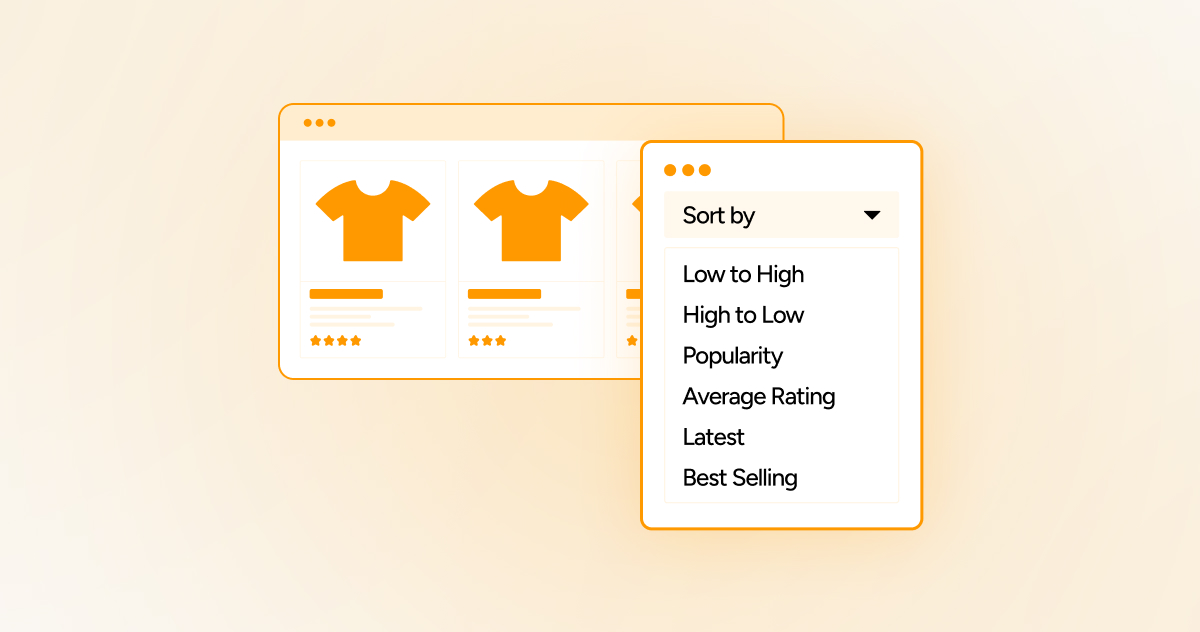
Different sorting approaches or methods allow customers to instantly select multiple products using a dropdown menu that offers many options, such as low to high, high to low, latest, best-selling, popular, etc.
[product_banner index=’1′]
How to Arrange Items on a WooCommerce Order Form?
When arranging items on a WooCommerce order form, you can take advantage of the Bulk Order Form for WooCommerce plugin that offers an exclusive product sorting feature.
To use this feature, ensure you have installed and activated the Bulk Order Form for WooCommerce plugin on your online e-commerce store.
This will help you appropriately arrange items on an order form using the product sorting feature. To arrange items, here is what you should do:
- Activate sorting via columns. Add fields to enable sorting options on those fields.
- Set up the default sorting option by field.
- Choose the sorting direction, either ascending or descending.
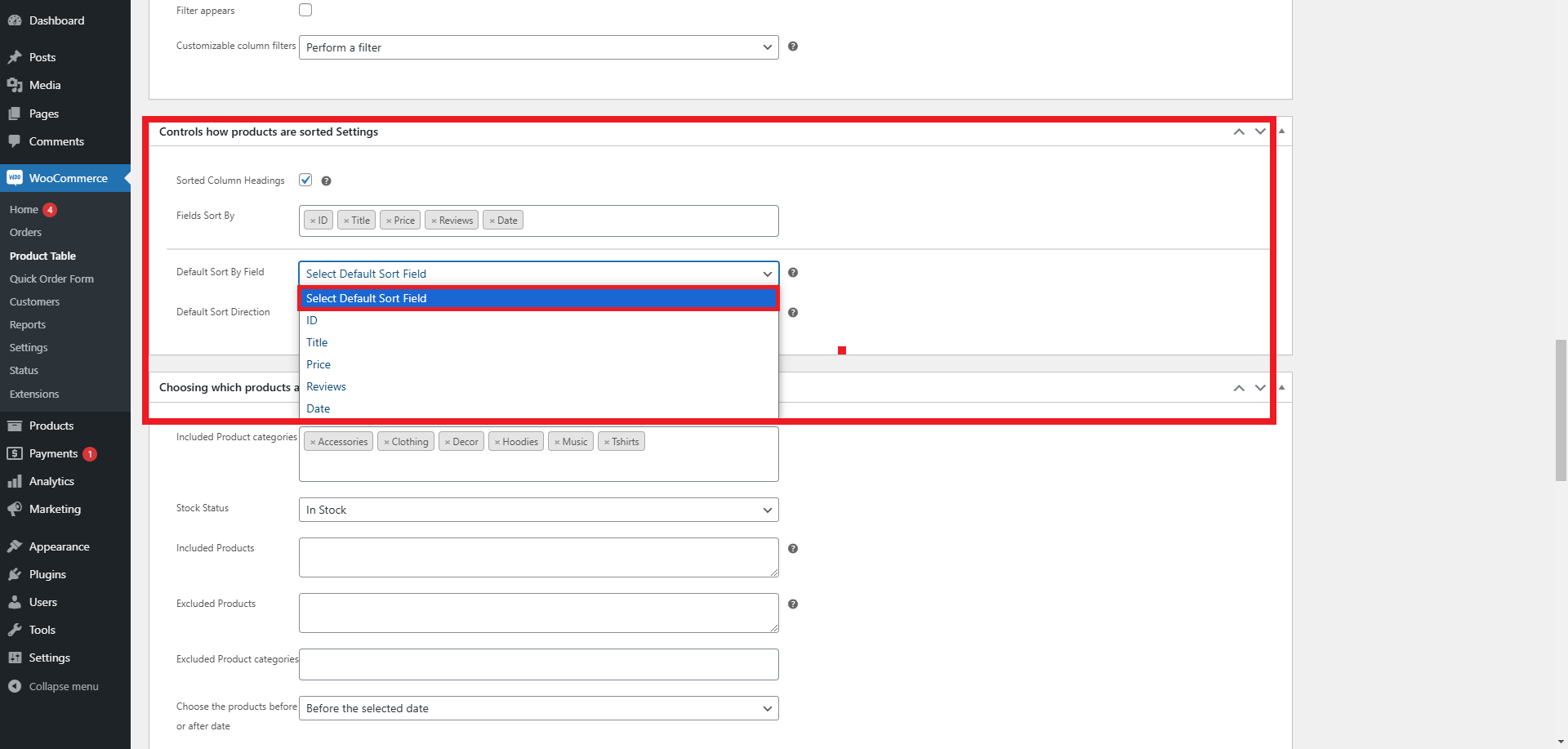
Applying Notable Product Sorting Methods
The product sorting feature offered by the Bulk Order Form for WooCommerce plugin lets you implement various leading product sorting methods, such as low to high, high to low, popularity, average rating, best-selling, and latest.
Low to High
You can sort the products from low to high prices.
High to Low
You can sort the products from high to low prices.
Popularity
You can sort the products according to the rating given by WooCommerce.
Average Rating
You can sort the products according to the average rating given by WooCommerce.
Best-Selling
You can sort the products that are sold in massive numbers.
Latest
You can sort the products that were recently included.
To create a dropdown filter (Product Sort by), follow the steps below:
- Through the Product Table tab, select the Product Sort By option by clicking the Add Filter Dropdown Lists Above the Table option using the Advanced Search Settings.
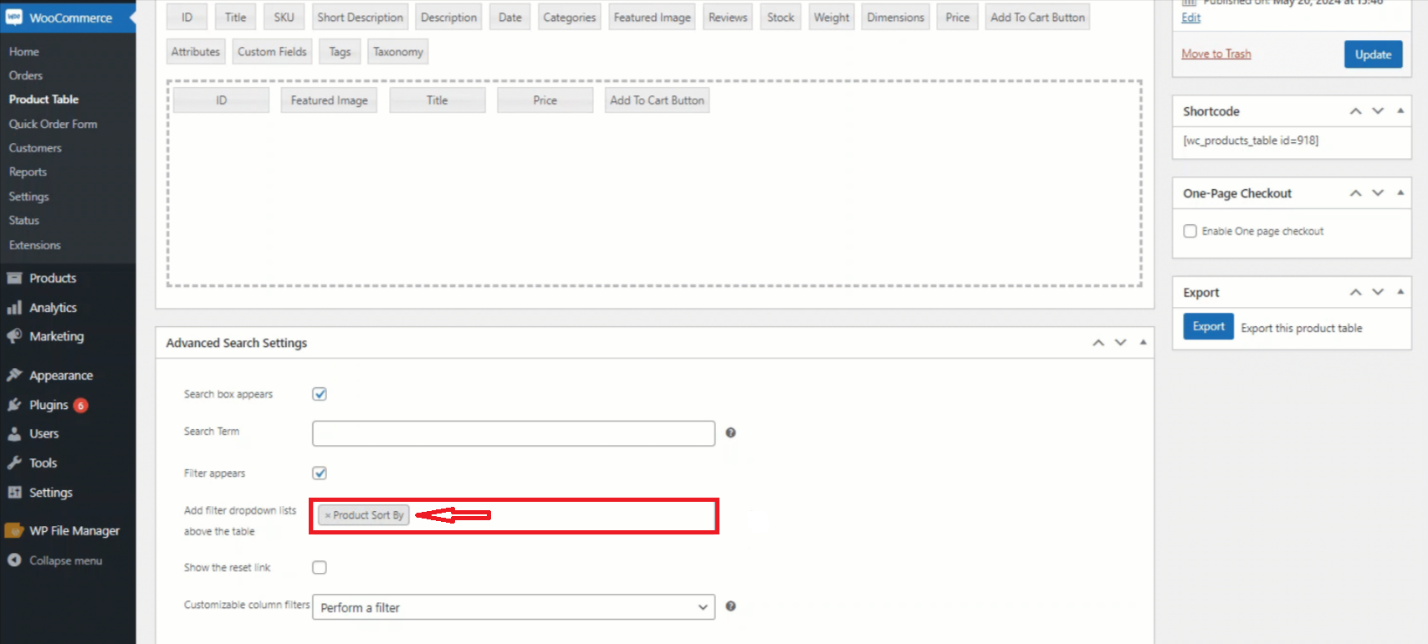
- Press the Update button to enable changes.
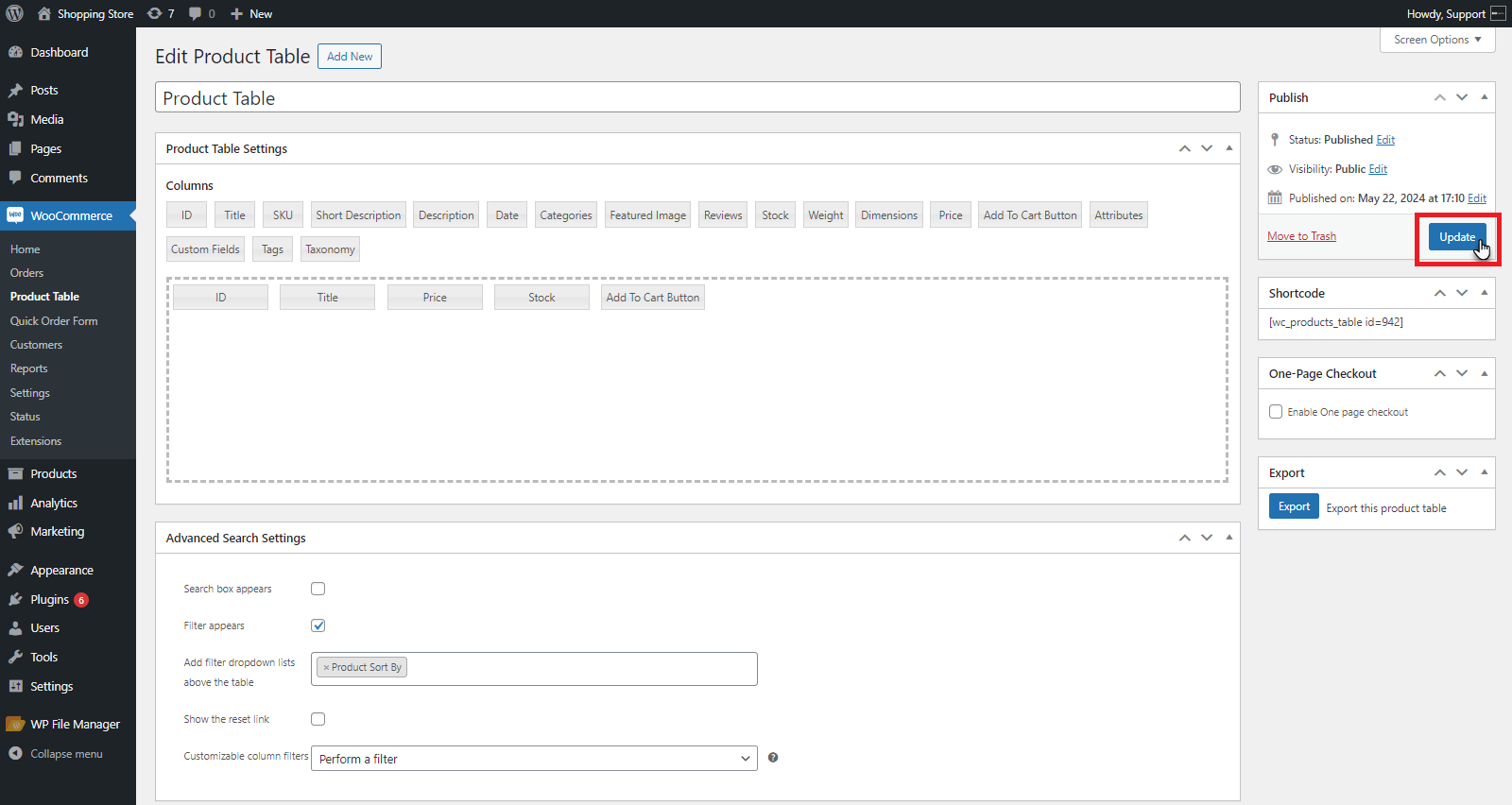
- To check the front-end impact, visit the Product Table page.
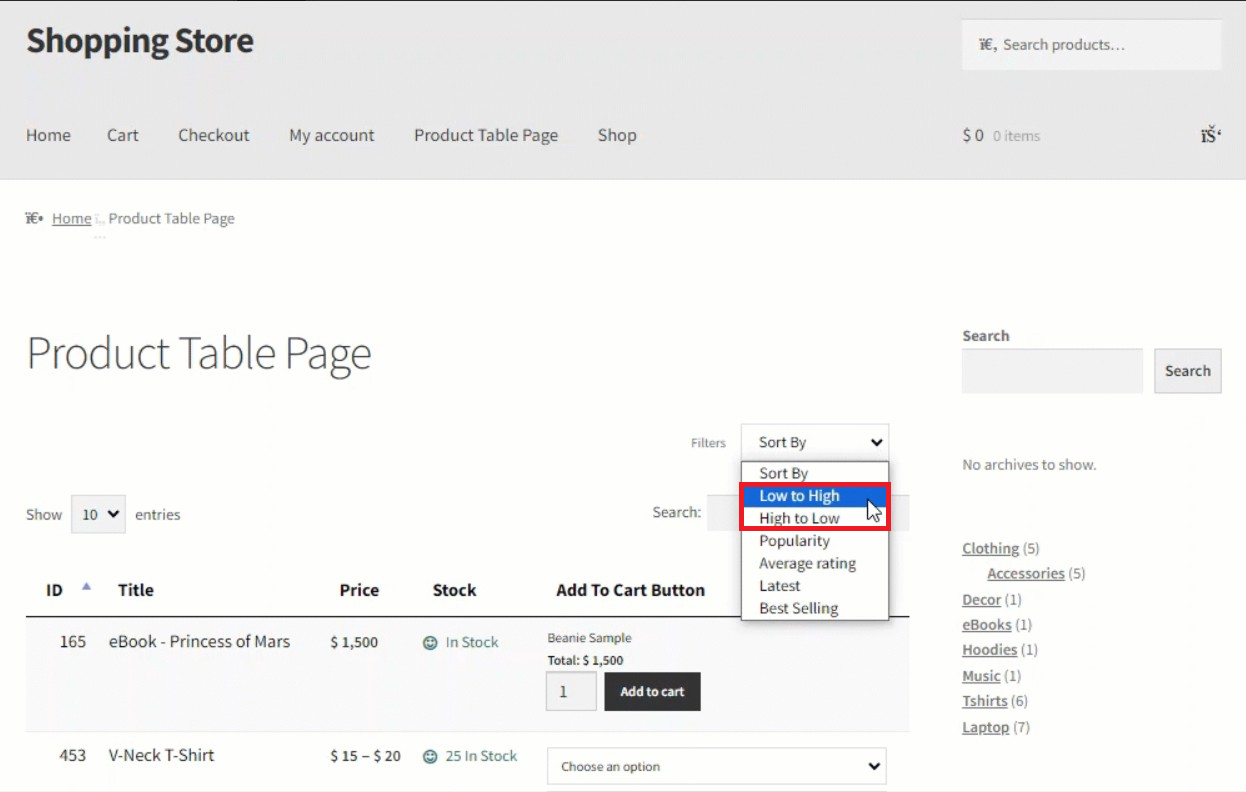
- You will view the Sort By filter above the product page.
Now, the impact on the front-end will look like this:
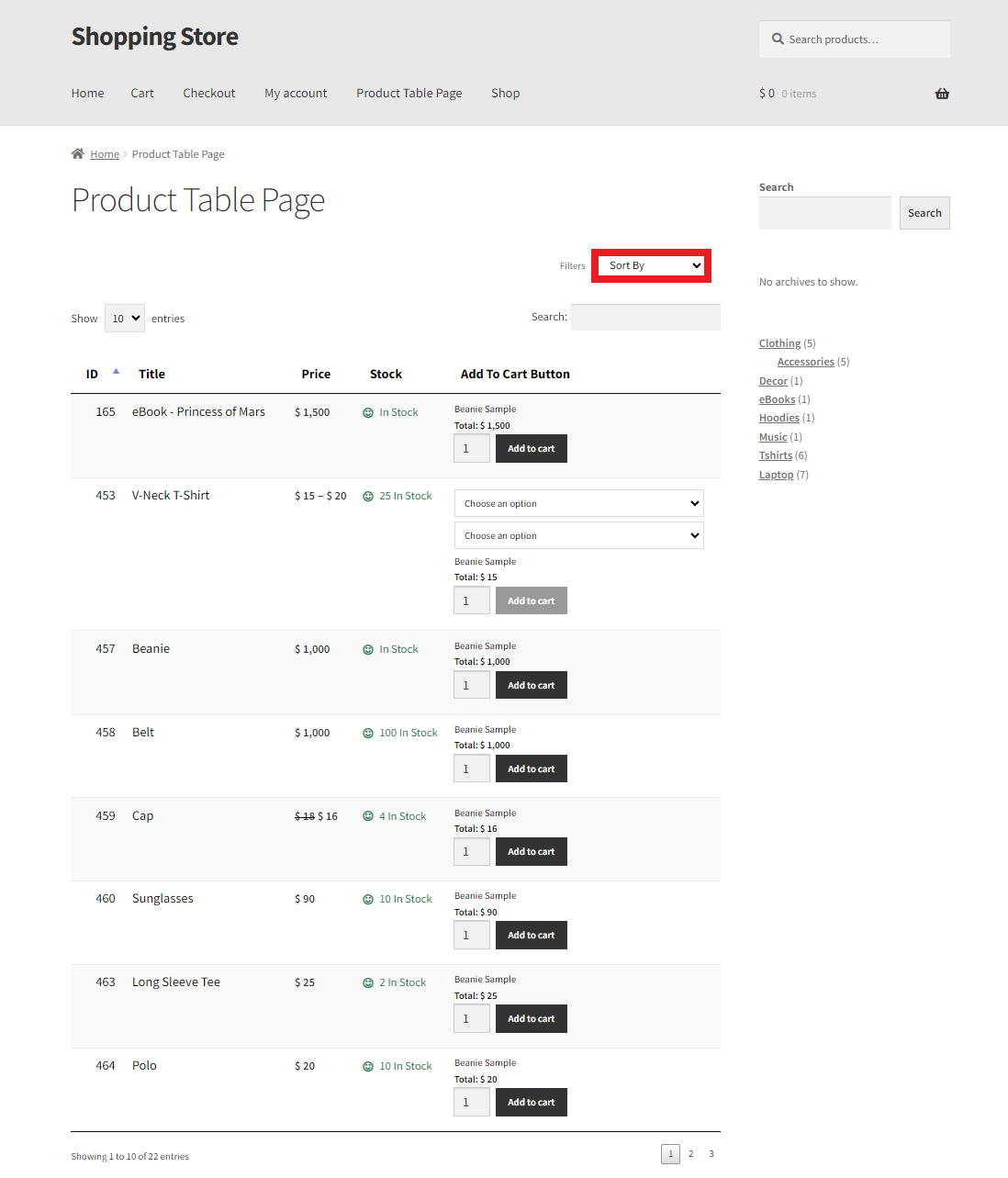
- You can filter the product via the option from the drop-down list. You can view the product according to the option selected.
Wrapping Up
If you want to transform the shopping experience of both your existing and prospective customers, benefit from the product sorting feature. The above simple explanation helps you arrange items on your WooCommerce order forms in the best possible way.
The product sorting feature not only helps customers easily discover their desired products but also enhances engagement and increases the probability of sales.
[product_banner index=’1′]