








































 Usman Hayat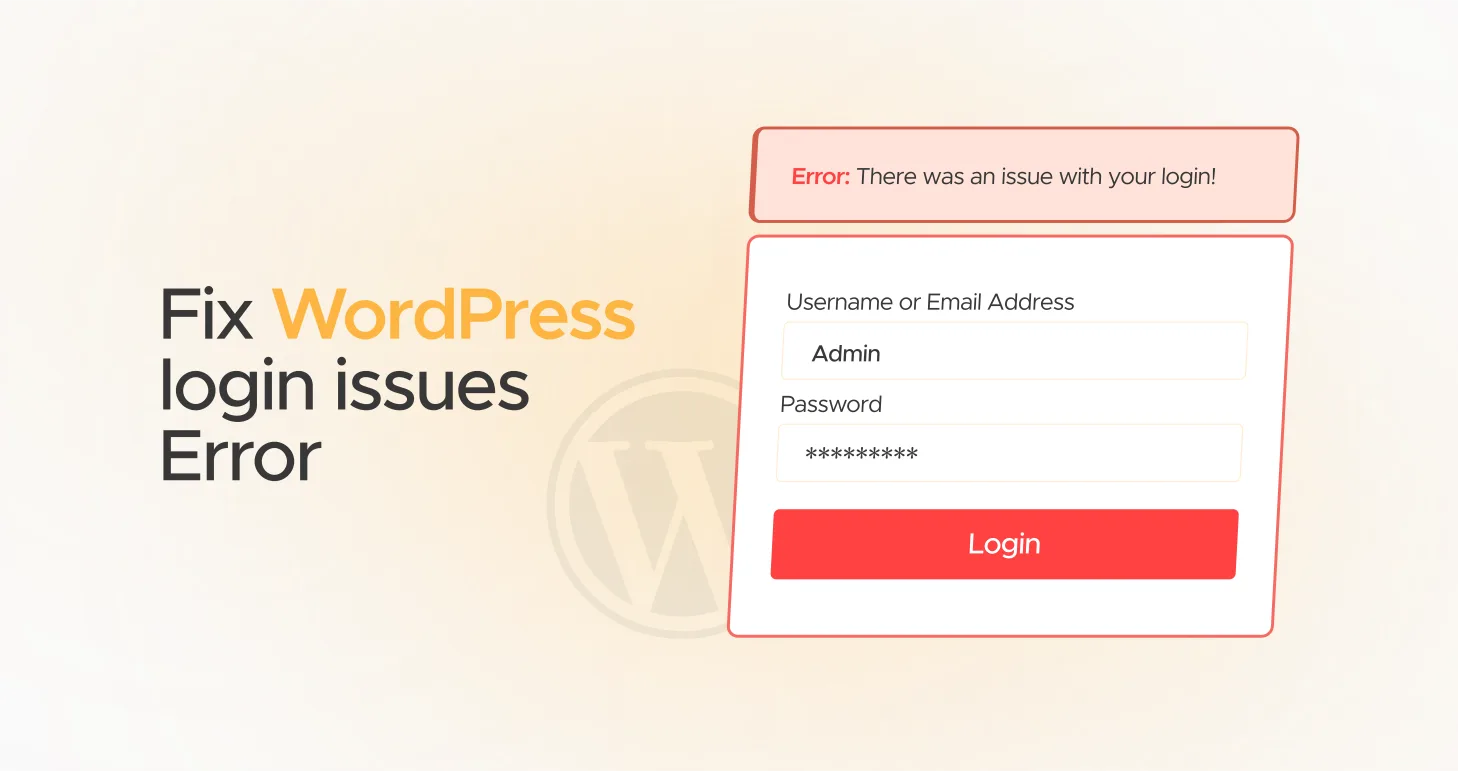
It’s annoying to be unable to log into your WordPress website. You might want to launch the new product you planned earlier. Similarly, you want to publish a blog post to sustain and improve your website traffic. Moreover, you are distressed that you have permanently lost access to your site.
You should take a deep breath. We have curated a list comprising various WordPress login issues alongside potential solutions, allowing you to regain control of your website.
This blog post will describe WordPress login issues and how to resolve them without fuss.
Common WordPress Login Issues

WordPress login issues can take many forms. However, one common thread is that they’re usually relatively easy to fix. This section will explain various potential WordPress login issues for users’ ease.
You Have Lost or Forgotten Your Password
Users usually forget their passwords, which is one of the obvious WP login issues. To avoid this problem, you should check your login page and press the ‘Lost your password’ option provided at the bottom of the page.

You should mention your email address or username, enabling WordPress to send you a link. Click this link to reset your password.
This option may not work at times. That’s because you have not received the email. If this is the case, you should use phpMyAdmin to change the password. phpMyAdmin helps manage a website’s database.
To find phpMyAdmin, use your hosting control panel and choose your WordPress database. Now, see the table with the name wp_users. Detect your username and press ‘Edit’. This will enable you to change your password. Through the user_pass field, choose MD5 from the dropdown list. Write your new password in the box and save the changes.
You can now easily log in to your WordPress website using the new password.
You Have Plugin Problems

The plugin helps improve the website’s functionality and productivity. However, it can likely trigger issues as well. Do you know that installing a new plugin or updating an existing one changes system files? It is true. A defective plugin can harm your system files, resulting in a broken login process.
Have you recently installed or updated a plugin? If so, it can trigger the WordPress login issue. Thus, you should deactivate the plugin using FTP and connect to your website using an FTP client such as FileZilla.
Now, visit the wp-content/plugins folder and detect the potentially problematic plugin. To disable it, you must rename the plugin’s folder. You should try to log in again. If you are unsuccessful, deactivate all plugins. To do this, rename the whole plugins folder using FTP. This way, you can deactivate all plugins. If you can log in successfully, it means a plugin was the culprit. You should activate your plugins again one by one.
Once you activate the plugin, remember to check if you can log in. This will allow you to identify and replace the faulty plugin with another one.
You Have Cookie Issues
As you know, cookies are small files that sites use to identify and remember users. WordPress enables you to log in by allowing cookies. If it does not, you may not log in. If you have cookie issues, examine your browser settings to ensure they are correct. Furthermore, the settings must allow cookies.
If the browser does not allow cookies or blocks them, you cannot log in to your WordPress site. To resolve this issue, navigate to the browser’s settings and search for the ‘Manage Cookies’ option. This way, your browser can set cookies.

If you are privacy-conscious, you can select the ‘Block third-party cookies. Thus, WordPress will set the cookies required for login; however, other websites will not monitor you. Try to log into your WordPress site once you have adjusted these settings. You can log in to your site if the cookies are the main problem.
You Have Theme Issues

Themes are a crucial element of any website. Like plugins, updating or changing themes can trigger WordPress login problems. A theme installation or update may conflict with the login process.
In this situation, you should select and enable the default WordPress theme. Once you have done so, check if it resolves the issue.
To change the theme, you will need to use phpMyAdmin. To do so, log in to your hosting control panel and open phpMyAdmin. Then, you must find the WordPress database and hunt for the wp_options table.
Try to detect the rows with a name template and a style sheet. Through these rows, you can find your existing themes. You can change their values to a default theme, such as Twenty Twenty-Five.
Once you make these changes, log in again to see if the issue has disappeared. If the theme triggered the problem, you can log in to your site. You can search for the new theme or further inspect the problem in this scenario.
As a WordPress site owner, you should also know how to secure the site’s login URL and resolve login issues.
You Have Cache Issues
Site owners can improve the user experience of their current and potential visitors through caches. Caches store tiny bits of information on sites and help them load faster. However, there is a catch: Caches tend to expire over time. They can also save outdated information, triggering WordPress login problems.
Therefore, you must clear your browser cache to delete old data that can result in the issue. To do this, go to the browser settings and look for the option to remove the cache.

The browser cache aside, you should remove the caches related to your website. If you have configured a caching plugin on your site, you can clear its cache by visiting the settings menu. Moreover, if you have installed a CDN (Content Delivery Network), remove its cache. Likewise, you should consider removing the server cache if it caches data.

This will help your website load the updated data. Once you have performed this activity, log in to your site again to see if the issue has vanished.
You Have 2FA Issues
If you don’t correctly configure two-factor authentication on your website, be ready to face WordPress login issues. Hence, you should ensure you have appropriately configured 2FA through a reliable plugin and remember to connect it to a trustworthy authenticator app.
For this purpose, you can use apps such as Authy, Google Authenticator, and more. If you cannot log in, unlink and relink the 2FA app. This step will likely resolve the problem. If the issue persists, try temporarily deactivating your 2FA plugin.
You can deactivate the plugin using FTP and connect to your website. Now, visit the wp-content/plugins directory and identify your 2FA folder. Once you have found it, rename it to disable it.
You should log in again to confirm if you have bypassed the WP login issue. If your 2FA plugin was a culprit, you can easily log in. So, you should replace the problematic 2FA plugin as early as possible.
Wrapping Up
WordPress login issues can be annoying and may take countless hours of troubleshooting. The above possible solutions will help you eliminate the WP login issues correctly. Next time, when you face the WordPress login issues again, don’t panic. Follow the above workarounds to avoid WP login problems expertly.