









































 Usman Hayat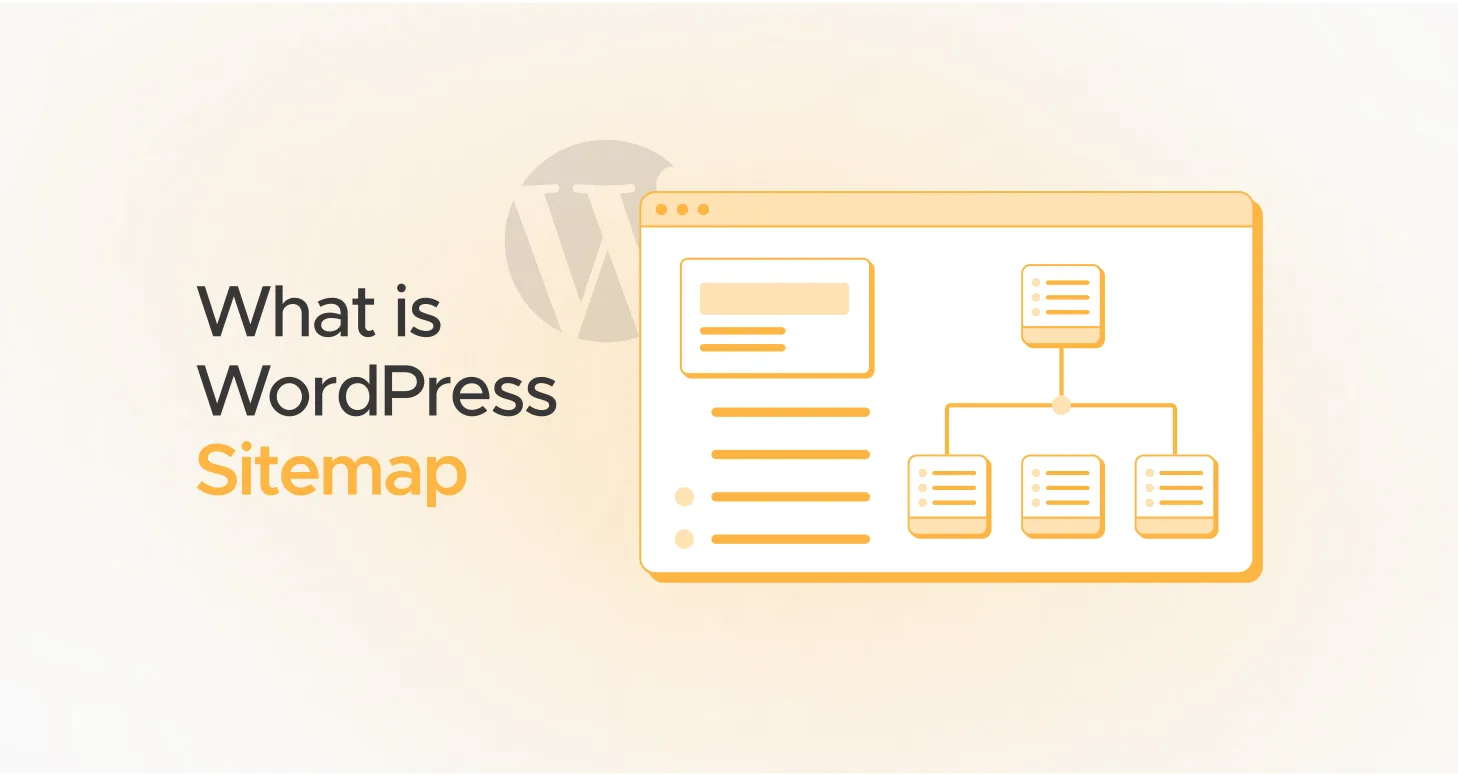
Have you ever wondered why your site does not rank on search engines or receive the visibility it deserves? Or why do a few pages on your site not get indexed? Your sitemap is most likely the culprit here.
A sitemap is handy for offering a roadmap of a site’s content. It also guides search engine bots to crawl websites smartly. A sitemap can help enhance a site’s presence on search engines and boost its SEO ranking.
But what is a WordPress sitemap, and why is creating one crucial for your website? This blog post will thoroughly answer this query.
What is a Sitemap?
A sitemap is an extensible markup language (XML) file that comprises a list of your site’s main or all pages. It allows search engines to review your site and index all its content.
An XML sitemap offers search engines a detailed overview of the website’s structure, including each page’s full URL and the last time it was updated.
What is a WordPress Sitemap?

A sitemap can be highly helpful in the context of WordPress. Furthermore, WordPress is a leading content management system. Therefore, your website has an edge over others if you have a well-structured sitemap.
Types of WordPress Sitemap
There are two key types of WordPress sitemaps: XML and HTML. The former is built mainly for search engines. Similarly, an HTML sitemap is suitable for human visitors. An XML sitemap lets search engines crawl your site easily, while an HTML sitemap helps visitors navigate your website.
How Can We Create a WordPress Sitemap?
You can create a WordPress sitemap in three ways:
- Through Built-in Feature
- Through SEO Plugins
- Through Online Tools or Solutions
Method 1: Through Built-in Feature
You might know that WordPress 5.5 and recent versions have an XML sitemap feature by default. This feature allows you to create an XML sitemap for your site, making it accessible to search engines.
You can find the sitemap without fuss using the URL yourwebsite.com/wp-sitemap.xml. This sitemap consists of pages, posts, and custom post types. This helps search engines discover and index your site’s content.
Method 2: Through SEO Plugins
Fortunately, depending on your needs, you can utilize various SEO plugins that help you perform a WordPress sitemap installation process without difficulty. For instance, when setting up a sitemap for your WordPress site, you can consider using Yoast SEO, AISEO (All In One SEO), and other plugins.
In this instance, our chosen plugin is Yoast SEO. Yoast SEO helps users create an XML sitemap for their websites. With this plugin, they can select the type of content to add to the sitemap. Whenever they update their sites’ content, Yoast SEO informs search engines.

To generate an XML sitemap for the WordPress site, follow the steps below:
- Install and activate the Yoast SEO plugin.

- Press Yoast SEO available on the left side. Now, click “Settings” > Site Features.

- Click “XML Sitemaps Card” through the APIs and activate the Enable Feature. Now, press View the XML Sitemap to view your sitemap.

- You can view your XML sitemap created by Yoast SEO in a new tab.

Method 3: Through Online Tools or Solutions
You can create a sitemap on the WordPress site using XML Sitemap Generator, an online tool. For this purpose, you can click the Try it now button.

Once you click this button, you will see the Web Page Settings page on your screen. You must sign up first for more advanced settings. For web page settings, you will have to fill in different fields like website address, update frequency, page priority, modified date, mm/date/yyyy, email address, and check boxes, including Agree to EULA, privacy, and cookies, and Let me know about bugs, fixes, and features.
- Website address: Mention the URL of your site.
- Update frequency: It denotes how often your site’s content will change. If you are not sure, choose None.
- Page priority: This refers to the significance of a specific URL relative to other URLs on your website. If you are not sure, choose None.
- Modified date: Select whether you want to mention the date your site was last modified. If you do not want to mention it, choose Not Included.
- mm/date/yyyy: Update this field by updating month, date, and year.
- Email address: Write your email address, as you will be informed once the sitemap is ready.
- Check boxes: You can select whether you want to receive updates regarding bugs, fixes, and features. You must also check another box that says “Agree to EULA, privacy, and cookies.”
Once you click the Create Sitemap button, you must perform the human check by entering the four characters provided in the image to confirm you are human.

Congrats! Your WordPress sitemap was created successfully once you filled the above fields and performed the human check.
Validate WordPress Sitemap
Sitemap Validator is a notable SEO tool that helps web developers authenticate sitemaps by entering their URLs. It allows them to confirm if the sitemaps are up-to-date based on the XML schema.
Moreover, it validates that you have followed the WordPress sitemap installation process in the right direction. To validate a WordPress sitemap, follow the steps below:
- Provide your website’s sitemap.xml URL.
- Press Check Sitemap.
- It will examine your sitemap for errors.

How Can We Submit a WordPress Sitemap to a Search Engine?
After successfully performing the WordPress sitemap installation process, you must submit it to prominent search engines like Google. Doing so will allow the leading search engine to detect and index your site’s content.

You should use the Google Search Console to submit your WordPress sitemap to Google. Google offers this free tool to users, enabling them to monitor and sustain their site’s existence in Google Search results. Follow the steps below to do this:
- Sign in to Google Search Console.
- You will select a property type by mentioning your domain name.

- You must authenticate your domain ownership through a DNS record.

- Choose your property if it has already been submitted.
- Through the Dashboard, navigate to indexing and click Sitemaps.
- Use the Add a New Sitemap field, write the sitemap’s URL, and click Submit.
- Once you have submitted the sitemap, Google Search Console will examine it and inform you of errors.
Once you have submitted your WordPress website’s sitemap to Google, it will likely take some time to scan and index your pages. Hence, you must monitor your Google Search Consoles to check the impact or progress and identify possible problems.
Wrapping Up
A WordPress sitemap allows search engines to detect your website’s content. Users can smartly generate the WordPress sitemap utilizing WordPress’s built-in feature. Similarly, they can benefit from various SEO plugins, such as Yoast SEO, All in One SEO, Google XML sitemaps, and more.
Fortunately, you can depend on online tools like XML Sitemap Generator when creating a sitemap for your WordPress site. Once you make a sitemap, you should submit it to Google or other search engines, depending on your needs.
You can use Google Search Console to submit your WordPress sitemap to Google. In addition, you must check your Google Search Console to evaluate the progress and detect potential issues if they occur.
Practically, the process doesn’t stop here. You must monitor your sitemap regularly, ensuring it remains free from glitches or errors. Discovering various sitemap errors and knowing how to fix them helps maintain and improve your website SEO’s health.
Undoubtedly, an error-free yet well-compiled WordPress sitemap helps a site’s presence in search engines. This way, you can improve your website’s traffic and conversions, increasing sales and revenues.